
You hit send, and Gmail stopped you. Or you are about to send something large and want to know whether it will go through.
Either way, you came looking for a number. Here it is: 500 a day on a free Gmail account, and 2,000 on paid Google Workspace.
But that number is also the reason most people misread their own limit.
Google does not run one sending cap. It runs eight of them at the same time, on separate meters. Messages per day is only one of them. Total recipients, unique recipients, and external recipients are three more, and each of them drains at a different speed depending on what you send.
Most guides quote whichever row they found first. That is why one article tells you 3,000 recipients per day and the next says 10,000, and why both are technically correct.
This blog walks through the numbers in the order they actually matter. First the meters Google runs, then the plan-by-plan breakdown, then the reputation layer that throttles cold outreach long before any published cap comes into play, and finally what to do about it.
Let's dive in.
Workspace limits are from Gmail sending limits in Google Workspace (Google Workspace Admin Help, last updated August 14, 2026). Free Gmail limits are from Limits for sending and getting mail (Gmail Help).
Google states directly that sending limits can change without notice, so treat the table as accurate rather than permanent.
Two rows in that table sit at the heart of most confusion in this topic: total recipients per day and unique recipients per day. Section 3 explains why they look like the same thing and are not.
Before the plan-by-plan breakdown in sections 5 and 6, these four counting rules apply to every account type, so it helps to have them straight first.
Google counts email addresses, not messages composed. One email addressed to fifty people in Bcc is closer to fifty sends than to one.
That is why a single all-staff announcement can eat a meaningful chunk of a daily allowance while a full day of one-to-one replies barely registers. I've broken down how these email sending limits affect campaign planning if you want the operational view.
Google specifies that limits per day are applied over a rolling 24-hour period, not a set time of day. Nothing resets at midnight.
Send 2,000 messages at 3 PM on Tuesday and you are not clear until 3 PM on Wednesday. Split that volume across the day and your capacity returns in the same staggered pattern.
Teams that plan around a midnight reset get caught by this constantly. The window follows your sends, not the clock.
Google lists three categories that count toward the daily limit even though most people never think about them:
That last one causes real damage during outbound. An active out-of-office reply firing on every inbound message is quietly spending your sending quota while you are away.
Auto-forwarded messages are the exception. Google allows 10,000 per day and states explicitly that they are not included in the daily sending limit.
Workspace separates people inside your domain from people outside it, and this is the split that outbound teams keep tripping over.
Google defines external recipients as email addresses outside your primary domain, including domain aliases and alternate domains. Internal is everyone else. For outbound, every prospect is external.
The external caps are tighter than the headline numbers, and they are the ones cold outreach actually runs into. A single message allows 2,000 recipients but a maximum of 500 of them can be external.
Those four rules apply the same way across every account type. What changes across account types is how much room they leave you to work with, and that starts with the tightest configuration: a free Gmail account.
A free @gmail.com account is where the counting rules from section 4 hit their smallest allowance.
You can send to 500 recipients per day. Google's help documentation frames the error trigger as sending to more than 500 recipients in a single email, or sending more than 500 emails in a day.
Hit it and sending pauses. You can still receive mail and use every other Google service.
A single message tops out at 500 addresses across the To, Cc, and Bcc fields combined.
Because the daily cap is also 500, one maximum-size email exhausts your entire day. There is no scenario where a free account sends two large messages in the same 24 hours.
There is no separate Bcc allowance. Bcc addresses count toward the same 500, exactly like To and Cc.
Putting 400 people in Bcc leaves you 100 recipients for the rest of the day, including replies to your own team.
Connecting a free Gmail account over SMTP drops the per-message recipient limit to 100, well below the 500 available in the web interface.
That catches people who assume a script or third-party tool inherits the same allowance as the browser. It does not. I've written a longer breakdown on how SMTP rate limits interact with cold email if you are sending through a relay or API.
Google states that after a free Gmail block, you should be able to send again within 1 to 24 hours. For Workspace, Google specifies that users cannot send new messages for up to 24 hours after hitting a limit.
Repeated violations extend the wait. Google's spam and abuse policy states that accounts sending spam may be permanently restricted from sending email.
Free Gmail is the small-numbers case. Workspace is where the ceilings go up, but so does the amount of small print you need to read, and that is what section 6 walks through.
Workspace looks like a straightforward upgrade from free Gmail. It is not. The plan you are on, the age of your billing, and the way you connect all change the number you actually get to use.
A Workspace free trial is capped at 500 messages per day and 500 external unique recipients per day. That is free-Gmail territory, not paid Workspace territory.
Google is explicit that free trial accounts have different limits than paid accounts, and that limits are not increased during the free trial period.
That is the single most common surprise for teams spinning up new domains for outbound. The domain is new, the plan says Workspace, and the limits behave like a personal account.
Here is the detail almost no guide covers, and it changes how you should sequence a domain rollout.
Converting to a paid subscription does not lift your limits immediately. Google states that sending limits increase automatically once your domain has cumulatively paid at least 100 USD or the equivalent. If you bought the domain from Google, that threshold is the domain cost plus 100 USD.
The catch is what comes next. Google says it can take up to 75 days after meeting that payment threshold for account sending limits to increase.
So a domain bought and paid for in January may still be sending at trial limits well into March. If your outbound plan assumes 2,000 per day from a freshly paid domain, you need to rebuild the plan.
A paid Workspace account gets 2,000 messages per day per user.
Alongside that, three separate recipient meters run at once. Total recipients per day allows 10,000. Unique recipients per day allow 3,000, of which 2,000 can be external. External recipients per day allow 3,000.
For normal business communication, you will never see any of these. For outbound, they are the operating constraint.
Mail merge, previously called multi-send, is capped at 1,500 rather than 2,000. That applies to both messages per day and total recipients per day.
Anyone using Gmail's native merge for a campaign is working with 25 percent less headroom than standard sending, and Google does not surface this anywhere in the compose window.
Sending method changes your per-message recipient limit, and the drop is steep:
Google also notes that sending limits are different if your organization uses the SMTP relay service to route outgoing mail through Google, and directs you to a separate set of relay sending limits. Quotas may also differ if you are using Google Apps Script.
Two caveats are worth knowing here, both stated by Google. The 50 MB allowance on Enterprise Plus is available only on the web version of Gmail, not the mobile app or a desktop mail client. And these values measure the total size of message content and attachments before encoding, so real usable capacity is lower than the number suggests.
Everything up to this point is system capacity. This section is about the other layer that runs in parallel to it, and it is the layer that decides whether cold outreach actually lands.
Gmail's spam filtering runs independently of the sending quota. Filtering decisions are based on sender reputation, recipient engagement, and list quality.
A brand new Workspace account with 2,000 available sends can start landing in spam at forty. Nothing in the Admin console will tell you this is happening. Your sends succeed, your quota barely moves, and your replies quietly stop.
The published cap tells you when Gmail will stop you. Reputation tells you when Gmail will stop delivering you. Those are different events, and the second one arrives first. My longer breakdown on how to avoid spam filters in cold email covers what each signal actually measures.
Google treats a new domain as an unknown quantity. There is no sending history to evaluate, so early behavior sets the baseline.
A domain registered last week that starts sending 200 cold emails a day is describing itself accurately to Gmail's filters, and not favorably.
Gmail tracks unique recipient counts over time and reads gradual increases as normal mailbox behavior. Sharp jumps read as automation.
A pattern that increases steadily over days and weeks looks like a growing business. A jump from zero to 200 overnight looks like a list purchase. I've written more on how email volume affects spam filters and the ramp curves that actually hold up.
High bounce rates signal an unverified or stale list. Once Gmail sees a meaningful share of sends hitting invalid addresses, it lowers trust in everything else you send.
This one compounds badly. The bounces damage reputation, the damaged reputation increases filtering, and the increased filtering reduces engagement, which damages reputation further.
Verifying before sending is not a nice-to-have here. It is the cheapest reputation protection available.
Opens, replies, and manual spam reports all feed back into how Gmail treats your next send.
Google's Email sender guidelines set a spam complaint rate below 0.3 percent as the working threshold for bulk senders. Consistently above that and delivery degrades regardless of volume.
Add those five signals together and you get the number that actually matters for outbound.
The commonly cited ceiling for cold outreach from a single account sits at roughly 50 emails per day, with many outbound practitioners recommending 30 to 40. This is not a Google-published figure. It is an operating convention among outbound teams, and it lines up with what I've seen across dozens of warmup cycles.
Against a published limit of 2,000, that feels absurdly conservative. It is also what works.
And that surfaces the actual problem. If the safe volume per inbox is 40 and you need to reach 800 prospects a week, you do not need a higher limit. You need visibility into what your mailboxes are actually doing, and infrastructure that spreads sending across enough inboxes to keep every one of them healthy.
Section 10 covers how to build that setup. Before that, sections 8 and 9 cover the errors and requirements you will run into along the way, so you can read them the moment they show up.
This section covers the visible one, because when Gmail does return an error, the exact wording tells you which meter you exhausted and how to fix it.
The first three below are quoted directly from Google's Workspace documentation. The remainder are standard SMTP and Gmail responses.
Google directs admins to the Gmail section of User reports: Apps usage for exact counts of messages sent and received per user. That is the fastest way to identify which meter ran out rather than guessing.
If the account is suspended rather than throttled, Google publishes a restore process through the Admin console.
These two get confused constantly, and mixing them up means applying the wrong fix.
Quota errors mean you sent too much in 24 hours. The fix is time, or more accounts.
Rate limit errors mean you sent too fast. The fix is spacing sends out, which is a settings change rather than a capacity problem. There's more on the mechanics in my breakdown on email throttling causes and fixes.
A campaign firing 200 emails in three minutes can trigger rate limiting while sitting comfortably inside its daily quota.
Errors are what happens when a specific meter runs out. Section 9 covers the layer that decides whether Google accepts your mail at all, and it sits alongside the sending limits rather than underneath them.
Google enforces sender requirements that determine whether your mail is accepted. Google points senders to its Email sender guidelines to reduce the likelihood that messages get blocked or marked as spam.
The working checklist, per those guidelines:
These apply on top of your sending limits, not instead of them. Passing authentication does not raise your quota, and a healthy quota does not help if authentication fails.
Warmforge runs daily SPF, DKIM, and DMARC checks on every connected mailbox, so if any of these records break, you find out before Gmail does. I've written a fuller technical breakdown on SPF, DKIM, and DMARC for cold outreach that goes into what each protocol enforces.
The goal is not raising Gmail's limit, because you cannot. The goal is building a setup where the limit stops being the constraint.
Here is how you can send more emails through Gmail without getting blocked.
A new inbox has no sending history, so Gmail has nothing to base trust on. Warmup creates that history by exchanging genuine, engaged conversation before campaigns begin.
Two to three weeks is the working minimum for a fresh account, and a fresh domain needs longer. Warmforge recommends a 14-day warmup for both Google and Microsoft mailboxes before you start real outreach, and the Heat Score tells you when your mailbox is actually ready. A score of 85 or higher is the working target.
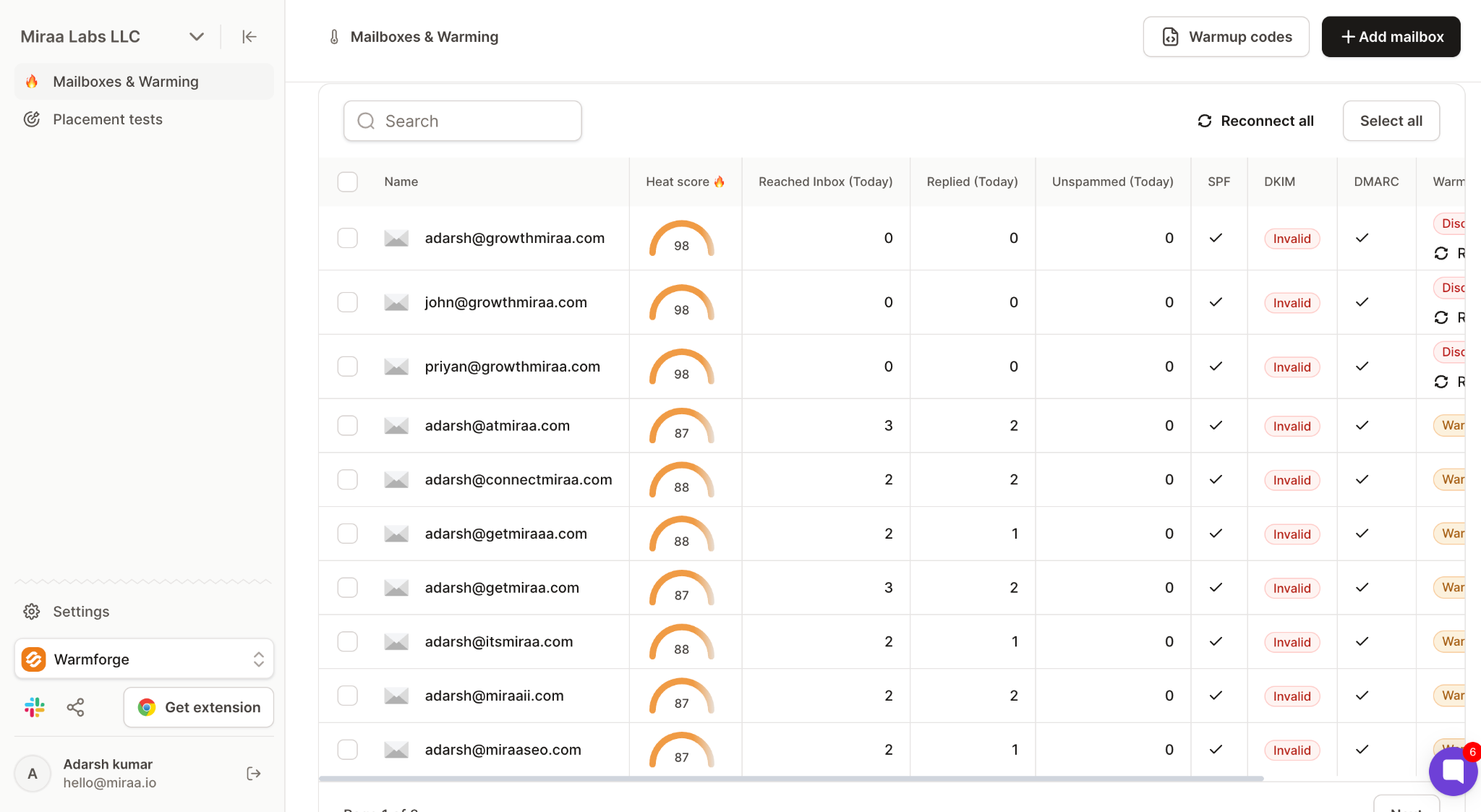
If you want the mechanics of the ramp, I've broken down the full email warmup process step by step, including what to do when the ramp finishes and campaigns begin.
Warmup gets one mailbox to healthy. This step is the structural fix that keeps it there.
If safe volume per inbox is 40 per day and you need 600 sends a week, that is roughly four inboxes running comfortably rather than one running hot.
Warmforge warms the mailboxes and monitors them. For the sending side, Salesforge handles the actual sequencing across unlimited mailboxes with built-in sender rotation and Primebox™ for unified reply management, so you are not manually tracking daily counts per account. I've covered the full sending playbook in how to send bulk emails without getting spam.
The infrastructure to buy those mailboxes matters too. Mailforge is the option for shared-IP setups at scale. Infraforge is the option for dedicated IPs when you need full reputation control. And Primeforge is the option if you specifically want real Google Workspace or Microsoft 365 mailboxes with automated DNS. Any of them plug into Warmforge for warmup and into Salesforge for sending.
Warmup and spread give you healthy mailboxes and enough of them. The next thing to get right is the shape of the volume increase once you start sending for real.
Even a warmed account should not jump to full volume on day one. Gradual increases read as normal growth to Gmail's filters. Sudden ones do not.
Warmforge handles the ramp during the 14-day warmup and keeps warmup running in the background once campaigns start, so reputation does not decay the moment sending begins.
Once mailboxes are ready, the fastest way to undo the work is a bad list.
Bounces are the fastest way to damage a domain you spent three weeks warming. Verifying before send removes invalid addresses while they are still harmless.
Leadsforge handles verified B2B contacts on the sourcing side, with waterfall enrichment across multiple data providers. That keeps bounce rates low before the list ever hits Warmforge or your sending tool.
Warmup, rotation, and a clean list get you sending. The next step is knowing what happens after the send.
Delivered and inboxed are different outcomes. A campaign can report near-perfect delivery while sitting in Promotions or spam.
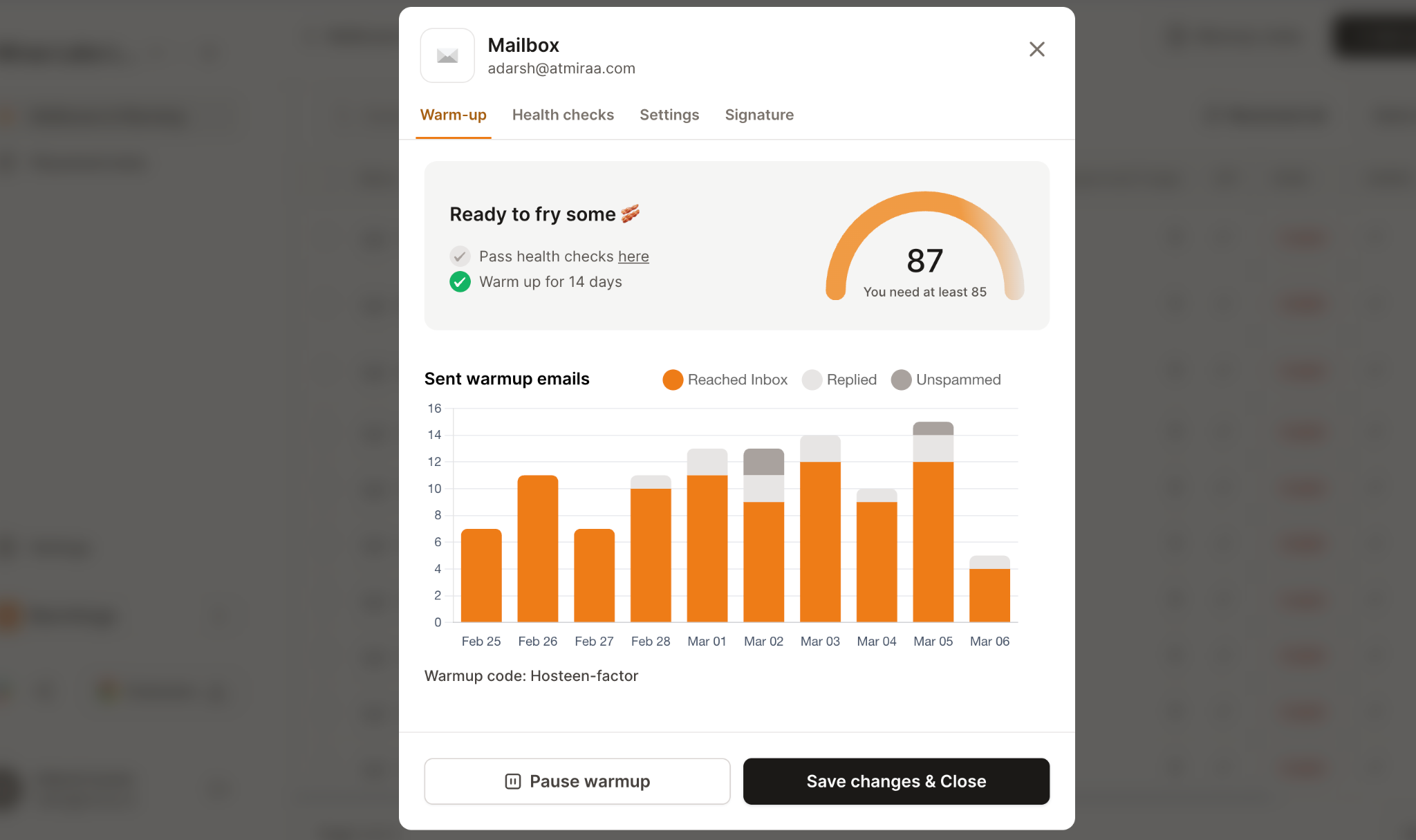
Warmforge's placement tests show where your messages actually land across Gmail and Microsoft accounts per mailbox, and the Deliverability Center centralizes Heat Score, DNS checks, and blacklist status so you can spot problems before they become drops in reply rate. I've put the full pre-launch pass in this inbox placement checklist.
The last move is the one that costs nothing to configure and gets skipped anyway.
Two hundred emails in three minutes looks automated because it is. Real inboxes send irregularly across a working day.
Sending interval controls introduce natural gaps between sends. This is a sending-tool setting, not a warmup one, so configure it in whichever platform is actually sending your campaigns.
Those six moves are the operational fix. Section 11 shows what changes when you add a deliverability layer on top of Gmail rather than running Gmail on its own.
Everything in section 10 assumes you can see what your mailboxes are doing. This section shows what that visibility looks like in practice, side by side with Gmail on its own.
Warmforge does not send emails and does not raise Gmail's limits. Nothing does. What it changes is whether you can see what your reputation is doing between the sends.
For the sending side, Salesforge handles unlimited mailboxes, sender rotation, and Primebox™ for unified replies. The full stack looks like this: buy mailboxes from Mailforge, Infraforge, or Primeforge, warm and monitor them in Warmforge, and send through Salesforge.
The honest framing: no tool raises Gmail's limits. Warmforge makes the space between the limits legible, and that is where most outbound campaigns actually break.
The main story ends with section 11. Before the FAQ block, a few adjacent caps come up often enough to answer here.
25 MB for sending on most editions, with Enterprise Plus reaching 50 MB on the web client. Receiving allows more than sending.
Files above the limit are automatically converted to Google Drive links rather than rejected.
Google allows 10,000 auto-forwarded messages per day and states these are not included in the daily sending limit. Account filters that automatically forward messages are capped at 40.
Google states that the Gmail mobile app in Google Sync mode uses the same sending limits as Gmail in a web browser. In IMAP mode, the tighter SMTP sending limits apply instead.
Using your phone does not give you extra capacity.
Groups for Business runs its own message and posting limits, entirely separate from individual Gmail sending limits. If you are sending to a group address, that is the documentation to check.
A free Gmail account allows 500 recipients in a single message. A Google Workspace account allows 2,000 recipients per message, but no more than 500 of those can be outside your domain.
500 per day on a free account. 2,000 per day on a paid Google Workspace account. 500 per day on a Workspace trial account.
Yes. Every address in the To, Cc, and Bcc fields counts individually. There is no separate Bcc allowance.
Up to 500 on a free account and up to 2,000 on Workspace, counted together with To and Cc. External recipients are capped at 500 per message.
No. Limits run on a rolling 24-hour window. Capacity returns 24 hours after each send, not at a fixed time.
Typically 1 to 24 hours depending on which limit you exceeded. Repeated violations extend the block, and sustained abuse can permanently restrict sending.
Most often you are on a Workspace trial, which caps at 500 rather than 2,000. If you converted to paid recently, limits rise only after your domain has cumulatively paid 100 USD, and that increase can take up to 75 days.
There is no fixed number. Gmail's filters respond to reputation, engagement, and list quality rather than volume alone. For cold outreach, staying under 50 per day per account is the common ceiling, and 30 to 40 is safer.
100 recipients per message when sending through SMTP with POP or IMAP, regardless of plan. The Gmail API allows 500 per message.
Yes. Mail merge is capped at 1,500 messages and 1,500 total recipients per day, lower than the standard 2,000.
Not directly. Workspace limits rise automatically once your domain meets Google's cumulative payment threshold, but there is no request process for going beyond the published caps.
Yes. Messages sent by Gmail's vacation responder count toward your daily sending limit, as do messages sent from aliases and by delegated users.
Heat Score is the working metric. A score of 85 or higher on Warmforge means your mailbox has enough sender reputation to start real outreach. Below that, run the warmup for the full 14 days and re-check.