Sending bulk emails should feel simple. You build a list, write your message, hit send, and wait for replies. But anyone who has actually done it knows the reality is different. Half the emails land in spam, a few bounce back, and sometimes Google flags your account as suspicious.
I have been through this cycle more times than I can count, and every time the fix came down to the same handful of steps done in the right order.
The good news is that sending bulk emails is not the problem. Sending them the wrong way is what breaks deliverability. Every mistake here is fixable if you know what to do and when to do it.
In this guide, I will walk you through the six steps I use every time I run a bulk email campaign. Each step builds on the one before it, so please follow the order. Let's break it down.
If you are short on time, here is the entire playbook in six steps.
Each step below explains what to do, why it matters, and how to make it easier if you want to skip the manual work.
Before you fix anything, you need to know what is actually causing your emails to land in the spam folder.
In my experience, the reasons almost always come down to five things.
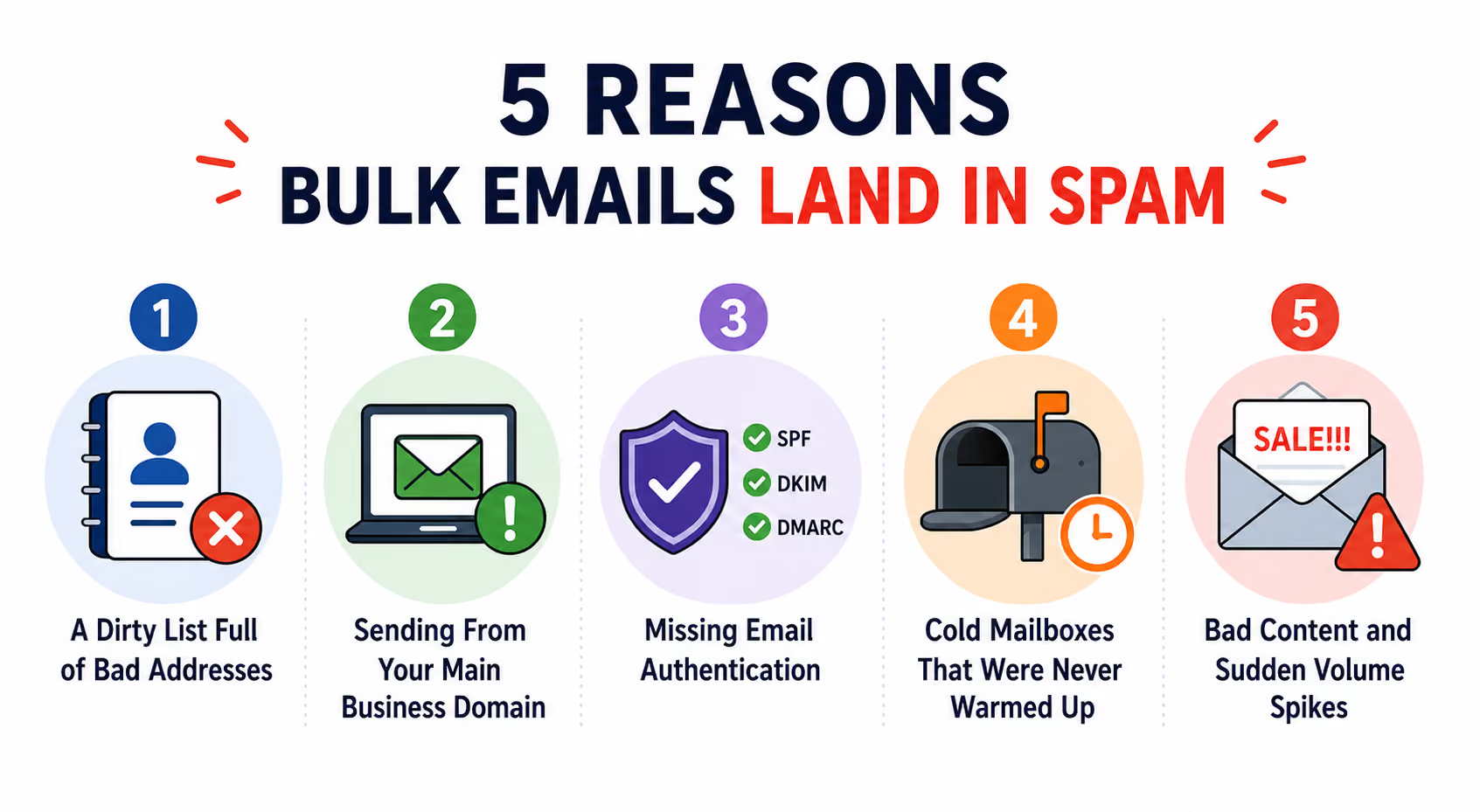
If your contact list has old addresses, fake addresses, or spam traps hidden inside, your sender reputation drops the moment you hit send. Inbox providers watch your bounce rate closely, and a single spam trap hit can damage your domain for weeks.
One bad campaign is enough to damage the reputation of the domain your team uses for regular email. If that happens, your normal work emails start landing in spam too, and recovery takes weeks of careful sending.
Gmail and Outlook now automatically flag any email that does not have SPF, DKIM, and DMARC records set up correctly. Google's 2024 sender rules made this stricter, and without these records, your emails get treated as suspicious by default.
Inbox providers treat brand new mailboxes with suspicion because they have no history. Blasting a fresh mailbox with hundreds of emails on day one signals to Gmail and Outlook that you might be a spammer, and they act accordingly.
Subject lines that look overly promotional, all-caps text, and image-heavy emails all trip spam filters. On top of that, sending thousands of emails from one mailbox in a short window sets off volume alerts.
If you want a deeper look at each of these issues, I wrote a full breakdown covering what is email deliverability and how each factor plays into it.
Now that you know what causes the damage, here is exactly how to fix it. The steps below need to happen in the order I list them, because each one depends on the last. You cannot warm up a mailbox before your domain is set up, and you cannot send safely without a clean list to send to.
Let me walk you through each step.
Your list is the single biggest factor in whether your bulk emails land in the inbox or the spam folder. If you skip this step, no amount of infrastructure or warmup can save you.
A bad list usually looks the same everywhere. It is either purchased from a shady database, scraped from LinkedIn, or made up of old contacts that have not been touched in years. Lists like these come with real problems that show up the moment you hit send.
Here is what a bad list actually contains:
A good list is the opposite. It is verified, matched to your ideal customer, and refreshed regularly so old contacts do not pile up over time.
Doing this manually is possible but slow. You would need to run every email through a verification tool, cross-check the data with a lookup provider, and repeat the process every few weeks to keep everything fresh.
The faster option is to use a lead search platform that handles verification and enrichment for you. This is where Leadsforge fits in. Here is what it gives you:
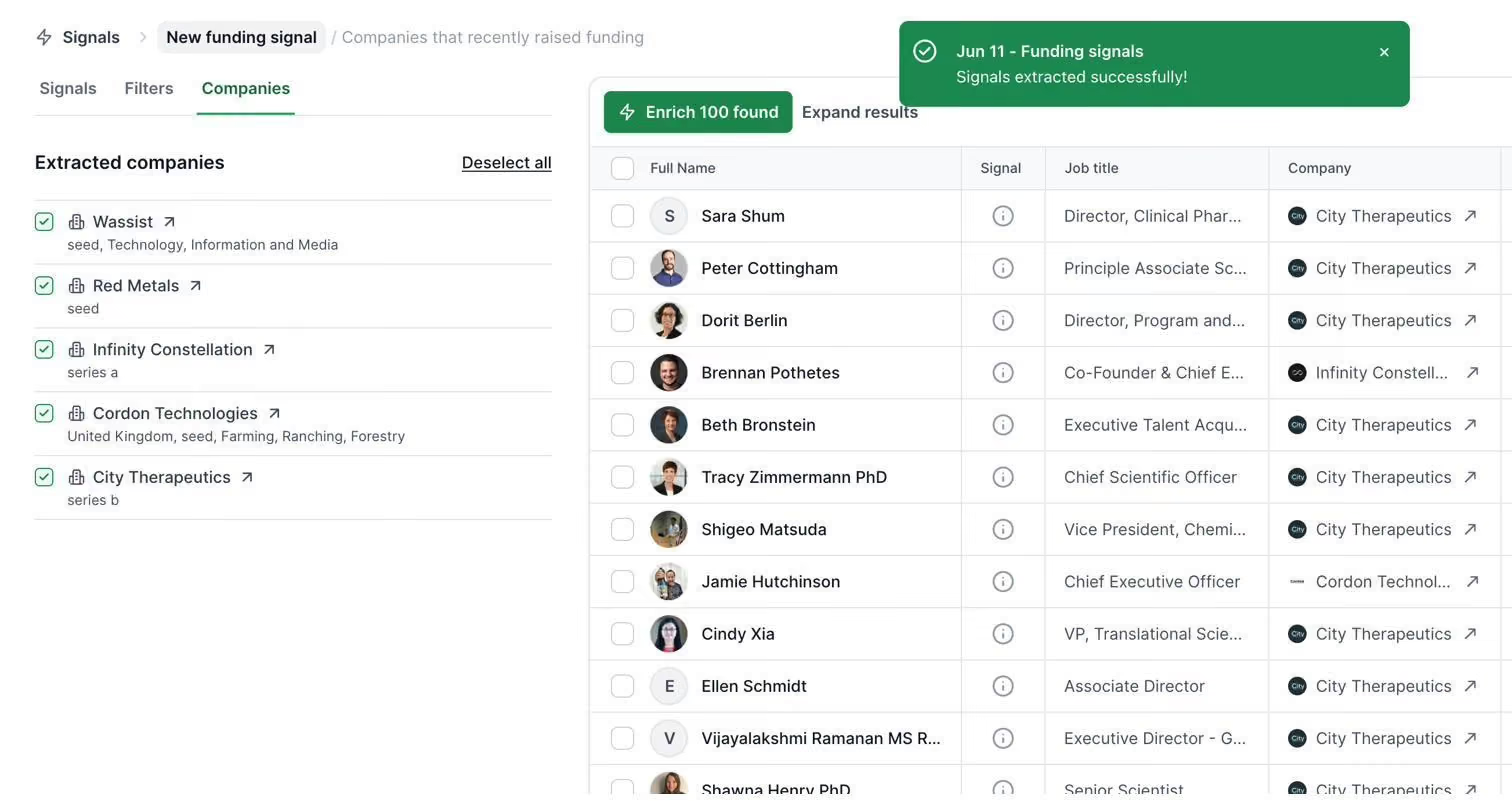
The cleaner your list is at this step, the less you will have to fight deliverability at every step that follows.
Once your list is ready, the next question is where you will send from. The answer is never your main business domain.
Here is why this matters so much. If a bulk campaign gets flagged as spam, the domain that sent it takes the reputation hit. If that domain is yourcompany.com, your entire team suddenly cannot send normal work emails without landing in spam. This is not a risk worth taking, so you need dedicated sending domains built specifically for bulk email.
The right approach is to buy separate domains that look like variations of your brand name. For example, if your main domain is yourbrand.com, you would buy yourbrand.co, getyourbrand.com, and tryyourbrand.io. Each of these becomes a dedicated sending domain, and you attach a few mailboxes to each one.
The rough math for scale looks like this:
Setting this up by hand is where most people give up. Buying twenty domains, connecting each one to a mailbox provider, configuring the technical records, and testing every setup takes an entire weekend if you know what you are doing.
This is where Mailforge fits in. Here is what it handles for you:
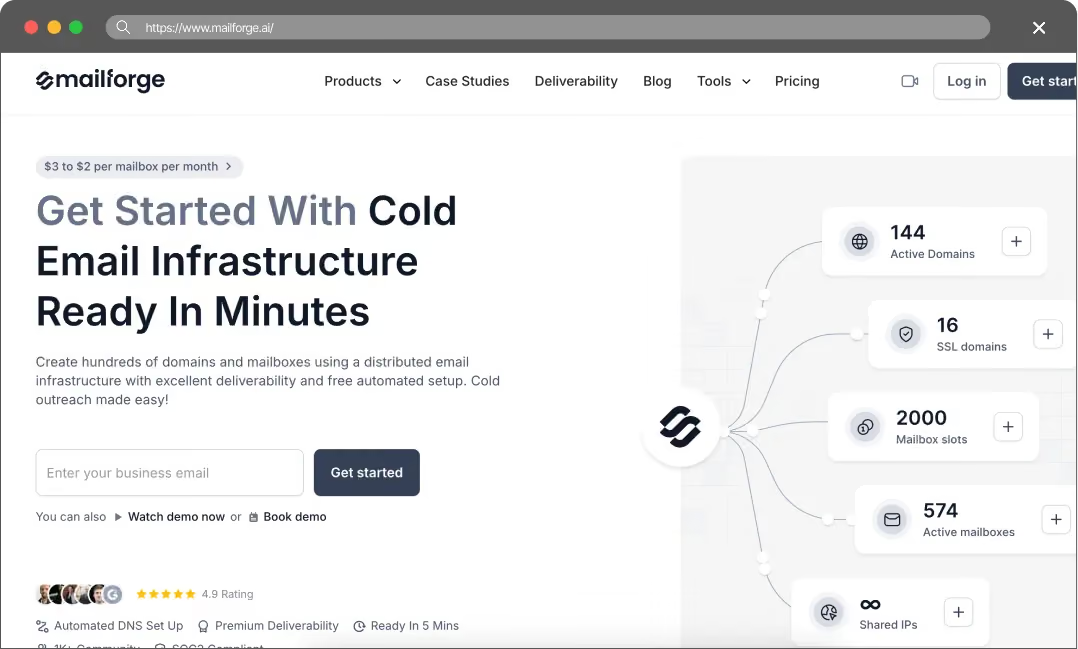
Once your infrastructure is ready, the next step is to make sure every inbox provider trusts the emails you send from these new domains.
Authentication is the technical layer that proves to Gmail and Outlook that you are who you say you are. Without it, your emails get treated as suspicious no matter how clean your list is or how good your infrastructure looks.
There are three records you need to set up on every sending domain. Here is what each one does in plain terms:
Google and Yahoo updated their sender rules in 2024 to require all three of these records for anyone sending bulk emails. If you skip authentication, your emails will land in spam by default. If you want a deeper breakdown of how each protocol works and how to configure them, I put together a full guide on SPF, DKIM, and DMARC for cold outreach.
The tricky part is that setting these records up manually is fiddly:
If you used Mailforge in the previous step, this problem is already solved. SPF, DKIM, and DMARC are configured automatically on every domain the moment it is created. That is one of the main reasons to use an infrastructure product built for bulk sending in the first place.
With authentication in place, your domains are trusted by inbox providers. Now the mailboxes themselves need to earn the same trust before you can start sending real campaigns.
Even with a clean list, proper infrastructure, and authentication in place, a brand new mailbox cannot start sending bulk emails on day one. Inbox providers treat new mailboxes with suspicion because they have no sending history to prove they belong to a real person.
Think of warmup as a credit score for your mailbox. Nobody gives a brand new applicant a large loan, and no inbox provider gives a brand new mailbox the benefit of the doubt. You need to earn trust before you can send at volume.
Here is what warmup actually does in the background:
The timeline is important to get right. You should warm up every new mailbox for at least 14 days before you send your first real campaign. If you want a deeper look at the exact schedule to follow, I put together a guide on how to warm up an email domain correctly that walks through it step by step.
The metric to watch during warmup is called your heat score. This is a number between 0 and 100 that tells you how healthy your mailbox looks to inbox providers. Anything above 85 means your mailbox is ready to send real campaigns. Anything below that means you should keep warming up before you send anything important.
This is where Warmforge fits in. Here is what you get:
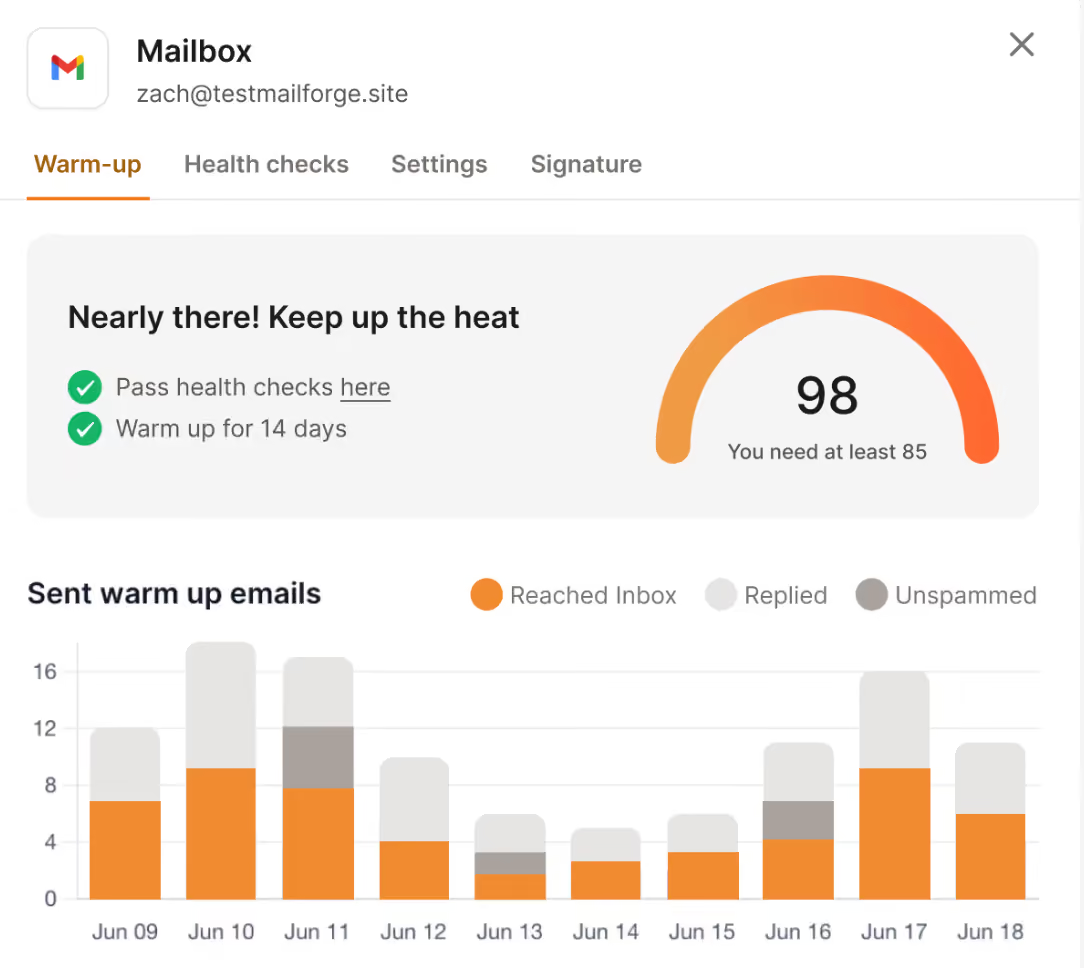
One important note. Warmup is not a one-time thing. Even after you start sending real campaigns, you should leave warmup running in the background on every mailbox. It keeps your sender reputation healthy over time, especially during periods when you send lower volumes.
Once your mailboxes are warmed up and hitting a heat score above 85, you are ready to send. But how you send matters just as much as everything you have done up to this point.
This is the step where most senders undo all the work they did in the previous steps. They set up their infrastructure properly, authenticate everything, warm up their mailboxes for two full weeks, and then send 2,000 emails from a single mailbox on day one. The result is predictable. All that careful work gets wiped out in a single afternoon.
The rule to remember is simple. Send small volumes per mailbox, spread across many mailboxes, at natural times of day.
Here are the numbers that matter:
Sender rotation is the technique that makes all of this work at scale. Instead of sending 500 emails from one mailbox, you split them across 15 mailboxes so no single one gets overloaded. If you want to see how these sending rules affect overall placement, my breakdown on how to check email deliverability shows the metrics to watch after each send.
The problem is that managing all of this by hand is nearly impossible. You would need to log into 15 mailboxes, schedule sends across each one, watch bounce rates in real time, and manually pause anything that starts misbehaving. Nobody has time for that.
This is where Salesforge fits in. Here is what it handles for you:
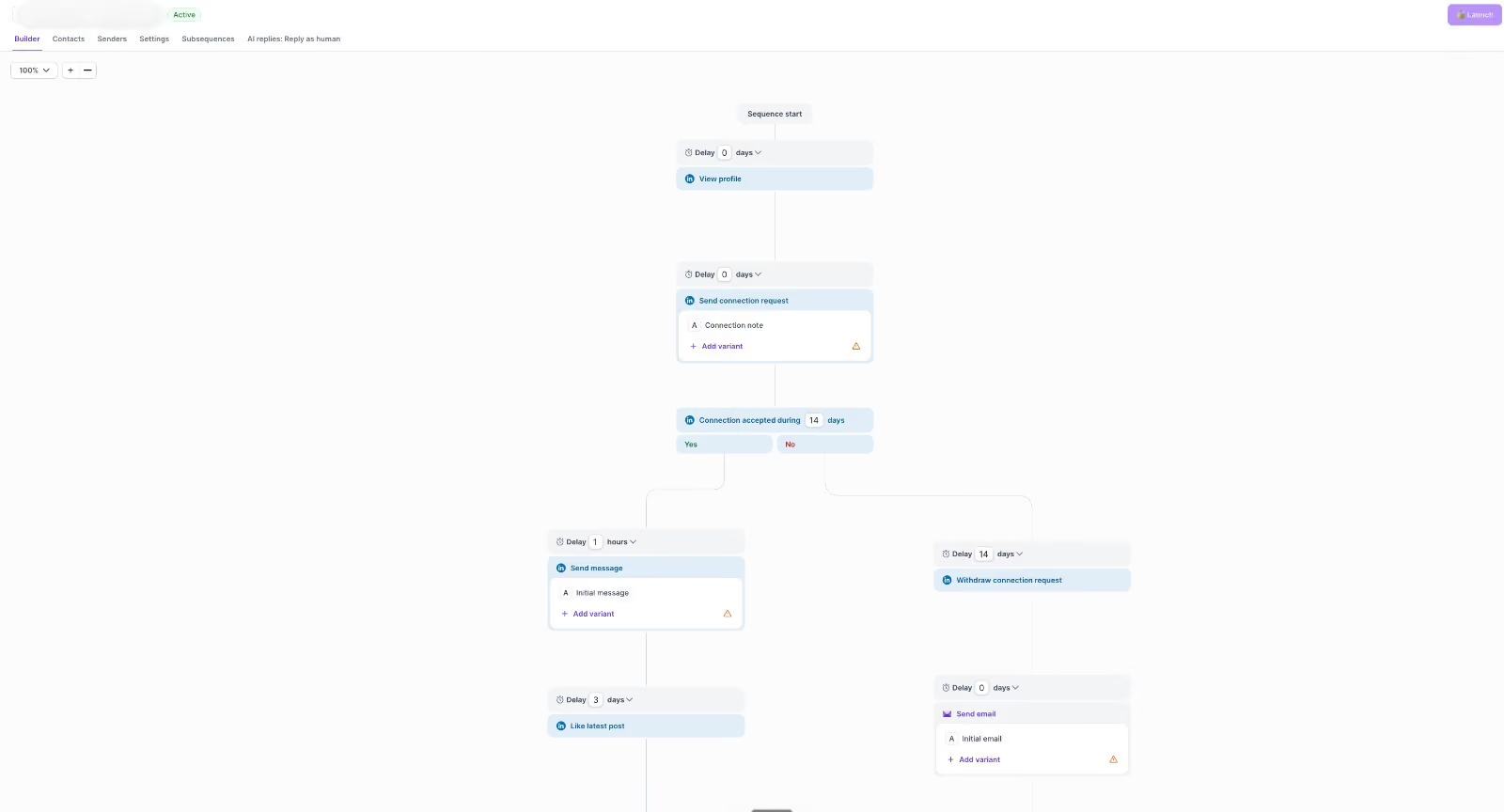
With sender rotation and smart limits in place, your infrastructure stays healthy campaign after campaign. Now the only thing left is what you actually put inside the emails.
You can have the cleanest list, the best infrastructure, perfect authentication, warmed-up mailboxes, and smart sending patterns. But if your subject line screams "GUARANTEED WINNER" and your email body is one giant image, you will still land in spam.
Content is the last line of defense, and it is where surprising numbers of senders slip up.
Here is what to avoid in your subject lines:
Here is what to avoid in your body copy:
Personalization matters more than most people think. Adding a first name is a good start, but real personalization means referencing something specific about the recipient. A recent job change, a company milestone, or a mutual connection all signal to inbox providers that this is a real message meant for a real person.
Finally, one non-negotiable rule. Every bulk email you send must include a working unsubscribe link. This is a legal requirement under CAN-SPAM in the US and GDPR in Europe, and it is also a strong deliverability signal. If people cannot unsubscribe easily, they will hit the spam button instead, and that is far worse for your sender reputation.
Here is the flow one more time, in the order I actually run it:
Each step protects the ones before it. Skip any of them, and the whole system starts to leak. If you want to see the best email deliverability tools that support this stack end to end, I broke down the top options in a separate guide.
If you want to start with the warmup and deliverability layer, Warmforge gives you one free warming slot and one free placement test at signup, which is enough to test whether your setup is actually working before you scale.
It depends on how many mailboxes you have. The safe rule is 30 to 50 emails per mailbox per day. To send 1,000 emails daily without flags, you would need around 20 mailboxes spread across 7 sending domains.
At least 14 days. If your domain is older but has been sitting unused, warm up for longer to rebuild trust with inbox providers.
Yes. Since Google and Yahoo's 2024 sender rules, all three records are required for anyone sending bulk emails. Without them, your emails get flagged as suspicious by default.
Not safely at scale. Personal mailboxes have low daily sending limits, and one bad campaign can lock your account. Always use dedicated sending domains and mailboxes for bulk email.
Yes, with rules. CAN-SPAM in the US and GDPR in Europe require honest sender information, a valid physical address, and a working unsubscribe link on every email. Following these rules keeps you compliant and helps your deliverability.
Shared IPs are cheaper and work for most senders below 5,000 emails per day. Dedicated IPs give you full control over your sender reputation and matter more when you scale beyond that volume.
Run a placement test. Warmforge includes a free placement test at signup that shows you whether emails are landing in inbox, spam, or promotions across Gmail, Outlook, and other major providers.