

Personalized Outbound Strategy
Get The Right Outbound Strategy In Minutes
Enter your email to get a custom plan & stack recommendation for your business
It's being carefully crafted by AI
Please check your mailbox in 5 minutes
Cold email fails quietly. A campaign can have a strong offer, a clean list, and a sharp call to action, yet still get no replies because the email never reaches the inbox. Gmail, Outlook, and Yahoo may sort it into spam before a buyer sees it.
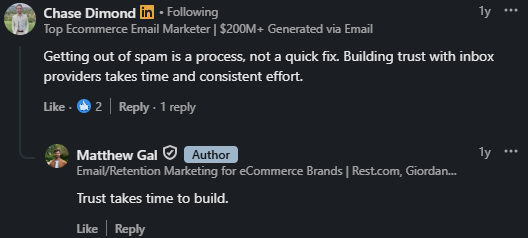
My view after many cold email programs is same as Chase Diamonds mentions, spam placement is rarely one problem. It is usually a stack problem.
Your domain setup, mailbox history, list quality, send rate, message content, links, and recipient response all feed the same trust score.
This guide gives you a practical way to find the real cause, fix it in the right order, and use Warmforge as the warm up, placement test, and mailbox health layer that helps you lower spam filter risk.
To avoid spam filters in cold email, set up SPF, DKIM, and DMARC, use a dedicated sending domain, warm up new mailboxes, verify your list, send low daily volume, write plain and relevant emails, limit links and attachments, add a clear opt out, and test inbox placement before you scale.
Spam filters do not look at one setting. They compare many signals and decide whether your email looks safe for the recipient.
The main signals are:
Cold outreach has extra risk because the recipient did not ask for the message. That does not mean every cold email is spam.
It means your setup needs to be cleaner, your send rate needs to be slower, and your message needs a clear reason to exist.
Here's how you can avoid Spam Filters in Cold Email:
A common mistake is to rewrite the subject line first. Sometimes copy is the issue. Often it is not. If your DNS is broken, your list is stale, or your inbox is too new, a better subject line will not save the campaign.
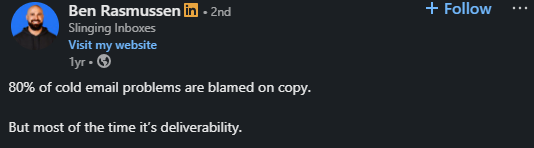
Ben Rasmussen made the same point recently on LinkedIn: 80% of cold email problems get blamed on copy, but most of the time it is deliverability.
Copy is the issue only when it is packed with spam trigger words, links, and desperate CTAs. If the inbox setup is weak, the best offer in the world ends up in Gmail's trash folder.
Use this triage table before changing anything else.
There is also a quieter failure mode: sending too rarely.
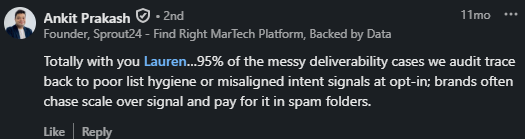
As Jaina Mistry shares, sending infrequently is a blindspot.
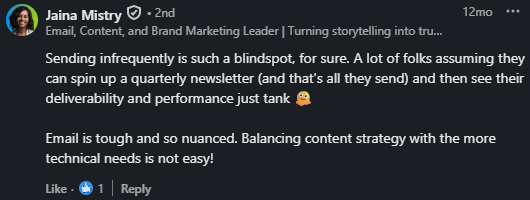
Teams spin up a quarterly newsletter, see deliverability tank, and assume the content is the problem. Mailbox providers want recent history. A six-month gap looks as risky as a sudden volume spike.
Your domain setup is the first trust check. If authentication fails, inbox providers have little reason to trust the rest of your email.
For cold outreach, protect your main company domain. Use a separate sending domain or a close variant. If a cold campaign has issues, your core team mail and customer mail are less exposed.
For cold outbound, the infrastructure underneath matters as much as the domain itself.
Mailforge works for teams starting out or expecting higher complaint volume, Primeforge is built for ESP matching with Google and Microsoft inboxes, and Infraforge gives you private infrastructure and full control at scale.
If you run on any of these, SPF, DKIM, and DMARC are configured automatically, so setup is a confirmation step rather than a manual task.
Do not pick a confusing domain that looks like a scam. Use a clean domain that a real buyer can understand when they check the sender.
SPF tells mailbox providers which servers may send mail for your domain. If your sending system is not listed in SPF, the message can look suspicious.
DKIM adds a signature to the email. It helps prove that the message came from your domain and was not changed along the way.
DMARC tells mailbox providers what to do when SPF or DKIM checks fail. For cold email, DMARC also helps protect your domain from spoofing.
MX records route mail for your domain. If they are wrong, your inbox can behave poorly. Blacklist status is another sign to watch. It does not explain every inbox issue, but it is a clear warning when present.
Warmforge helps here by checking DNS, MX records, and blacklist status from one place, so teams do not have to treat setup as a one-time task.
A fresh mailbox has little history. If it sends cold emails right away, inbox providers see a new sender asking for trust without proof. Warm up builds that history over time.
Warmforge handles this automatically. It simulates real inbox behavior, sending, receiving, and replying, across Google and Microsoft inboxes using a private warm up network that excludes bad actors.
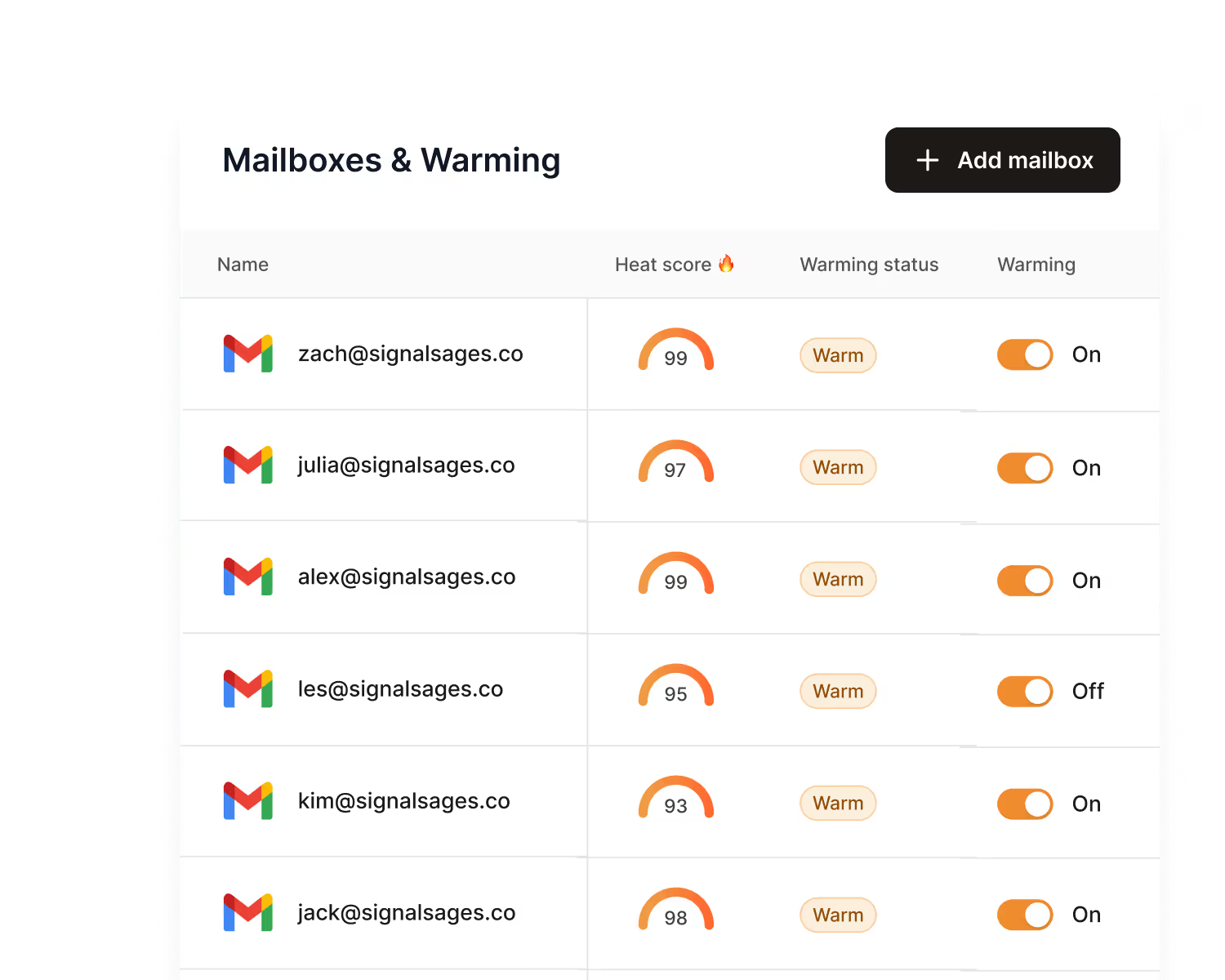
A two week minimum is recommended before any cold send. Three to five weeks is safer for new domains.
Warm up should also stay active during live campaigns so positive signals never stop flowing into Gmail and Outlook.
Warm up helps most when:
Warm up does not fix everything. It will not repair bad data, a broken DMARC record, misleading copy, high bounce rates, or complaints from people who should not have been contacted.
Cold email volume should rise slowly. A new inbox sending a large batch on day one looks risky. A domain that sent 100 emails yesterday and 5,000 today also looks risky.
Edward Ma put numbers on this in a recent post. Google's own guidance for bulk senders is to increase volume at a consistent rate.
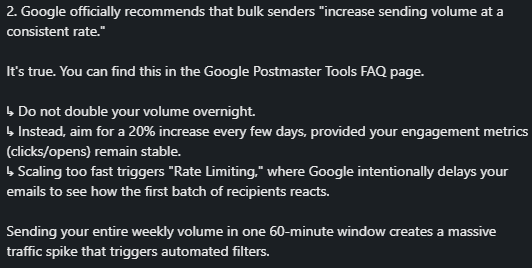
He recommends roughly 20% increases every few days, only if engagement metrics stay stable. Doubling your volume overnight triggers rate limiting, where Google intentionally delays your emails to see how the first batch lands.
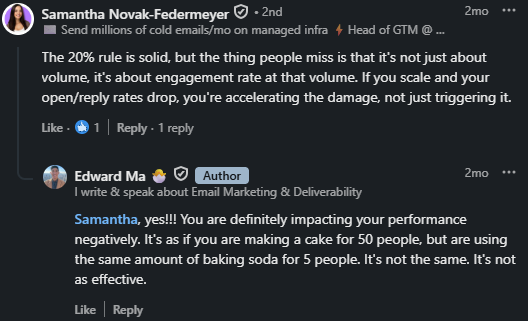
As Samantha Novak-Federmeyer also empahzied on this point, it is not just about volume but about engagement at that volume. If open and reply rates drop as you scale, you are accelerating the damage, not just triggering it.
My practical rule: do not scale from hope. Scale from stable placement, low bounces, and real replies.
A safer ramp looks like this:
There is no universal daily number that protects every sender. Age of domain, mailbox history, recipient type, offer, list quality, and provider mix all change the safe range. Many cold teams stay conservative per inbox and use more mailboxes when they need reach.
Bad data is one of the fastest ways to hurt a sending domain. Invalid addresses cause hard bounces. Old contacts create low response. Poor-fit contacts create complaints.
Most teams treat this as a cleaning problem. The bigger issue is usually upstream. A list built from scraped data, a low-quality vendor, or a broad keyword search will have problems no verification tool fully catches.
Leadsforge approaches this differently. Instead of handing you a raw list to clean, it lets you describe who you want to reach and builds a targeted list from there, enriched with verified contact data and filtered by intent signals before you ever export a single record.
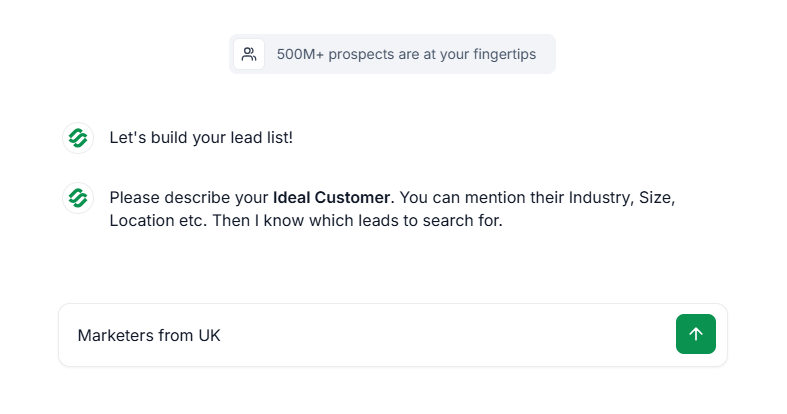
The result is a list that starts cleaner, which means fewer bounces, fewer complaints, and less risk to the domain sending it.
Before a campaign goes live, remove:
Verification is not a one-time setup step.
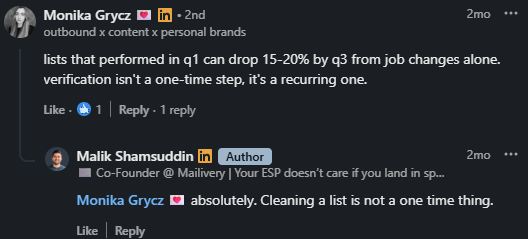
People change jobs, companies change domains, and lists decay. If a list sat unused for months, check it again.
Check out - 5 Best Practices to Improve Sender Reputation
Spam filters read content, but the bigger point is recipient behavior. If the email feels generic, the reader ignores it, deletes it, or reports it. Those actions can hurt future placement.
Weak email:
We help companies get more sales. Are you free this week?
Stronger email:
I noticed your team is hiring SDRs in Austin. When headcount grows, outbound teams often run into list quality and inbox placement issues. Is that on your radar this quarter?
The second version gives the reader a reason. It connects the message to a business event without sounding like a mail merge.
The problem is doing this across hundreds of prospects. Most teams either skip the personalization entirely or spend hours on it manually.
Salesforge pulls in signals like job title, company activity, and recent hiring data to write emails that read as specific to the recipient, not assembled from a template.
The reply rates that come from that level of relevance also send better engagement signals back to Gmail and Outlook, which helps future placement.
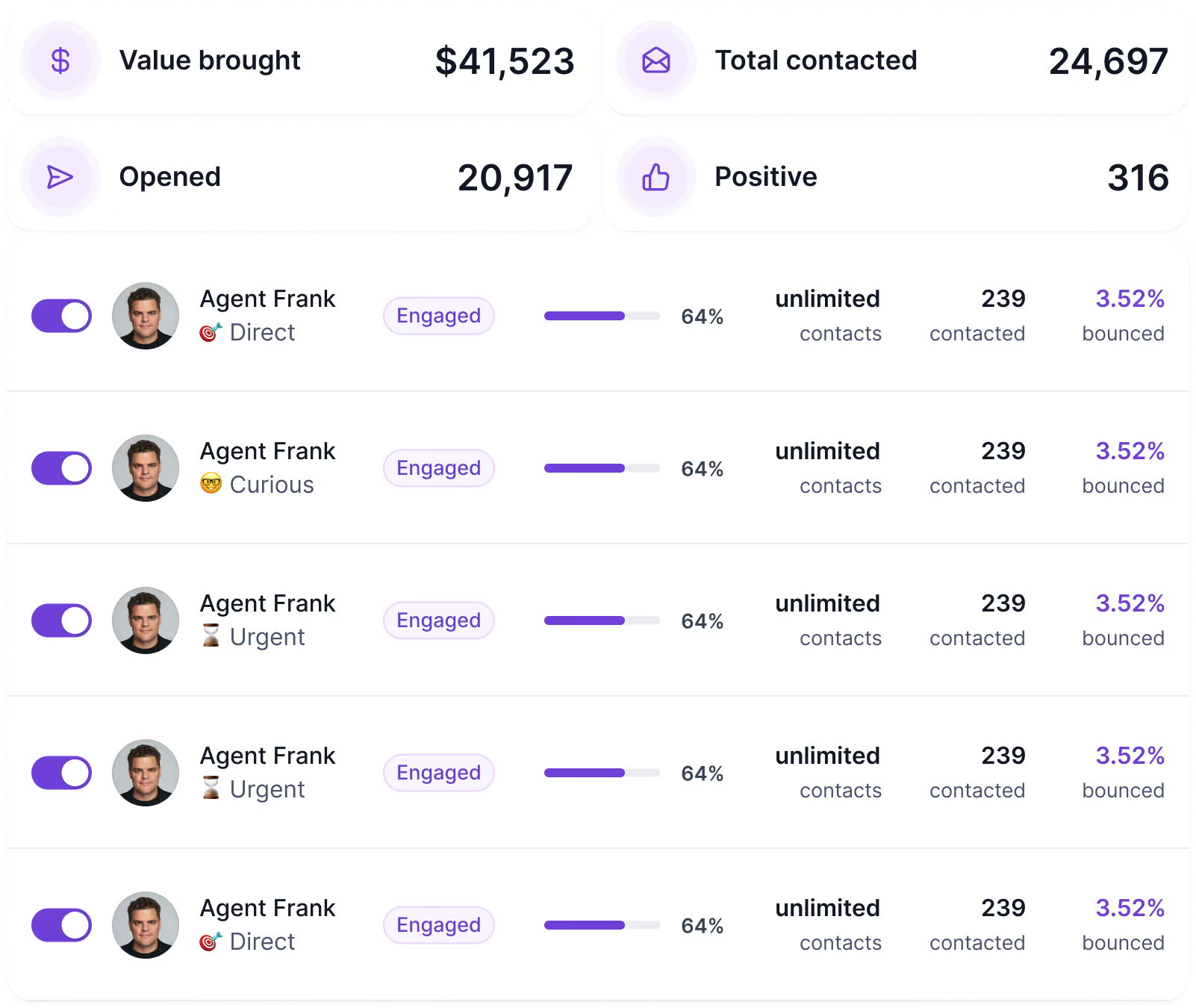
If you want personalized outreach running without someone writing each email, Agent Frank handles the full sequence from first touch to reply, using the same signals and the same sending rules your team would apply manually.
Do not ask for a demo, a download, a meeting, a reply, and a link click in the same email. Pick one next step. For first-touch cold email, a reply-based call to action is usually safer than a link-heavy pitch.
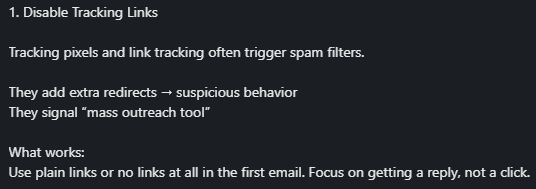
Open tracking and link tracking can add pixels, redirects, and domains that create risk.
If placement drops, test a plain text version with no open tracking and fewer links. If you need tracking, use a clean custom tracking domain and test placement again.
People who cannot opt out may report the message. A simple opt out lowers that risk. It also shows respect for the reader.
Examples:
For high-volume or subscribed email, Google and Yahoo sender guidance also points to authentication, low complaint rates, and clear unsubscribe handling.
Google's sender guidelines reference keeping reported spam rates below 0.3% in Postmaster Tools. Treat that as a ceiling, not a target.
Open rates are not enough. Opens can be blocked, inflated, or hidden by privacy features. Salesforge placement test tool shows where the email lands across mailbox providers.
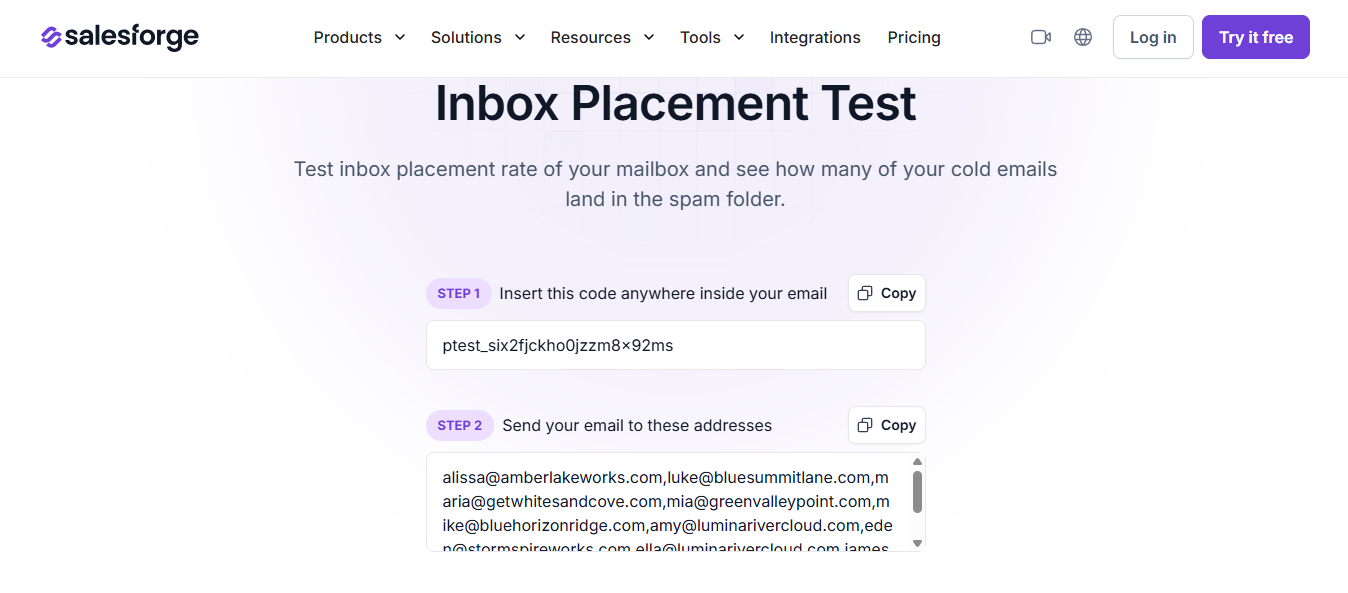
A good test answers:
Run placement tests before a new campaign, after a major copy change, after adding tracking, after changing domains, and any time replies drop without a clear reason.
Deliverability can change after the campaign starts. A setup that worked last month may fail after a list change, a volume jump, or a new tracking link.
Monitor these signals:
If you are already in spam, do not keep increasing volume. That only gives inbox providers more poor signals.
Warmforge by Salesforge fits the part of cold email that many teams treat too late: deliverability readiness and ongoing monitoring.
It is included free with every Salesforge subscription and runs in the background whether or not a campaign is live.
Here is what it actually does to keep your cold email out of spam.
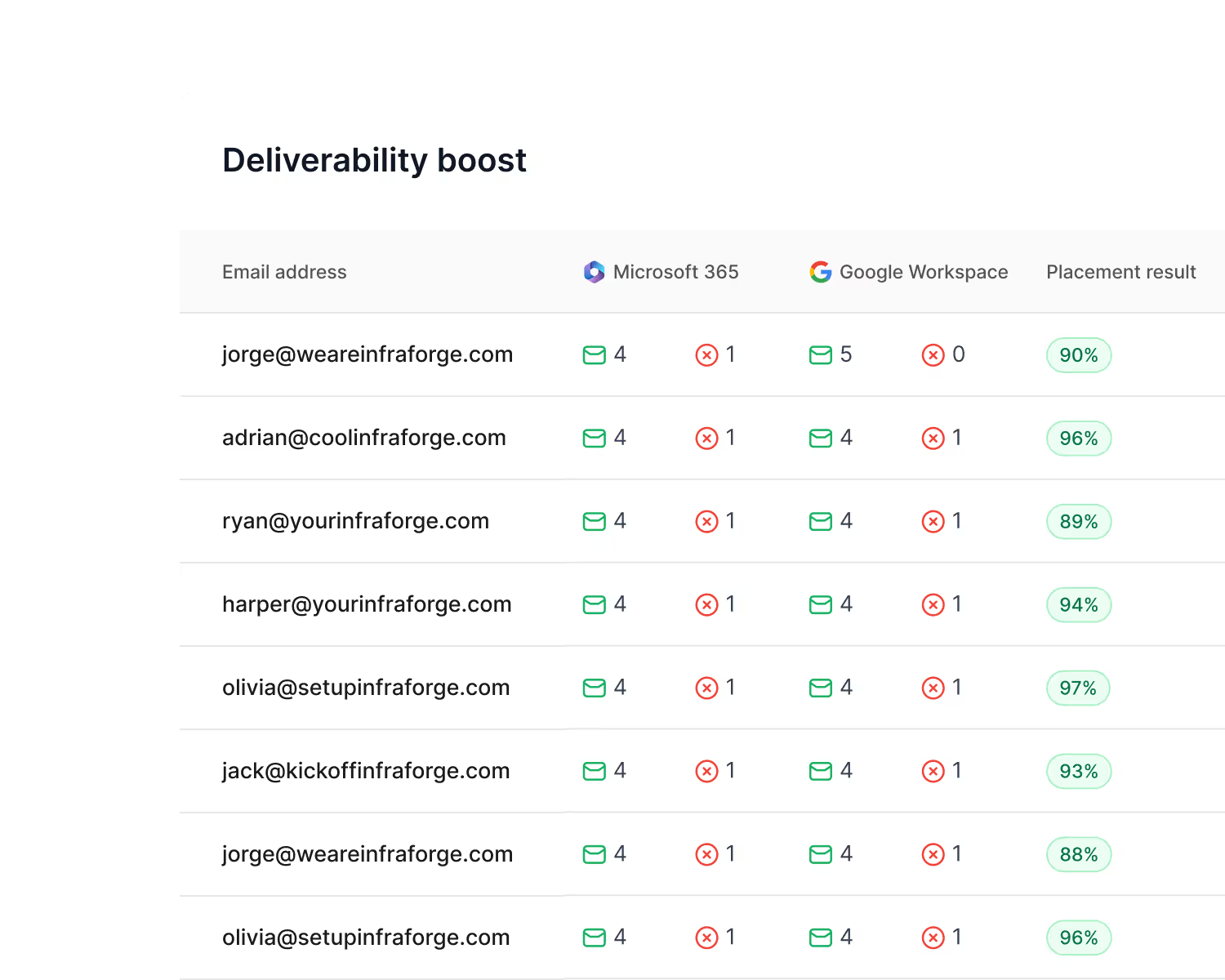
Warmforge gradually warms up Google Workspace and Microsoft 365 mailboxes by simulating real inbox behaviour: sending, opening, and replying across a private warm up network. The process is fully automated.
A two-week minimum warm up is recommended before any cold send, and warm up should stay active during live campaigns so positive signals never stop flowing into Gmail and Outlook.
Each mailbox gets a score from 0 to 100. Above 97 is safe to send.
A drop below that line is the cue to pause the sequence, look at content, list quality, or volume, and let the mailbox recover before pushing more cold sends through it.
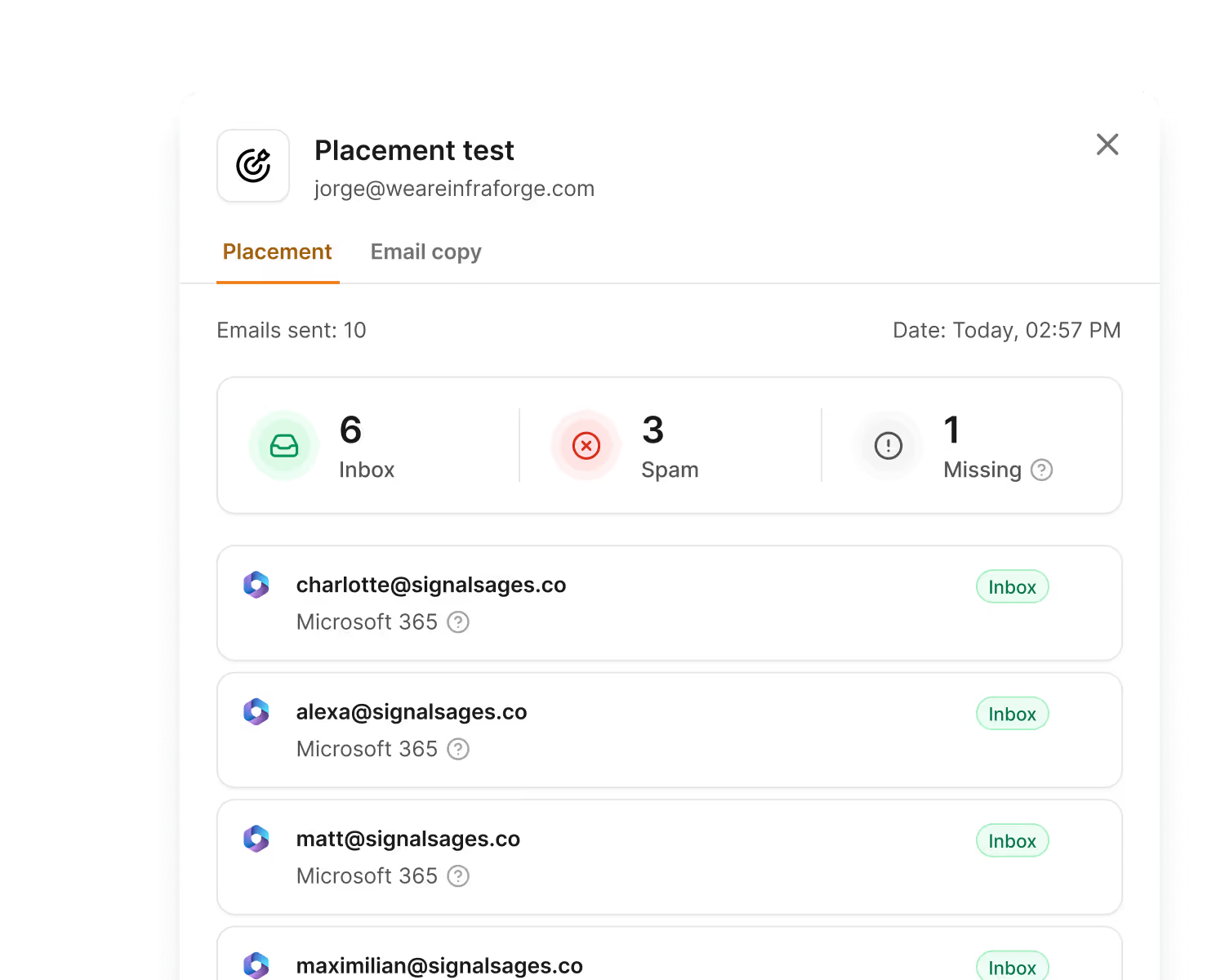
Every Salesforge subscription includes one free placement test per month.
The test reports the exact folder your email lands in across Gmail, Outlook, and Yahoo: primary inbox, promotions, spam, or other.
This is the cleanest way to see deliverability, because open rates are now distorted by privacy features and provider-side image proxying.
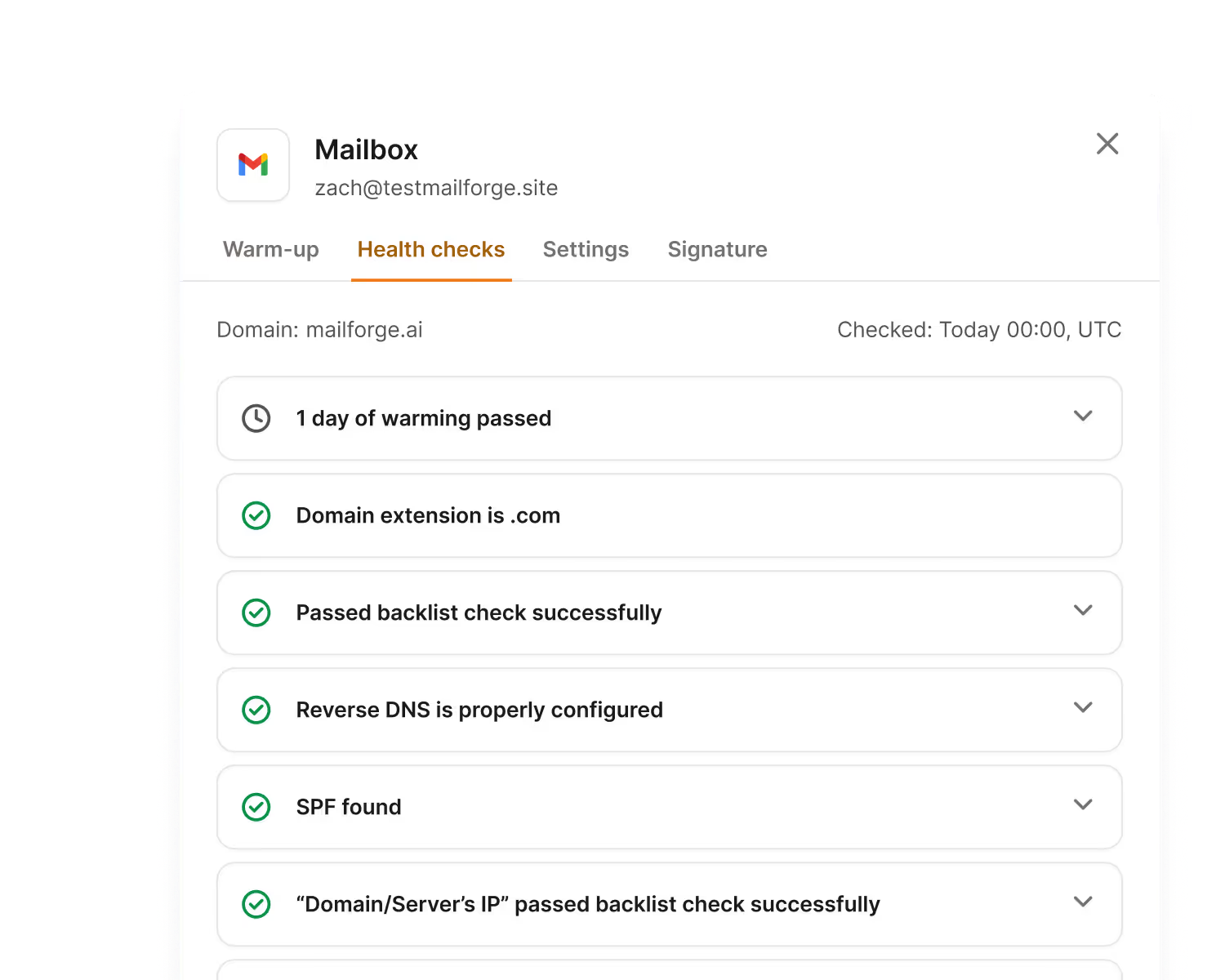
Warmforge reviews SPF, DKIM, DMARC, and MX records for every connected mailbox so you catch a broken setup before recipients do.
If your domain or sending IP shows up on a major blacklist, Warmforge surfaces it as a warning so you can pause sends and resolve the listing instead of pushing into more spam folders.
Below 1% is healthy. 2 to 5% is a warning sign. Above 5% is a reason to stop sequences and find the source. Catching this early prevents one bad list from burning a whole domain.
Domains and mailboxes do not last forever. When one gets burned or blacklisted, Warmforge keeps spare mailboxes warmed up in the background so you can rotate without dropping your send schedule or restarting warm up from zero.
Warmforge sits next to clean data, conservative send volume, and relevant copy. None of those layers replace each other. When they work together, cold email has a much better chance of reaching the inbox.
Enter your email to get a custom plan & stack recommendation for your business
Please check your mailbox in 5 minutes
Spam placement is rarely one bad word. It is a stack: setup, list, send rate, and message all feeding the same trust score. Weaken one layer and the inbox door closes.
The fix is not clever copy. It is doing the basics in the right order. Authenticate the domain. Verify the list before every campaign. Warm up new mailboxes for two weeks before they touch a real prospect. Keep volume low per inbox and ramp only when placement, bounces, and replies say the base is healthy.
Then keep watching. The mailboxes that stay in the inbox are the ones with steady warm up, regular placement tests, a healthy mailbox score, and a clean DNS and blacklist record. Warmforge runs that loop for you, free with every Salesforge plan.
Fix the foundation, monitor it weekly, and cold email stops being a gamble on the inbox.
Land in the inbox, not spam. Start with Warmforge free.