Email throttling slows or limits the delivery of emails when providers detect potential issues like high volume, poor engagement, or technical misconfigurations. This can delay campaigns, reduce engagement, and harm your sender reputation. To fix throttling, you need to:
421 or 450.Throttling often signals deeper reputation or setup problems. Acting quickly and maintaining consistent, high-quality email practices can help you avoid future delivery delays.
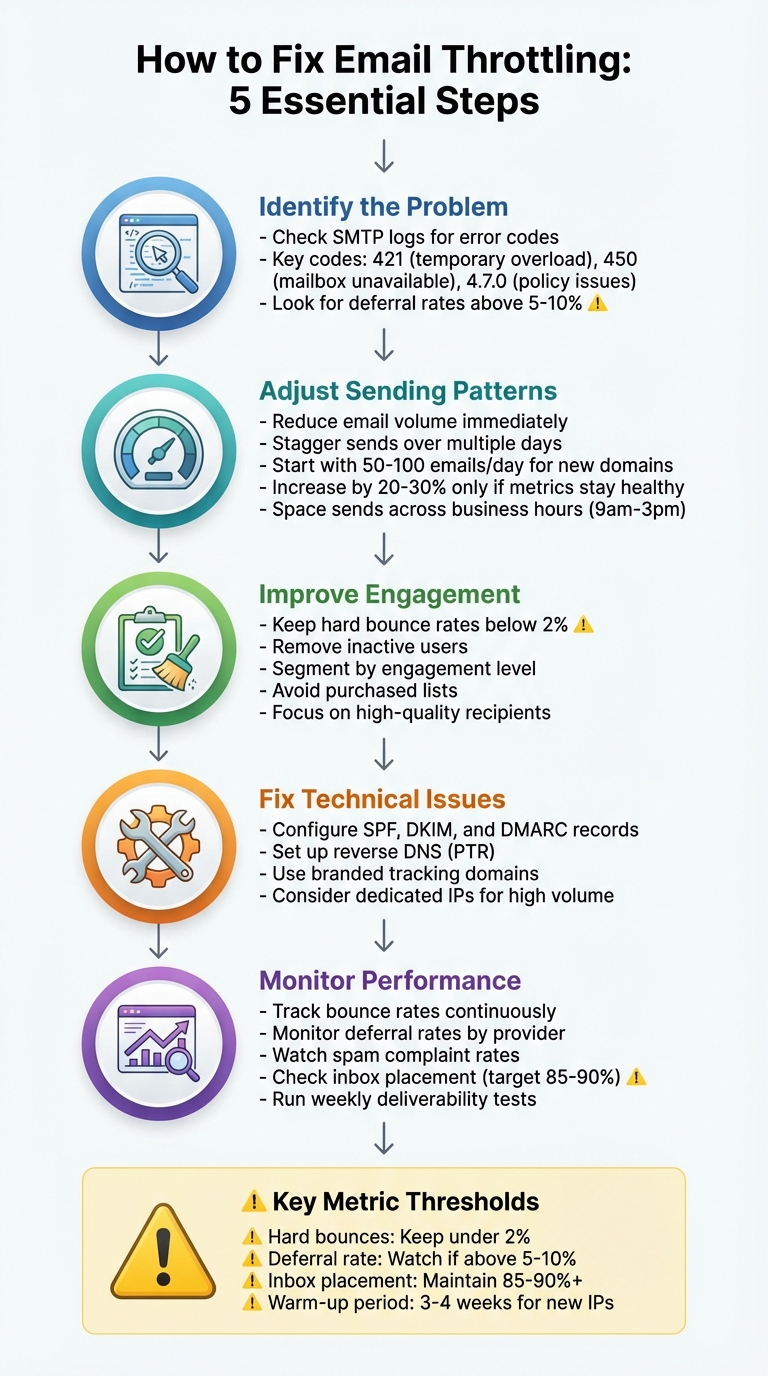
5-Step Email Throttling Diagnosis and Fix Process
Email providers use automated systems to control how many emails they accept from a sender within a specific time frame. These systems monitor incoming email traffic and set limits based on factors like sender reputation, sending patterns, and technical configurations. If you exceed these limits, your emails may be delayed or blocked.
Throttling occurs on multiple fronts. Email Service Providers (ESPs) like Amazon SES or Mailchimp may limit how many emails you can send, while Internet Service Providers (ISPs) like Gmail or Outlook determine how many emails they’ll accept. Both ESPs and ISPs enforce these limits to prevent spam and server overload. When limits are exceeded, error codes are issued, prompting the sender to retry. Understanding these mechanisms is essential before diving into the different types of throttling and their signals.
Per-hour and per-day limits set caps on the total number of emails you can send within a specific timeframe. For example, new IP addresses typically start with low hourly limits that increase as the sender builds a reputation. Amazon SES, for instance, begins new accounts with a daily cap of around 200 emails and scales up as the sender demonstrates consistent and high-quality email practices.
Per-domain limits apply to how many emails you can send to a specific provider, like Gmail or Outlook. For example, if you send 10,000 emails to Gmail users in a short period, Gmail might accept only a portion of those emails immediately and defer the rest to prevent server strain.
SMTP connection and concurrency limits regulate the number of simultaneous server connections you can establish and how many emails can be sent through each connection. For instance, Outlook is known to throttle senders who attempt to send 150–200 emails in quick succession. If these limits are exceeded, the server may reject the emails, interpreting the behavior as spam or server abuse.
Throttling often shows up in your SMTP logs through error codes. For instance, error code 421 indicates a temporary overload, often caused by sending too quickly or using un-warmed IP addresses.
Error code 450 ("Requested mail action not taken: mailbox unavailable") signals a temporary block, sometimes accompanied by messages like "try again later" or "mailbox over quota". This tells your ESP to delay and retry delivery. Similarly, error code 4.7.0 highlights policy-related issues, such as sending excessive volumes from a specific IP or domain. Outlook frequently uses this code to throttle high-velocity senders.
These codes represent temporary deferrals, not permanent rejections. Your ESP is designed to retry delivery after an appropriate delay. However, repeated throttling incidents can harm your sender reputation over time, making it harder to reach inboxes effectively.
Providers like Gmail and Outlook enforce strict limits, especially for new IP addresses or senders with low engagement rates. Gmail places a strong emphasis on sender reputation and user engagement, throttling senders with low open rates or high spam complaint rates.
Outlook, on the other hand, often implements per-mailbox throttling. For example, if 150–200 emails are sent to a single inbox in quick succession, Outlook may limit the flow due to server processing constraints. Both providers require new senders to build their reputation gradually, starting with low hourly sending limits and increasing over time.
Amazon SES operates on a tiered system where new accounts start with low daily sending limits. Users must request approval to exit the sandbox environment before they can send at higher volumes. SES also enforces strict concurrency limits for new accounts, issuing error codes like 421 or 450 if thresholds are exceeded. Across all platforms, the key to avoiding throttling is to focus on consistent, high-quality email practices and avoid sudden spikes in volume.
Understanding why email throttling happens can help you resolve issues faster and protect your sender reputation. Most throttling problems can be traced back to three areas: how emails are sent, the quality of your recipient lists, and the way your technical setup is configured. Let’s start with challenges tied to email volume and sending speed.
A sudden surge in email volume is one of the most common triggers for throttling. For example, if your usual email activity involves sending a few hundred messages a day but suddenly jumps to tens of thousands, Internet Service Providers (ISPs) might flag this as suspicious, potentially spam-like behavior. This can lead to immediate restrictions on your email traffic. For time-sensitive campaigns, such delays can push your messages outside of optimal delivery times, reducing their effectiveness.
Exceeding hourly or daily sending limits can also result in soft bounces and delivery delays. This is especially true for teams in the U.S. that send to large national lists all at once - like scheduling all emails to go out at 9:00 a.m. Eastern Time. A better approach is to stagger your sends by segment or time zone, which helps avoid hitting capacity thresholds.
Once volume and velocity issues are ruled out, it’s important to examine your recipient engagement and list quality.
Low-quality recipient lists and poor engagement rates can harm your reputation and lead to throttling. For instance, bounce rates above a few percent are often seen as a red flag. ISPs may interpret this as a sign of poor list hygiene, which can result in rate limits or even blocking.
Spam complaints are another major factor. If recipients mark your emails as spam or file abuse reports, ISPs may respond by throttling your traffic or outright blocking it. Even a small percentage of complaints can prompt these actions.
Weak engagement metrics - like low open rates or minimal interaction - can also hurt your reputation. ISPs may deprioritize your emails during busy periods, especially if your messages consistently fail to generate positive responses. Old or purchased email lists are particularly problematic. These lists often include inactive addresses, spam traps, and unengaged recipients, all of which can lead to chronic throttling and poor campaign results.
New domains or IP addresses come with no established sending history, making them more likely to face conservative limits from ISPs. Without a proper warm-up process - where you gradually increase your email volume - your campaigns may experience persistent throttling, delaying delivery and hurting your chances of building a strong reputation.
Technical misconfigurations can also contribute. Issues with SPF, DKIM, or DMARC records can undermine domain authentication, increasing the risk of throttling. Similarly, problems like missing reverse DNS (rDNS) settings or inconsistent HELO/EHLO names can lead to additional soft bounces.
If you’re using a shared IP, your deliverability can be affected by the actions of other senders on the same infrastructure. Poor practices by others - such as sending spam-like traffic - can lower the overall reputation of the shared IP range. This might show up as unexplained spikes in soft bounces, frequent delivery deferrals, or inconsistent campaign results, even if your own practices are solid.
To confirm email throttling, start by digging into your SMTP logs and bounce messages. These logs often contain error codes that can reveal if Internet Service Providers (ISPs) or email service providers are restricting your email traffic. Watch for common 4xx error codes like "421 4.7.0 Try again later, closing connection" or "450 mailbox temporarily unavailable." These messages signal temporary deferrals - one of the clearest signs of throttling. For example, Gmail frequently returns "421 4.7.0" errors during high-volume sends, while Microsoft 365 might issue "550 5.7.1 Client does not have permissions" if rate limits are exceeded.
To make sense of your logs, filter them using keywords like "throttle", "rate limit", or "defer." Then, group the data by recipient domain to identify patterns. If you notice deferral rates climbing above 5–10% for specific ISPs like Gmail or Outlook, throttling is likely at play. Comparing these errors with your sending timestamps can also help. A sharp jump in email volume - such as going from 100 to 1,000 emails per hour - can trigger "too many messages" errors, which sets throttling apart from other issues like full inboxes or spam filters.
Your SMTP logs are a goldmine for spotting throttling. Start by exporting the affected logs and calculating the deferral rate (deferred emails divided by total emails). If the deferral rate exceeds 10%, throttling is probably happening. Pay close attention to the difference between soft bounces (temporary 4xx errors) and hard bounces (permanent 5xx errors). Throttling often shows up as repeated 4xx errors across multiple recipients from the same email provider. Common messages include "User is receiving mail at too great a rate" or "Recipient rate limit exceeded." If retries succeed within 24 to 72 hours following a volume spike, that’s a strong confirmation of throttling.
Deliverability tools can give you a broader perspective beyond what your SMTP logs reveal. One such tool, Warmforge, runs inbox placement tests by sending emails to various ISPs to check if they land in the primary inbox, spam folder, or get blocked. Warmforge offers one free placement test per month and includes a free warm-up slot for Google or Microsoft mailboxes. Its AI-driven health checks monitor DNS records, blacklist statuses, and sending patterns, alerting you to potential reputation issues that often lead to throttling.
Other tools like GlockApps and MailTester can also help you diagnose deliverability issues. GlockApps, for instance, runs seed tests across over 100 mailboxes and ISPs, while MailTester provides basic checks for blacklist scans and DNS validation. However, MailTester lacks the ongoing monitoring capabilities that can catch emerging throttling problems. Warmforge, particularly when paired with tools like Mailforge as part of The Forge Stack, stands out for its ability to pinpoint whether throttling stems from your sending practices or shared IP infrastructure. By running weekly placement tests and monitoring for inbox rates dipping below 85–90%, especially alongside rising 4xx errors, you can confirm throttling trends and take corrective action.
Each email provider has its own throttling patterns and diagnostic signals. Understanding these nuances can help you tailor your approach to specific platforms.
Once you've identified throttling issues through SMTP logs, the next step is to adjust your sending patterns to improve deliverability. The key is to reduce risky behaviors, maintain a steady and reliable sending rhythm, and present yourself as a legitimate sender. This means avoiding sudden spikes in email volume, keeping your engagement rates high, and ensuring your recipient lists are clean and up-to-date.
If you see errors like "rate limit exceeded" or repeated 4xx codes, stop sending bulk emails to that provider for a few hours. When you resume, reduce the hourly sending limit. For newer or less-established domains, start small - send around 50 to 100 emails per mailbox each day. Spread these sends across working hours and gradually increase the volume by 20–30% only if bounce and complaint rates remain low.
For larger campaigns, stagger your emails over several days and group sends by provider (e.g., Gmail, Outlook, or Yahoo). This prevents you from hitting limits for any single domain all at once. To make your sending behavior seem more natural, schedule emails during local business hours (e.g., 9:00 a.m.–3:00 p.m. ET) and randomize the timing within 5–10 minute intervals instead of sending everything at the top of the hour. Using multiple mailboxes or domains with consistent branding can also help distribute the load, reducing the risk of throttling.
Throttling often happens when email providers struggle to authenticate your messages, so proper technical setup is crucial. Start by publishing an SPF record that includes all your legitimate sending platforms. Make sure your envelope-from (return-path) aligns with your visible domain. Use DKIM signing with a strong key, and ensure the DKIM domain matches - or is a subdomain of - your "From" domain to boost your reputation.
Set up DMARC with a monitoring policy (e.g., p=none) at first to collect reports and fix alignment issues. Once everything is aligned, you can tighten the policy. Additionally, configure reverse DNS (PTR) so your IP resolves to a hostname within your sending domain. Use a branded tracking domain instead of a generic one for better consistency. If you're sending high volumes and facing throttling due to shared IP issues, consider switching to dedicated infrastructure. With a private IP, email providers evaluate your sending behavior independently, based on factors like engagement and complaint rates. Services like Infraforge can provide dedicated IPs and domains, along with guidance on warming them up properly.
New or previously flagged IPs and domains often face throttling, so it's essential to gradually build a track record of sending wanted emails. Start by sending 25–50 emails per day over a 3–4 hour period to your most engaged U.S. contacts. As long as bounce and spam complaint rates stay low, you can double the volume every few days. Focus on your most engaged segments first, and only add less-engaged contacts once your core audience is stable.
Pay close attention to how different providers respond. For example, if Gmail begins deferring emails while others do not, reduce your Gmail volume until the issue subsides. Effective warm-up strategies mimic natural human behavior, rather than simply trickling out emails. Tools like Warmforge simplify this process by using networks of real mailboxes to send, open, and reply to emails at low volumes. Warmforge also offers automated warm-up features and deliverability monitoring, helping you ensure new mailboxes are inbox-ready before scaling up. Their free warm-up slot and monthly placement tests let you verify inbox placement before launching larger campaigns.
Email providers closely monitor bounce rates, spam complaints, and engagement when deciding whether to throttle your emails. Poor list hygiene can quickly lead to delivery issues. Warning signs include hard bounce rates above 2%, frequent "mailbox full" or "user unknown" responses, and consistently low open and click rates from certain segments.
To avoid these problems, regularly verify your email lists and remove inactive or risky addresses. Purchased or third-party lists are especially problematic, as they often trigger spam complaints. If you must use them, isolate these lists on separate, carefully warmed infrastructure and send at very low volumes.
Segmenting your lists helps you send more relevant emails and protect your reputation. Group contacts by engagement level (e.g., recent openers vs. inactive users), acquisition source (e.g., organic opt-ins vs. event-based lists), and provider (e.g., Gmail, Outlook, Yahoo). You can also segment by time zone to avoid nationwide volume spikes that might raise red flags with ISPs.
Staying on top of metrics is critical for catching throttling issues early. Keep an eye on bounce codes, deferral rates, spam complaints, and engagement metrics like open and click rates. Watch for patterns like rising 4xx soft bounces with messages such as "temporarily deferred", "rate limit exceeded", or "too many connections." These are signs that you're nearing a provider's limits.
Also, track performance by provider. A drop in engagement with one ISP could signal throttling is about to occur. Use deliverability tools to check where your emails are landing - whether in the primary inbox, promotions tab, or spam folder - and to spot potential issues early. Warmforge, for example, offers monitoring and health checks that review DNS records, blacklist statuses, and sending patterns. These tools can alert you to problems before they escalate, helping you maintain a strong sender reputation over time.
Email throttling happens when providers temporarily limit the number of emails they accept from you. This often results from sudden spikes in volume, poor list hygiene, low engagement, or an improperly warmed-up sending infrastructure. If left unresolved, throttling can lead to delivery delays, spam folder placement, and damage to your sender reputation. The good news? Throttling is typically temporary if you act quickly to address the root causes.
The first step in tackling throttling is diagnosing it through your SMTP logs. These logs can reveal critical signals of throttling, helping you pinpoint the issue. Once identified, you can take corrective actions like adjusting your send rate, removing invalid addresses, and ensuring your SPF, DKIM, and DMARC configurations are in place. For new or inactive mailboxes, warming them up gradually is an absolute must.
Beyond initial fixes, ongoing monitoring is key to maintaining a strong delivery strategy. Keep an eye on bounce codes, deferral rates, and engagement metrics for each provider. For instance, if Gmail starts deferring emails while Outlook does not, you’ll know where to focus your attention. Tools like Warmforge simplify this process by mimicking natural email patterns during warm-ups, tracking deliverability in real time, and running placement tests to show exactly where your emails land. With features like one free warm-up slot for Google or Microsoft mailboxes and a free monthly placement test, you can test inbox placement before scaling up your campaigns.
Preventing throttling isn’t a one-and-done task - it requires consistent effort. Pay close attention to your sending volume, keep your email lists clean, maintain proper technical setups, and focus on engagement. Starting slow, monitoring performance, and leveraging tools that automate warm-up and deliverability tracking can help you maintain a strong sender reputation. By doing so, you’ll ensure your emails consistently land in primary inboxes, keeping your outreach efforts on track.
Email throttling is often indicated by specific SMTP error codes like 421, 450, 451, 452, 455, 503, 550, 551, 552, 553, and 554. These codes usually highlight temporary or permanent delivery issues caused by exceeding sending limits or encountering server restrictions.
To tackle repeated throttling problems, it’s worth refining your email practices. Focus on steps like reducing your sending rates, verifying recipient lists to avoid invalid addresses, and gradually warming up your email account to build trust with servers. Tools such as Warmforge can simplify the warm-up process and help track deliverability, increasing the chances that your emails land in the inbox.
To improve email engagement and avoid throttling, it’s essential to start by warming up your mailbox. Dedicate at least two weeks to this process to establish trust with email providers. Tools like Warmforge can simplify this task by automating the warm-up process and allowing you to track your email deliverability with regular placement tests.
On top of that, double-check that your DNS and MX records are set up correctly. Sending relevant, high-quality content that encourages recipients to interact with your emails is equally important. By sticking to solid email practices, you can protect your sender reputation and reduce the chances of your messages ending up in spam folders.
To get a new IP address or domain ready for email sending, start with a dependable tool like Warmforge to simplify the process. Stick to a steady warm-up routine for at least two weeks, gradually increasing the number of emails you send. This helps establish trust with email service providers (ESPs). With Warmforge's AI-powered tools, you can mimic human-like email interactions, check mailbox health, and spot deliverability problems using placement tests.
To maintain good results, keep the warm-up process running consistently and make adjustments if you notice any delivery issues. Consistently tracking performance helps ensure your emails reach recipients' main inboxes and protects your sender reputation.