
Personalized Outbound Strategy
Get The Right Outbound Strategy In Minutes
Enter your email to get a custom plan & stack recommendation for your business
It's being carefully crafted by AI
Please check your mailbox in 5 minutes

You’re sending emails, but you don’t really know how Gmail is treating them.
Gmail Postmaster Tools is built to show that.
It gives you data on your email performance so you can understand what’s happening on Gmail’s side.
But is that data actually useful for you, and is it enough on its own?
I’ve used it for my own email campaigns to understand how Gmail sees my sending, and in this guide, I’ll walk you through what it shows and whether it’s enough for you.
Gmail Postmaster Tools gives you clear visibility into how Gmail treats your emails, including spam rate, reputation, authentication, and delivery errors.
But it mainly works as a monitoring tool.
You can see what’s happening, but you still need to handle setup, warm-up, and ongoing management on your own.
If you need something that goes beyond just viewing data and helps you keep your email setup running over time, Warmforge is the better fit.
Gmail Postmaster Tools is a tool that helps you analyze your email performance on Gmail and understand how your emails are being handled.
It gives you access to things like:
So instead of guessing what’s happening, you can actually see how Gmail is treating your emails.
But one thing you should know, this tool is not for everyone.
It is built for qualified high-volume senders, not regular Gmail users.
That means:
So before using it, it’s important to know whether you fit into that group.
So in simple terms, it’s made for senders who want to monitor email performance on Gmail at scale, not for everyday email use.
Most senders use it to understand what’s actually happening to their emails on Gmail after they hit send.
It shows your domain and IP reputation, so you can see if Gmail trusts your emails or not.
You can see when emails are rejected or temporarily fail, along with the reason why it happened.
It shows what percentage of people are marking your emails as spam, so you know how your emails are being received.
You can see if your emails are passing SPF, DKIM, and DMARC, and if everything is set up correctly.
You get data like spam rate, authentication results, and delivery errors, so you can clearly see how your emails are performing on Gmail.
It is made for people sending a high number of emails, where this kind of tracking actually matters.
You don’t have to pay to use it, as long as you’re sending enough emails to get data.
When I used it, it helped me understand what was going on with my emails, but I still had to figure out what to do next on my own.
Here’s how it works:
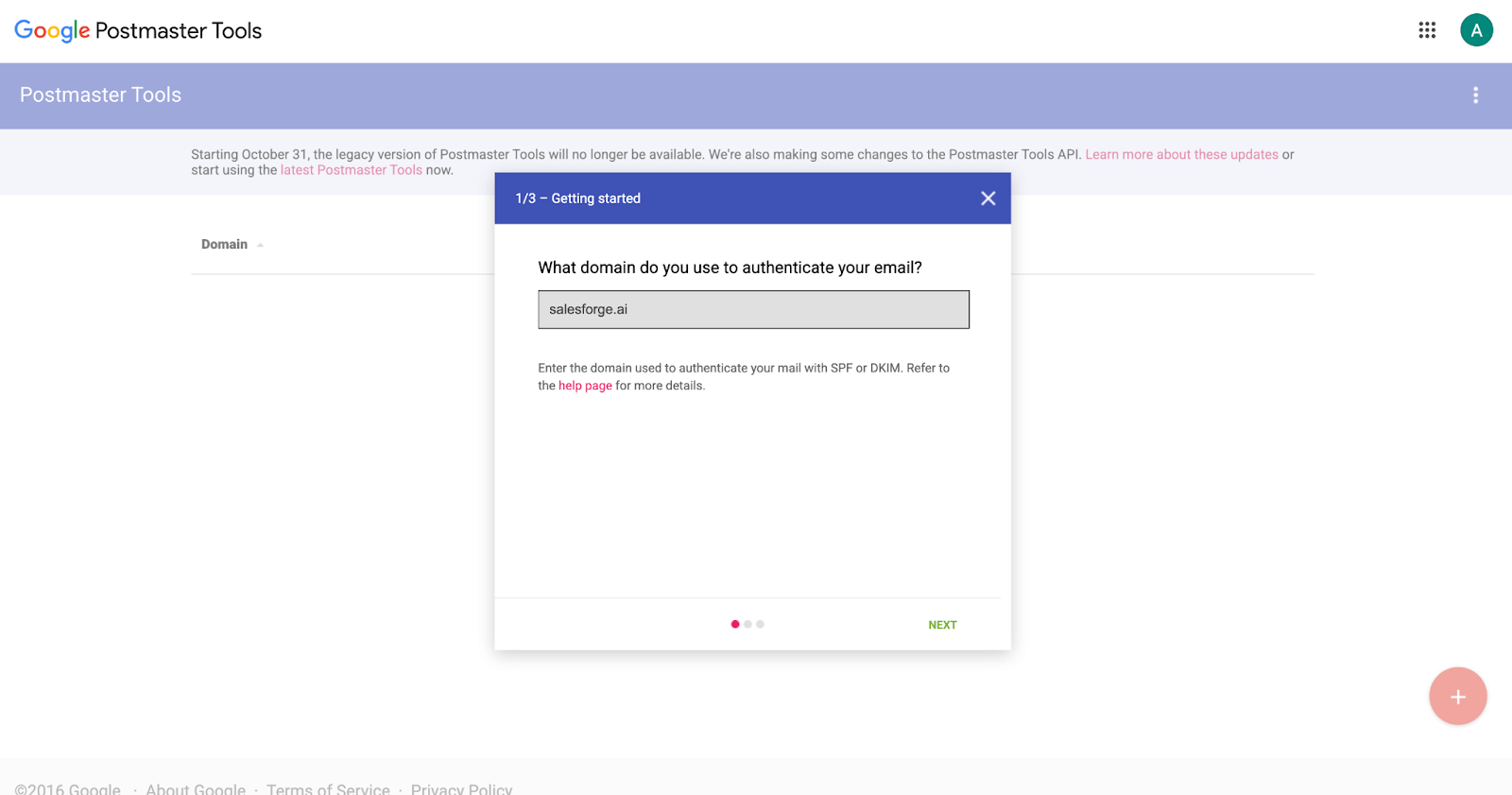
You log in with your Google account and add the domain you use to send emails.
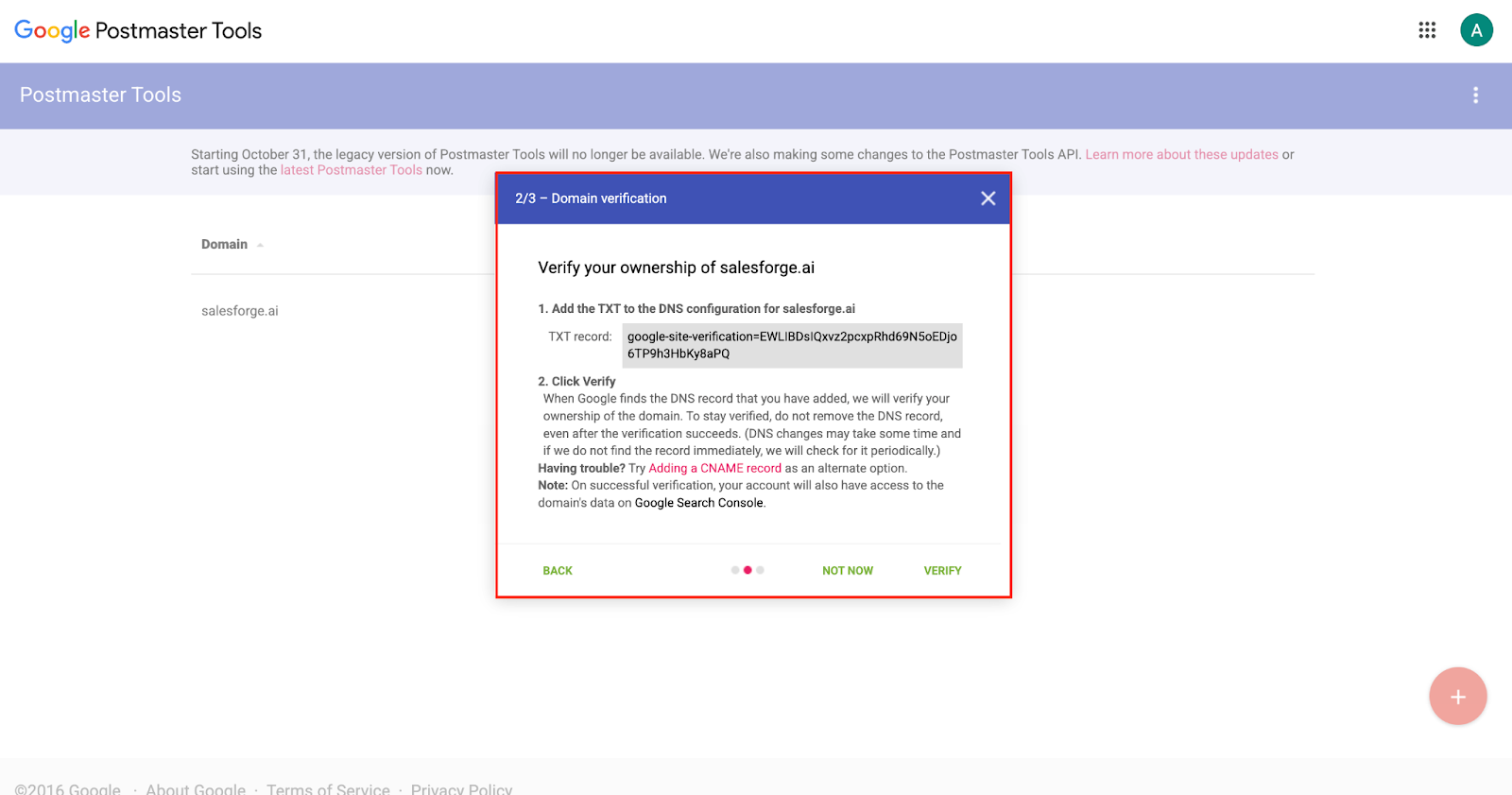
Google gives you a TXT record, and you need to add it to your domain settings to verify ownership.
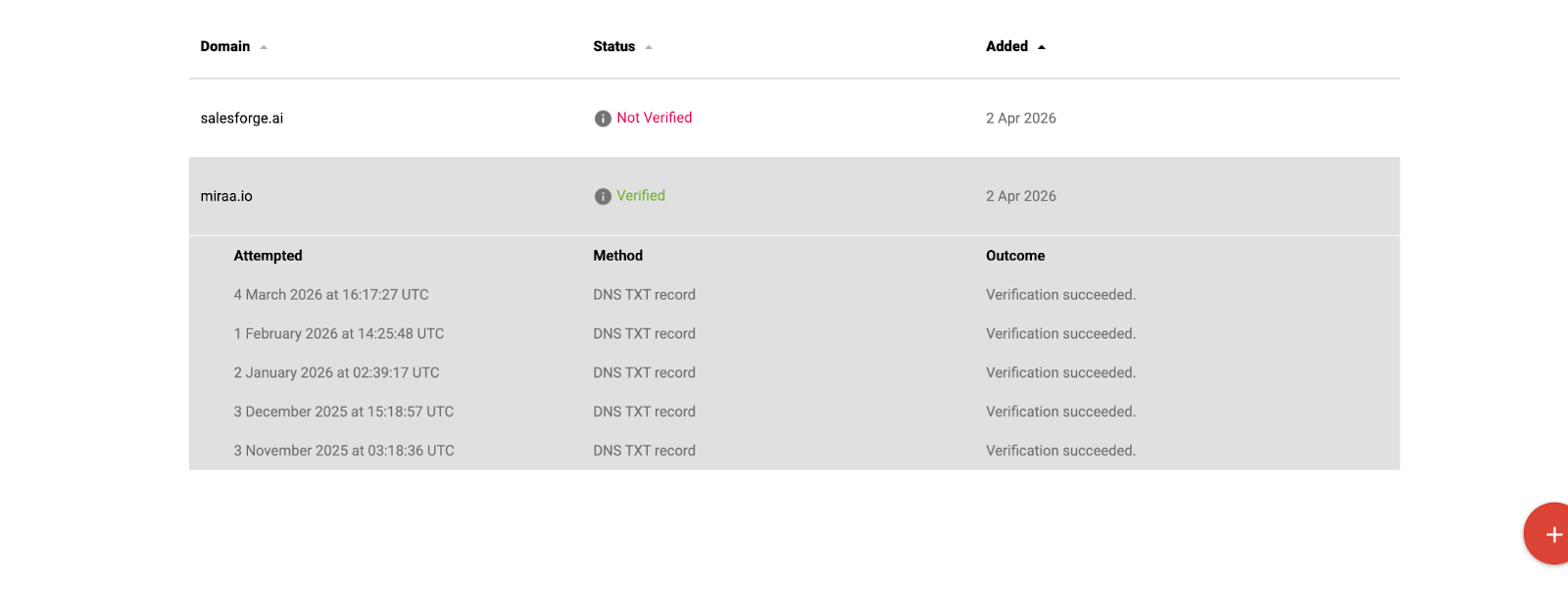
Once verified, it can take some time (up to around 48 hours) before you start seeing data.
After that, you can access your dashboard, where all your email data, like spam reports, reputation, and delivery errors, is shown.
When I set it up, the steps were simple, but the waiting part was frustrating; It took more than 48 hours.
You should wait with no clear idea of how long it will take.
Google has been moving users from the old Gmail Postmaster Tools interface to a newer V2 version.
The new version looks cleaner, but many senders feel it removed some of the most useful reputation data they relied on.
The V2 dashboard is more structured and easier to navigate.
It separates areas like authentication, spam complaints, encryption, feedback loop, and delivery issues into clearer sections.
Instead of showing everything in one view, the new dashboard puts more emphasis on whether your setup meets Gmail’s sender requirements.
This includes checks related to authentication and spam complaint limits.
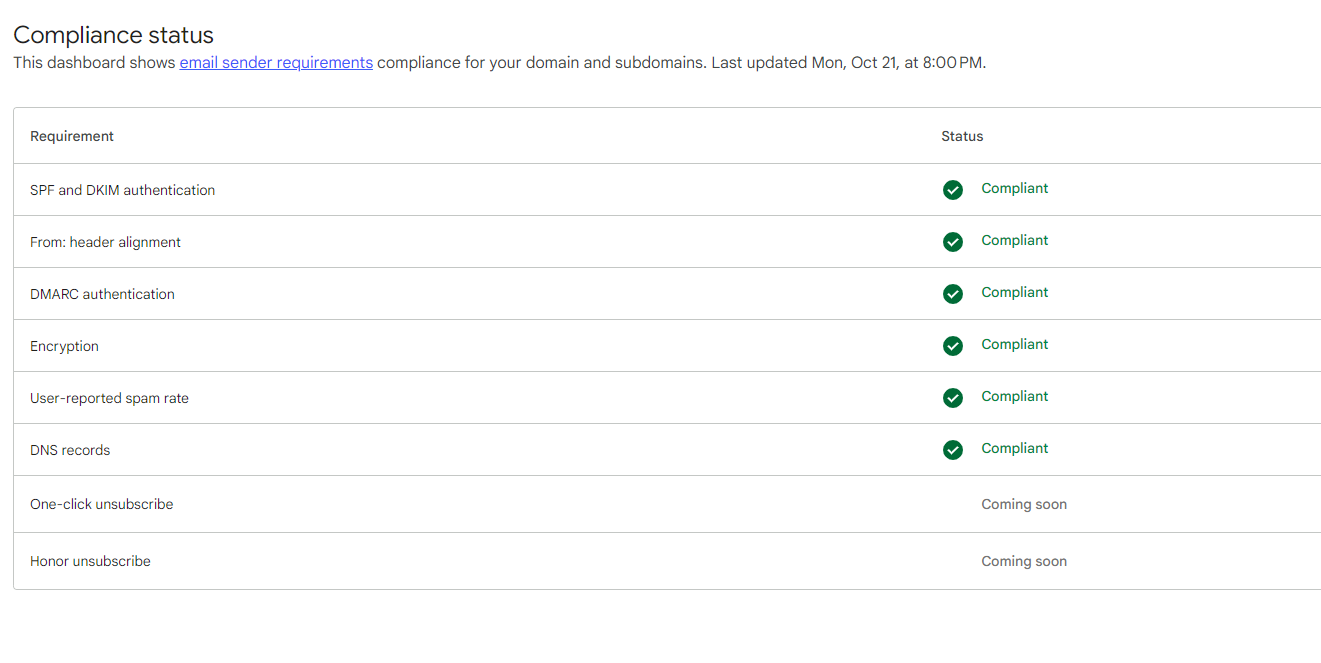
The updated interface makes it easier to see Gmail’s spam complaint expectations, including the recommended level around 0.1% and the stronger warning threshold around 0.3%.
This is where many users are frustrated.
In the older version, senders could more clearly see domain and IP reputation levels like high, medium, low, or bad.
In V2, users say that visibility is either reduced, harder to find, or no longer updated the same way.
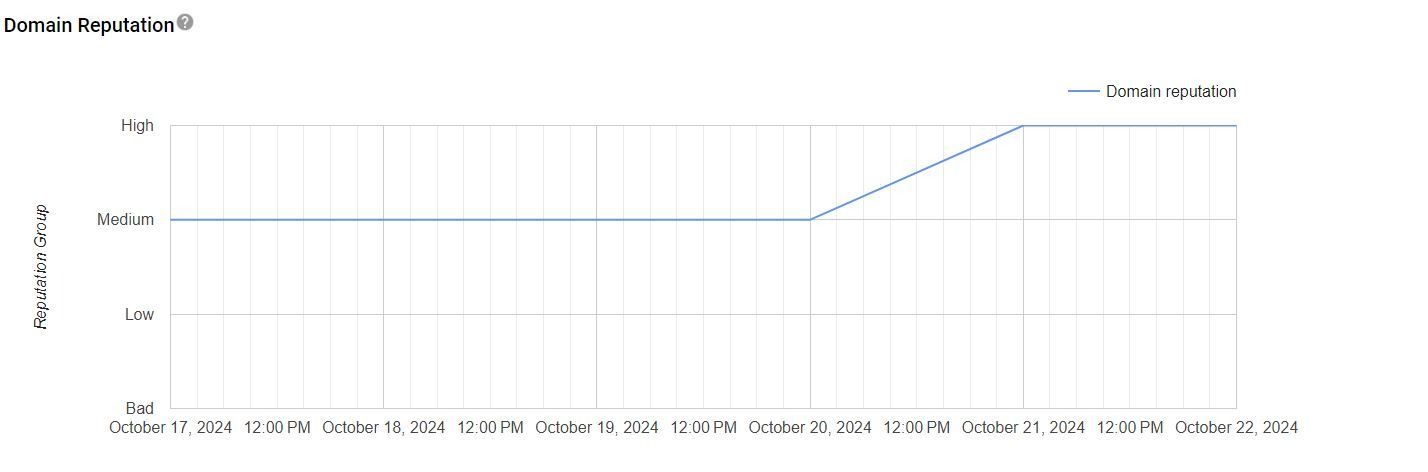
A common complaint is that the new checklist format tells senders whether something is compliant, but does not give the same quick reputation insight that made the old tool useful for day-to-day monitoring.
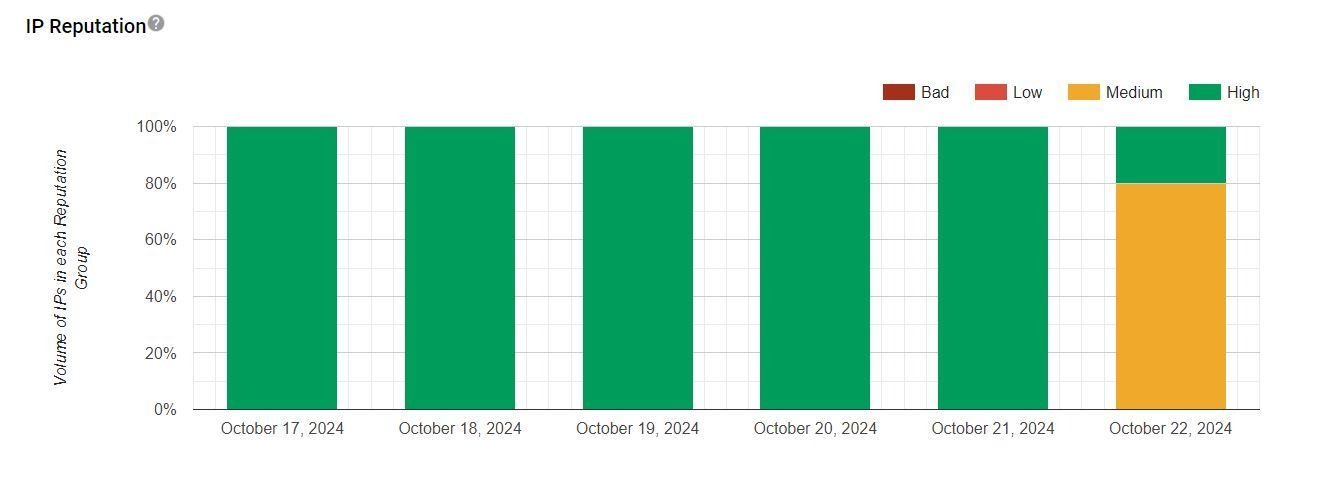
Because of that, many senders now treat Gmail Postmaster Tools V2 as only one part of deliverability monitoring.
They pair it with inbox placement tests, blacklist monitoring, Microsoft SNDS, Sender Score, or other checks to better understand overall sender health.
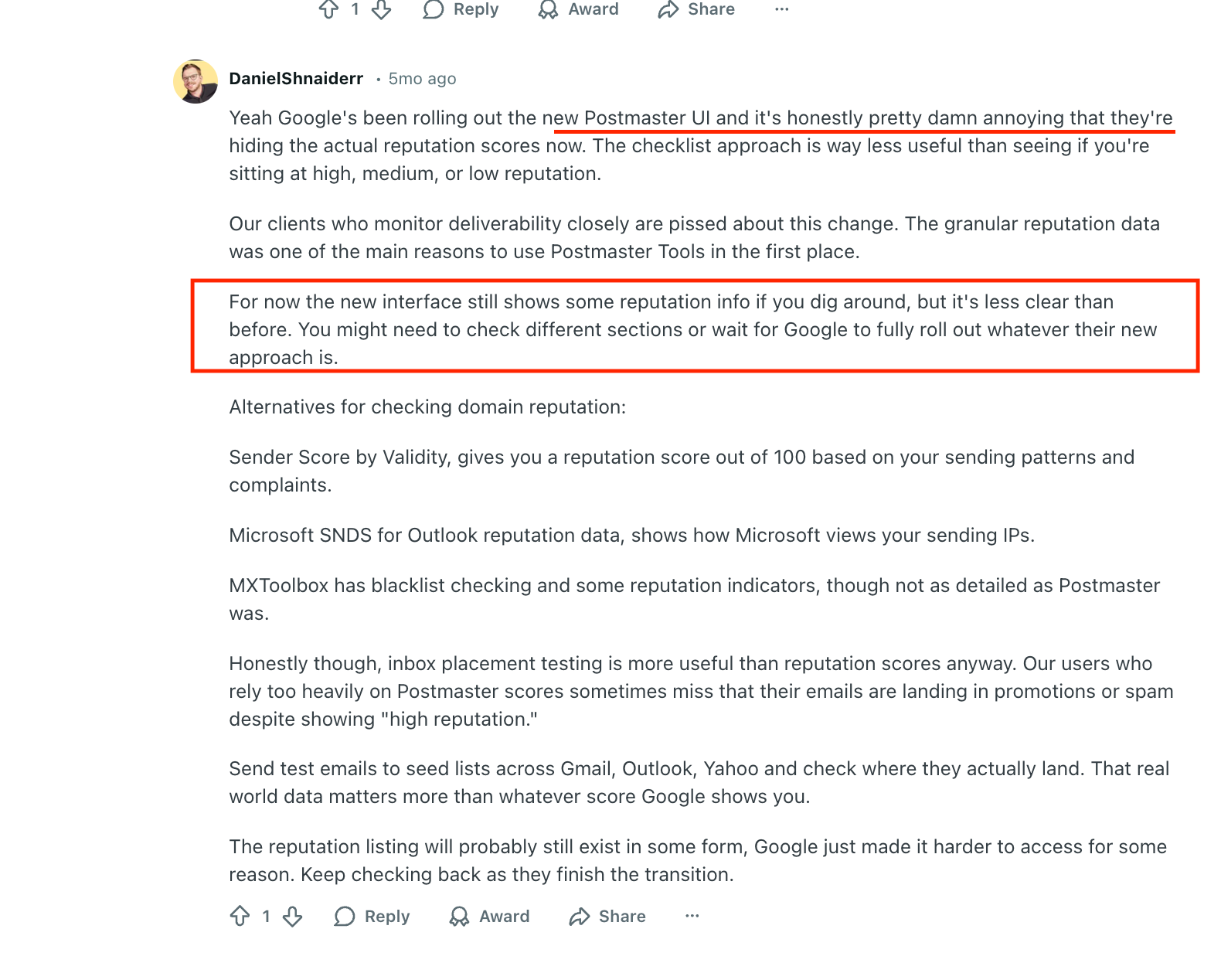
When I looked at the feedback around V2, the pattern was pretty clear: the new dashboard is easier to read, but many senders feel it gives them less practical reputation data than the old version.
Google updated Gmail Postmaster Tools with a newer V2 dashboard to give more clarity on email performance and compliance.
Before you depend on it, here are a few things that actually matter once you start using it.
So it doesn’t show how your emails perform on other providers.
If you don’t send enough emails, many dashboards won’t show data at all or will show very limited insights.
So it does not fully reflect emails filtered directly into spam.
The shown spam rate can look lower than it actually is.
So, for many campaigns, this section may stay empty.
It does not give you detailed scores or exact values.
On days with lower sending activity, some metrics may not be shown at all due to privacy limits, which makes tracking inconsistent.
But the tool does not tell you what changes to make or how to fix those issues.
By now, it’s clear that Gmail Postmaster Tools shows you what’s happening, but you’re still left to handle everything on your own.
If you’re looking for something that goes beyond just viewing data, tools like Warmforge are usually what people explore next.
Warmforge is a tool used for email warm-up and managing your email setup over time.
While Gmail Postmaster Tools focuses on showing what’s happening, Warmforge is built to run things in the background so your mailboxes stay active and stable.
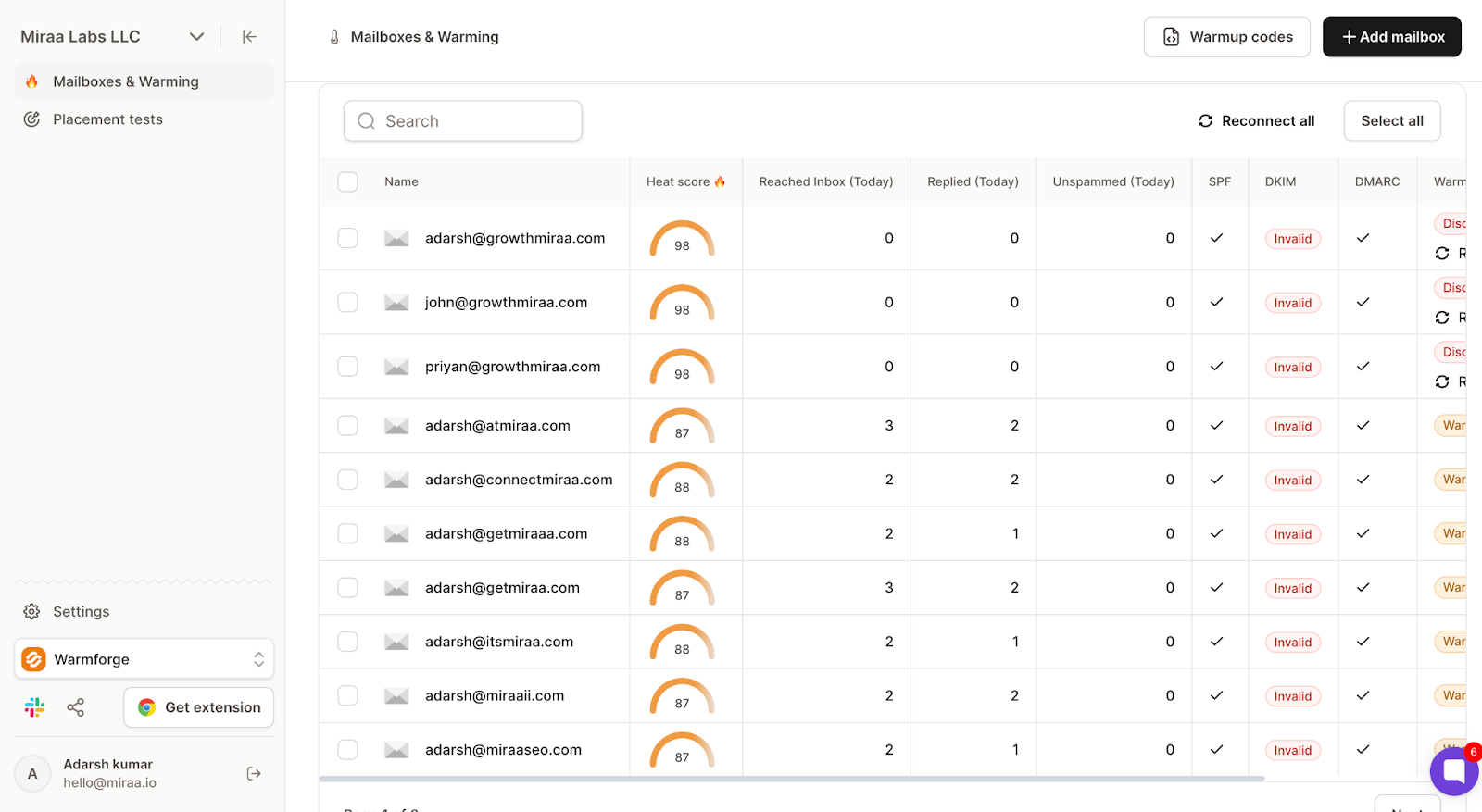
It warms up your mailboxes automatically using AI-generated emails that mimic real conversations, which helps show email providers that your inboxes are being used normally.
This runs continuously, so you don’t have to manually manage it.
You can also run placement tests to check where your emails are landing across different providers, not just Gmail.
Along with that, it checks your DNS and MX records and shows blacklist status, so you can keep track of your setup without switching between tools.
Instead of checking different metrics separately, you can monitor your mailboxes and see how they are performing in one place.
It also tracks mailbox activity through something like Heat Score™, where higher scores mean your mailbox is more active and stable.
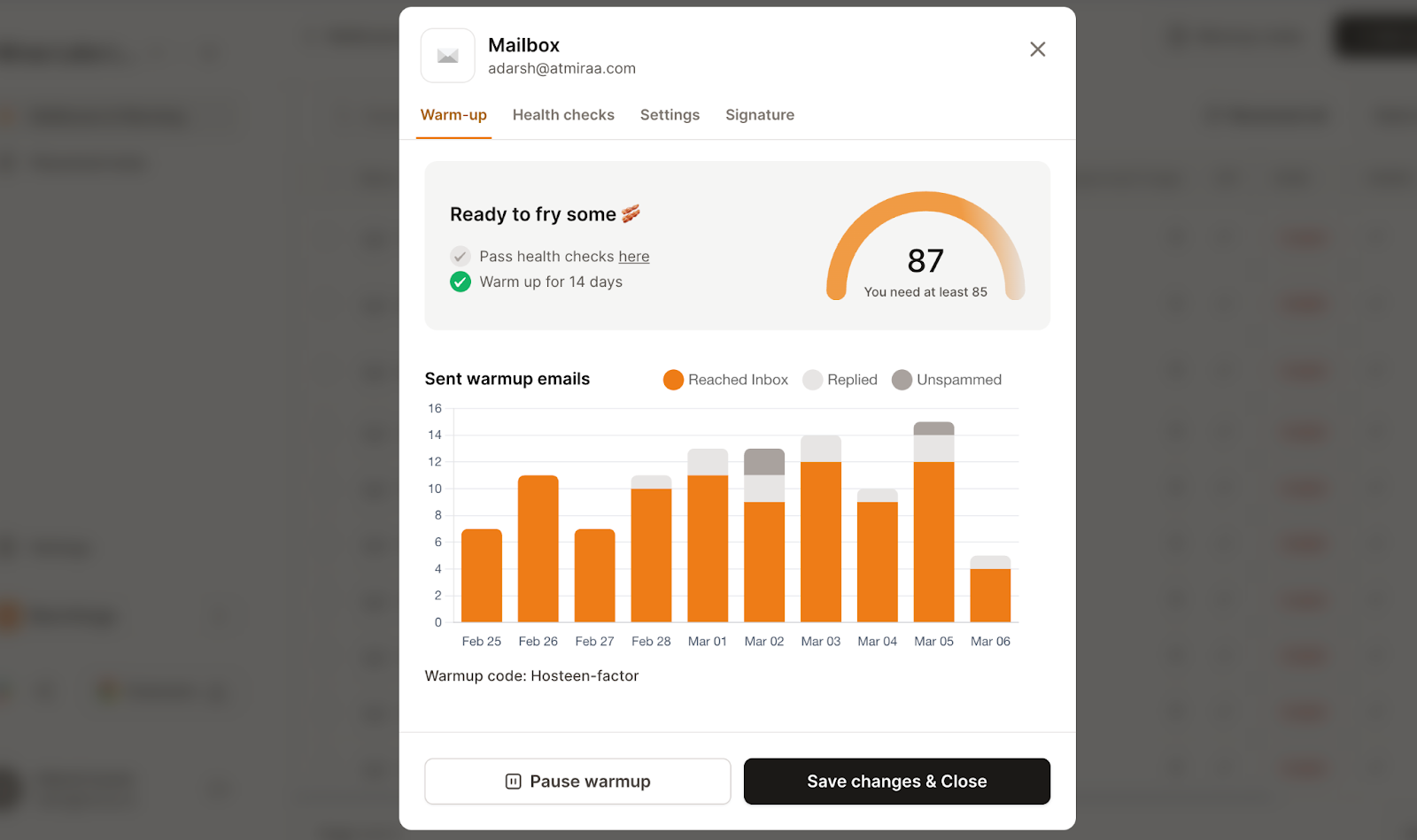
Typically, a score above 85 indicates the mailbox is ready for sending.
The warm-up network is made up of Google Workspace and Microsoft 365 accounts, with rules to keep it consistent as you scale.
In terms of pricing, email warm-up starts at $9 per month per slot (billed annually).
Placement testing plans start at $32.5 per month for 100 tests, and go up to $140.8 per month for unlimited tests.
There is also an option to book expert sessions at $500 for two one-to-one calls.
When I looked at it, it felt like it’s not just showing what’s going on, but actually helping you keep things running in the background.
Enter your email to get a custom plan & stack recommendation for your business
Please check your mailbox in 5 minutes

Gmail Postmaster Tools is useful when you want to understand how Gmail is treating your emails.
It gives you visibility into spam rate, reputation, and delivery issues.
But it mainly shows what’s happening.
You still need to handle what comes next on your own.
If you want to move beyond just checking data and actually keep your email setup running over time, tools like Warmforge are worth considering.
It covers things like warm-up, monitoring, and placement checks in one place, so you’re not just looking at numbers but also managing what’s behind them.
Start with Warmforge’s 1 free warm-up slot and 1 free placement test, and see how your emails actually perform.