Emails often fail to reach inboxes because they’re flagged as suspicious. SPF, DKIM, and DMARC are essential protocols that authenticate emails, protect against spoofing, and improve deliverability. These tools not only secure your domain but also increase the chances of your emails bypassing spam filters. Here's how they work:
Businesses adopting these protocols often see a 5–10% boost in email delivery rates. Starting in 2024, Gmail, Yahoo, and Microsoft require these standards for bulk senders. Misconfigurations, like exceeding SPF’s DNS lookup limit or failing to align DKIM and DMARC, can harm your sender reputation. Regular monitoring is critical to maintaining proper email authentication and ensuring your messages land in inboxes.
Sender Policy Framework (SPF) is a type of DNS TXT record that lists which mail servers and IP addresses are allowed to send emails on behalf of your domain. When an email is received, the server checks the SPF record for your domain to verify that the sending server's IP address is on the approved list.
Matthew Whittaker, Co-founder & CTO at Suped, puts it simply:
"SPF is like a list of authorized mail carriers for your domain. It allows a domain owner to specify which mail servers are permitted to send email on behalf of their domain."
When a receiving server gets an email, it looks up the SPF record from the domain listed in the return-path. Then, it checks if the sending IP matches the authorized list. If it does, the email passes authentication. If not, the result could be a fail or a soft fail, depending on the policy in the SPF record.
SPF records begin with v=spf1, followed by mechanisms like ip4 or include, and end with a qualifier that tells the server how to handle emails from unauthorized IPs.
Here's an example:
v=spf1 ip4:192.0.2.1 include:_spf.google.com ~all
One important thing to note is that SPF has a strict limit of 10 DNS lookups. If your SPF record requires more than 10 lookups, the authentication will fail - even for legitimate senders. This can be a challenge for businesses using multiple email services.
The qualifier at the end of the SPF record determines what happens to emails that don’t match the authorized list:
SPF Qualifier
Name
Action
Hard Fail
Reject emails from unauthorized sources outright
Soft Fail
Accept the email but flag it as suspicious
Pass
Allow any server to send (not recommended)
Neutral
No specific policy is applied
SPF has become a must-have for email deliverability, especially if you want your emails to land in inboxes at major providers like Gmail, Yahoo Mail (starting in 2024), and Microsoft/Outlook (beginning in 2025).
By implementing SPF, you improve your sender reputation, which increases the likelihood of your emails being trusted and delivered to the inbox instead of the spam folder. Internet Service Providers (ISPs) are more likely to trust emails from authenticated sources.
A 2023 survey found that only 55.4% of senders were confident they had SPF implemented, while 31.8% admitted they weren’t sure about their authentication setup.
However, SPF isn’t perfect. One of its biggest drawbacks is that it can fail when emails are forwarded. This happens because the forwarding server’s IP address isn’t listed in the original sender’s SPF record, leading to failed authentication. To address this, pairing SPF with DKIM (DomainKeys Identified Mail) is essential for a more reliable email authentication system.
When setting up SPF, it’s a good idea to start with a ~all qualifier. This ensures that legitimate emails aren’t accidentally rejected while you verify all your sending sources. Remember, a domain can only have one SPF record - having multiple records will cause authentication to fail. For subdomains or parked domains that don’t send emails, it’s wise to publish a "deny all" record (e.g., v=spf1 -all) to prevent spoofing.
Next, we’ll dive into how DKIM adds another layer of security and improves email deliverability.
SPF checks where emails come from, but DKIM goes a step further by ensuring the email's content hasn’t been tampered with. DomainKeys Identified Mail (DKIM) is an email authentication method that uses a digital signature to confirm the integrity of your emails.
Here’s how it works: your server uses asymmetric cryptography to hash key parts of the email and encrypts this hash with a private key, creating a unique DKIM signature. This signature is added to the email header. When the email reaches the recipient's server, the server retrieves the public key from your DNS records, decrypts the signature, and compares the result to a freshly generated hash. If the two match, the email is verified. If even one character in the email has been altered, the hashes won’t align, and the DKIM check will fail.
The DKIM signature in the email header contains critical information for verification. Two key parts are the selector (s=), which specifies which public key in the DNS to use, and the signing domain (d=), which identifies the domain responsible for the email. This setup allows flexibility - for instance, using different keys for various departments or services.
Here’s an example of a basic DKIM DNS record:
default._domainkey.yourdomain.com TXT "v=DKIM1; k=rsa; p=MIGfMA0GCSqGSIb3DQEBAQUAA4..."
The p= value contains your public key. For security, it’s recommended to use at least 2,048-bit RSA keys since shorter keys, like 512-bit, can be cracked in under 72 hours. To further reduce risks, rotate your keys annually.
Unlike SPF, DKIM signatures stay intact even when emails are forwarded. This makes DKIM a reliable tool for maintaining email integrity, which directly supports better deliverability.
DKIM plays a critical role in establishing trust with major email providers like Gmail, Yahoo, and Outlook. Properly configured DKIM signatures enhance your sender reputation, making it less likely that your emails will end up in spam folders.
Interestingly, nearly 40% of email authentication failures stem from DKIM misconfigurations. These common email authentication errors can significantly hinder your outreach efforts. Yet, when set up correctly, DKIM can boost email deliverability rates by 5–10% for marketing campaigns.
"DKIM is fundamental in protecting your email recipients and senders from malicious communication, forged messages, phishing, and spoofing attempts. It adds a digital signature to each email that can only be decrypted with a specific private key."
Starting in 2024, Gmail and Yahoo will require DKIM for bulk senders - those sending thousands of emails daily. This shift highlights the increasing focus on combating phishing and Business Email Compromise (BEC) attacks.
To keep your DKIM setup running smoothly, use DMARC aggregate reports to monitor its performance. These reports can help identify legitimate emails that fail authentication due to changes made by mailing lists or intermediate servers. Regularly testing your DKIM configuration with lookup tools ensures that your public key is correctly published and matches your private key.
Up next, we’ll explore how SPF, DKIM, and DMARC work together to improve email deliverability.
DMARC builds on SPF and DKIM by adding a layer of enforcement and feedback to the email authentication process. While SPF and DKIM confirm the sender's identity and validate message content, DMARC goes further by instructing email servers on how to handle authentication failures and providing detailed reports for analysis.
At the heart of DMARC's functionality is domain alignment. This ensures the visible "From" address matches the domain authenticated by either SPF or DKIM. Without alignment, attackers could bypass SPF or DKIM checks while still spoofing your brand in the "From" field. DMARC addresses this gap by requiring at least one authentication method to align with the sender's domain.
DMARC is a critical tool in combating email-based attacks like spoofing, which accounts for over 90% of email threats, and business email compromise (BEC) scams, which have caused $55 billion in losses. Despite its importance, only 34% of the largest 5,000 companies worldwide have implemented DMARC, and up to 80% of domains with DMARC records fail to enforce its protections. However, adoption is increasing - among Global 2000 companies, DMARC usage rose from 38.9% in 2020 to 70.6% in 2024.
DMARC is implemented as a DNS TXT record (e.g., _dmarc.yourdomain.com) containing instructions for receiving servers. The key element is the policy tag (p=), which offers three options:
Here’s an example of a basic DMARC record:
_dmarc.yourdomain.com TXT "v=DMARC1; p=quarantine; rua=mailto:[email protected]; pct=100"
The rua tag specifies where aggregate reports should be sent, offering insights into email traffic and authentication outcomes. For more detailed, real-time failure analysis, the ruf tag can be used to request forensic reports.
DMARC works by requiring SPF or DKIM to pass authentication with domains that match the "From" address. You can set alignment modes to "relaxed" (allowing subdomains to match) or "strict" (requiring an exact match) via the aspf and adkim tags.
DMARC Tag
Purpose
Example
Protocol version (must be DMARC1)
Policy for failed emails
Aggregate report destination
Percentage of emails subject to policy
SPF alignment mode (r=relaxed, s=strict)
DKIM alignment mode (r=relaxed, s=strict)
To implement DMARC effectively, start with a p=none policy to monitor email traffic and gather data through aggregate reports. Once legitimate mail is consistently authenticated, you can transition to stricter policies like p=quarantine and eventually p=reject. The pct tag allows you to gradually warm up your domain and test enforcement by applying policies to only a portion of your traffic, such as 10% (pct=10).
"The end goal is ideally a policy of p=reject. That's what DMARC is for. Ensuring that your domain cannot be spoofed and protecting our mutual customers from abuse."
DMARC doesn't just block malicious emails - it also enhances your reputation with major email providers like Gmail, Yahoo, and Outlook. By implementing DMARC with enforcement policies, you're signaling to these providers that you're a legitimate sender who prioritizes email security. This trust can lead to better inbox placement and improved deliverability rates.
In fact, organizations have reported a 5–10% boost in marketing email delivery rates after enforcing DMARC. The visibility provided by DMARC’s aggregate reports is equally valuable, helping you identify misconfigurations, unauthorized use of your domain, and legitimate mail streams needing adjustments - issues that could otherwise harm your deliverability without your knowledge.
As of February 2024, Gmail and Yahoo require DMARC compliance for bulk senders (those sending over 5,000 emails daily). This shift reflects the industry's movement toward stricter authentication standards. However, more than two-thirds of active DMARC policies remain at p=none, which offers monitoring but no protection against spoofing. The trend is moving toward p=reject to fully combat phishing and brand impersonation.
DMARC also enables BIMI (Brand Indicators for Message Identification), allowing your brand logo to appear in recipients' inboxes. If you don't have a brand logo yet, you can use an AI logo generator to create one quickly before setting up BIMI. This visual trust signal requires a DMARC policy of at least p=quarantine, giving recipients an immediate indication that your emails are legitimate.
In 2007, PayPal partnered with Yahoo! Mail and later Gmail to pioneer a system that laid the groundwork for DMARC. This collaboration drastically reduced fraudulent emails claiming to be from PayPal. The takeaway is clear: DMARC is effective, but only when implemented and enforced properly.
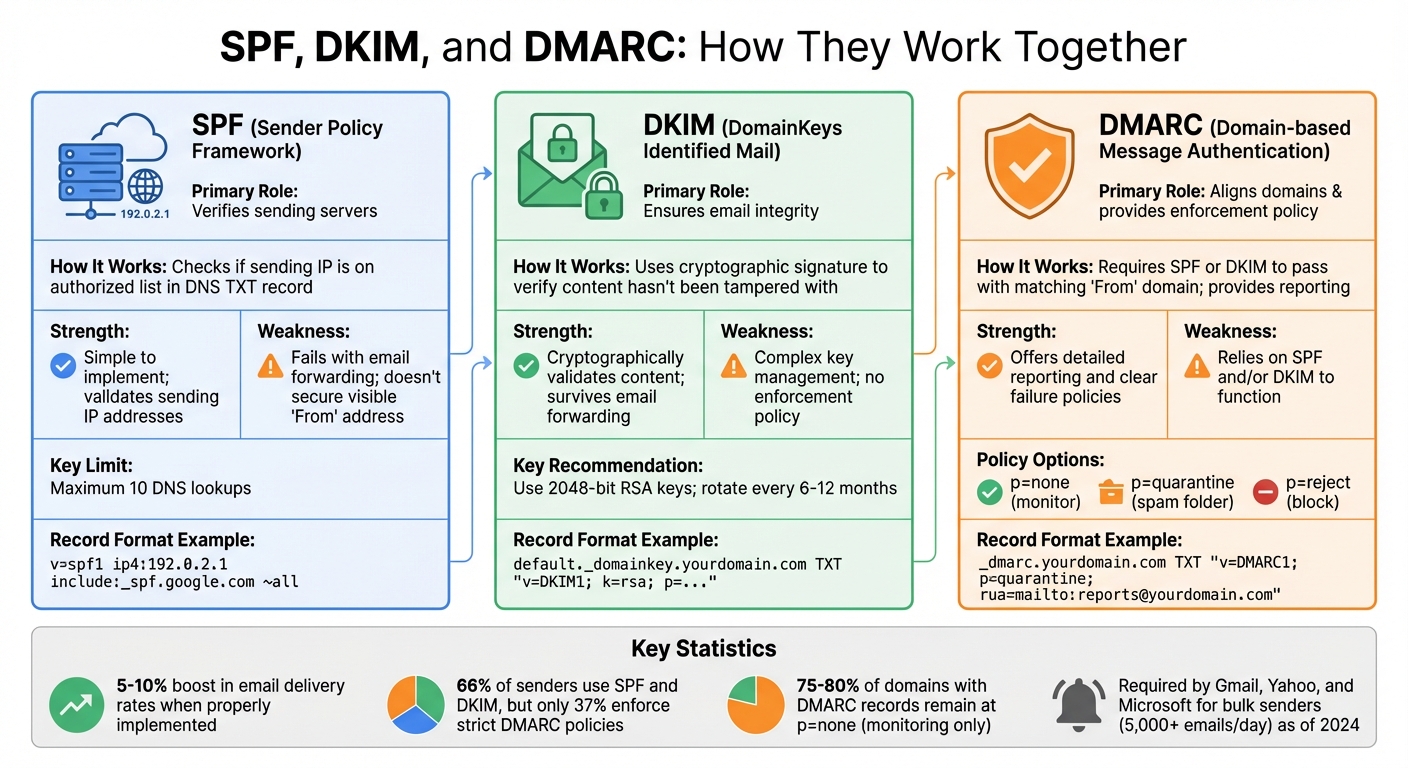
SPF, DKIM, and DMARC form a powerful trio for email authentication, working together to secure and validate email communication. Each protocol plays a distinct role: SPF verifies the sending server, DKIM ensures the integrity of the email content, and DMARC enforces alignment between the domain and the visible "From" address while providing detailed reporting.
Here’s how they complement each other:
However, SPF and DKIM have limitations. SPF doesn’t verify the "From" address displayed to recipients, and DKIM lacks a mechanism to enforce a failure policy. DMARC addresses these gaps by requiring domain alignment, which makes it harder for attackers to spoof emails.
Protocol
Primary Role
Strength
Weakness
Verifies sending servers
Simple to implement; checks IP
Fails with email forwarding; doesn’t secure visible "From"
Ensures email integrity
Cryptographically validates content
Complex key management; no enforcement policy
Aligns domains & provides policy
Offers reporting and clear failure policies
Relies on SPF and/or DKIM to function
DMARC stands out by offering actionable reporting. Aggregate reports, sent to an email address you specify, provide insights into who’s sending emails on your behalf, where authentication fails, and whether unauthorized attempts are being made to use your domain. This feedback loop is invaluable for troubleshooting, identifying misconfigurations, and stopping spoofing attempts before they harm your domain’s reputation.
Major email providers like Gmail, Yahoo, and Microsoft require bulk senders - those sending over 5,000 emails daily - to implement SPF, DKIM, and DMARC. Organizations that enforce DMARC with stricter policies (like p=quarantine or p=reject) have reported improved email delivery rates. Despite these advantages, around 75% to 80% of domains with DMARC records remain at p=none, which only monitors activity without offering real protection against spoofing.
This unified system creates a solid foundation for email security, paving the way for proper configuration and monitoring, as detailed in this email authentication checklist and the upcoming setup guide.
When it comes to email authentication, even small configuration mistakes can have a big impact. Missteps in setting up protocols like SPF, DKIM, and DMARC can lead to authentication failures, causing mailbox providers to view your domain as unreliable. The result? Emails end up in spam folders, face delays, or get rejected outright.
Understanding these common errors is essential to avoid damaging your sender reputation. Let’s break down the most frequent issues for each protocol and how they can affect your email deliverability.
SPF (Sender Policy Framework) records are straightforward in theory, but even minor errors can cause major headaches. One of the most frequent problems is exceeding the 10 DNS lookup limit. Each include: statement in your SPF record triggers a DNS lookup, and going over the limit causes the entire record to fail. When this happens, email servers can’t verify your sending sources, leading to authentication issues and delivery delays.
Syntax errors are another common pitfall. These include:
Another frequent mistake is publishing multiple SPF records for the same domain. Since DNS only supports one valid SPF record per domain, having more than one creates confusion and typically results in failures. Additionally, SPF records longer than 255 characters in a single string are considered invalid.
The choice of qualifier also plays a role. Using +all (Pass) or ?all (Neutral) can expose your domain to unauthorized use, as these settings allow emails from unverified sources. Industry best practices recommend using ~all (Soft Fail) in combination with DMARC, rather than -all (Hard Fail), which might block legitimate forwarded emails.
To handle the DNS lookup limit, you can use SPF flattening tools to consolidate records into IP ranges or allocate specific subdomains for different sending services, each with its own SPF record.
DKIM (DomainKeys Identified Mail) errors are just as problematic as SPF issues. A common error involves a mismatch between the selector in the email header and the one defined in DNS. If the public key is missing or doesn’t match, the receiving server will flag the message with a "DKIM FAIL" status.
Alignment problems can also arise under DMARC. For example, if the DKIM signing domain (defined by d=) doesn’t match the domain in the "From" header, DMARC checks will fail. Proper alignment is critical for passing these checks.
Key management is another area where mistakes happen. Alarmingly, only 12% of senders have a regular rotation schedule for their DKIM keys, while nearly half admit to rotating keys only after a security incident. If private keys are compromised, attackers can send fraudulent emails using your domain. To reduce this risk, rotate DKIM keys every 6 to 12 months and store private keys securely using tools like AWS Secrets Manager or HashiCorp Vault.
For added security, use 2048-bit keys instead of 1024-bit ones. Also, double-check your DKIM record syntax with DNS lookup tools to ensure the public key is correctly published.
DMARC (Domain-based Message Authentication, Reporting, and Conformance) misconfigurations often result from rushing into enforcement policies without proper preparation. Switching to a p=reject or p=quarantine policy without verifying that all legitimate sending sources are properly authenticated can block or misplace legitimate emails.
Here are some common DMARC mistakes:
Monitoring is often overlooked, making these issues worse. About 40% of senders with DMARC are unsure about their actual policy. Without proper monitoring of RUA (aggregate) and RUF (forensic) reports, unauthorized senders or misconfigured services can slip by unnoticed.
Error Code
Provider
Meaning
550 5.7.26
Gmail
Unauthenticated email: DMARC policy rejects the message
550 5.7.509
Outlook
Sending domain does not pass DMARC verification
554 5.7.9
Yahoo
Message not accepted due to DMARC failure
554 5.7.5
Various
Permanent error evaluating DMARC policy (usually a record issue)
550 5.4.1
Microsoft
Recipient address rejected; often due to misconfigured SPF/DKIM/DMARC
Repeated DMARC failures signal to mailbox providers that your domain isn’t trustworthy, leading to a long-term decline in sender reputation. This can affect even your authenticated emails. To avoid this, audit all third-party senders, like Salesforce, Mailchimp, and Zendesk, and ensure they are explicitly authorized in your SPF and DKIM records before enforcing stricter DMARC policies.
Getting these configurations right across SPF, DKIM, and DMARC is essential for maintaining trust in your domain and ensuring reliable email delivery. Addressing these common errors will help keep your email authentication running smoothly.
Setting up SPF, DKIM, and DMARC can significantly improve your email deliverability and protect your domain from spoofing. The process isn't overly complex, but it does require attention to detail. Start by taking an inventory of all services sending email on your behalf - this includes your main email provider (like Google Workspace or Microsoft 365), CRMs, marketing platforms, transactional email services, and support tools. Missing even one service could lead to failed authentication. Here's how to configure each protocol.
"SPF is not a one-time job - you have to keep checking your SPF record to ensure it's appropriately configured."
Once SPF is in place, move on to securing your emails with DKIM.
"DKIM, or DomainKeys Identified Mail, is a vital email authentication method that helps verify the sender's identity and guarantees the content has not been tampered with during transit."
Once SPF and DKIM are configured, DMARC ties everything together, providing an additional layer of protection.
"The end goal is ideally a policy of p=reject. That's what DMARC is for. Ensuring that your domain cannot be spoofed and protecting our mutual customers from abuse."
Implementing DMARC can improve email deliverability by up to 10% and offers essential protection against Business Email Compromise scams, which cost businesses approximately $2.9 billion in 2023.

Once you've set up SPF, DKIM, and DMARC, the job isn't over. To maintain reliable email deliverability, you need to keep a close eye on these configurations. Without consistent monitoring, issues like configuration drift, DNS changes, or new sending sources can undermine your setup. This is where continuous oversight becomes critical - it ensures your email authentication strategy stays effective over time.
Warmforge simplifies the process by monitoring your domain and inbox health the moment you connect your infrastructure. It automatically tracks DNS and MX records, checks blacklist statuses, and evaluates your sender reputation to give you a comprehensive view of your email performance. One standout feature is inbox placement testing. This tool simulates real-world email delivery across major providers, ensuring your authenticated messages land in primary inboxes before you launch campaigns.
Additionally, Warmforge offers proactive alerts. If your authentication settings fail or deliverability metrics decline, you'll be notified right away - helping you address issues before they impact your campaigns.
Warmforge doesn’t just offer powerful tools - it’s part of the Forge Stack, a unified ecosystem designed to streamline email deliverability. By integrating with tools like Mailforge or Primeforge, Warmforge starts working immediately. It warms up your mailboxes using a controlled pool, bypassing external SMTP vendors to ensure a smoother process.
The results speak for themselves. In January 2026, UniteSync achieved an impressive 85.26% positive reply rate and a $2.86 Customer Acquisition Cost by combining Warmforge with Salesforge and Mailforge. According to CEO Carlos Palop Moliner, his team maintained reply rates as high as 17% by ensuring their emails consistently landed in primary inboxes. On top of that, organizations that enforce DMARC with proper monitoring tools often see a 5–10% boost in delivery rates.
Warmforge also offers a free warm-up slot for every user (compatible with Google or Microsoft mailboxes) and one free placement test each month. This lets you test its capabilities without committing to a paid plan, taking the guesswork out of email authentication. By automating monitoring and integrating essential deliverability tools, Warmforge ensures your authenticated emails perform exactly as intended.
SPF, DKIM, and DMARC play a key role in email authentication, determining whether your messages land in the inbox or get flagged as spam. Together, these protocols work to protect your emails and verify their legitimacy.
The importance of proper authentication isn’t just theoretical - it’s backed by hard numbers. While 66% of senders use SPF and DKIM, only 37% enforce strict DMARC policies. This gap leaves businesses exposed to spoofing attacks, which have led to over $2.77 billion in losses. As Marcel Becker, Senior Director of Product Management at Yahoo, explains:
"The end goal is ideally a policy of p=reject. That's what DMARC is for. Ensuring that your domain cannot be spoofed and protecting our mutual customers from abuse".
But setting up these protocols isn’t a one-and-done task. Ongoing maintenance is just as critical. DNS changes and third-party senders can weaken your defenses over time. Regular monitoring helps catch problems, like exceeding SPF’s 10-lookup limit or using outdated DKIM keys, before they harm your email deliverability. Tools like Warmforge simplify this process by tracking DNS records, scanning for blacklist issues, and running placement tests to ensure your authenticated emails reach the inbox. With real-time tracking and alerts, Warmforge helps safeguard your email reputation.
In a world where 53% of consumers say they distrust legitimate brand emails due to phishing concerns, robust authentication is essential. By implementing SPF, DKIM, and DMARC, monitoring them consistently, and enforcing strict DMARC policies, you can build trust and keep your emails where they belong - in the inbox.
Misconfigured SPF, DKIM, or DMARC records can wreak havoc on your email deliverability. For instance, an SPF record with syntax errors or exceeding the 10-lookup limit may cause receiving servers to flag your emails as unauthenticated. This often leads to emails being rejected or dumped into spam folders. Similarly, DKIM issues - like mismatched keys or broken signatures - can fail integrity checks, making your messages seem untrustworthy.
DMARC acts as the glue that connects these protocols, amplifying the effects of any misconfiguration. A strict DMARC policy paired with failing SPF or DKIM checks can result in your emails being outright rejected or quarantined. Even small mistakes, such as incorrect reporting addresses in your DMARC setup, can leave you in the dark about these failures. These missteps not only hurt your email deliverability but also damage your sender reputation over time.
Warmforge helps you avoid these pitfalls by keeping a close eye on your SPF, DKIM, and DMARC records. It alerts you to any misconfigurations and performs placement tests to ensure your emails end up in inboxes rather than spam folders.
To implement SPF, DKIM, and DMARC effectively, think of them as a step-by-step process rather than isolated tasks. Start with SPF by creating a single TXT record that lists all the servers and services authorized to send emails on behalf of your domain. Use a soft-fail (~all) qualifier initially to test the setup, and once you're confident everything is in place, switch to a stricter reject (-all) policy.
Next, move on to DKIM. Generate a 2048-bit key pair, publish the public key as a TXT record, and configure your mail servers to add a digital signature to outgoing emails. Make sure to test your setup regularly and rotate your keys periodically to maintain security.
Finally, set up DMARC by creating a TXT record at _dmarc.yourdomain.com. Start with a p=none policy to collect reports and analyze them to ensure proper alignment between SPF, DKIM, and your domain. Once you're confident in your configuration, gradually move to stricter policies like p=quarantine or p=reject to protect your domain from spoofing and phishing attempts.
Throughout this process, monitoring is essential. Tools like Warmforge can help you validate your setup and track deliverability performance, ensuring your emails consistently reach inboxes.
Regularly keeping an eye on SPF, DKIM, and DMARC is crucial because email authentication isn’t something you can configure once and forget about. Any changes - like adding new email services, subdomains, or IP addresses - can mess with your SPF records, invalidate DKIM keys, or cause DMARC alignment issues. If these problems go unchecked, you might not notice until your emails start getting flagged as spam or, worse, rejected entirely.
By reviewing DMARC reports, you gain valuable insights into how mailbox providers perceive your email authentication setup. These reports can help you spot spoofing attempts, misaligned messages, or expired keys before they damage your sender reputation. Regular monitoring also gives you the chance to tweak your policies, such as shifting from “none” to “quarantine” or “reject,” ensuring your adjustments enhance deliverability. Tools like Warmforge make this easier by automating monitoring, providing real-time reports, and running placement tests - helping you maintain a solid sender reputation and reliable inbox placement.
{"@context":"https://schema.org","@type":"FAQPage","mainEntity":[{"@type":"Question","name":"How do SPF, DKIM, and DMARC misconfigurations impact email deliverability?","acceptedAnswer":{"@type":"Answer","text":"<p>Misconfigured SPF, DKIM, or DMARC records can wreak havoc on your email deliverability. For instance, an SPF record with syntax errors or exceeding the 10-lookup limit may cause receiving servers to flag your emails as unauthenticated. This often leads to emails being rejected or dumped into spam folders. Similarly, DKIM issues - like mismatched keys or broken signatures - can fail integrity checks, making your messages seem untrustworthy.</p> <p>DMARC acts as the glue that connects these protocols, amplifying the effects of any misconfiguration. A strict DMARC policy paired with failing SPF or DKIM checks can result in your emails being outright rejected or quarantined. Even small mistakes, such as incorrect reporting addresses in your DMARC setup, can leave you in the dark about these failures. These missteps not only hurt your email deliverability but also damage your sender reputation over time.</p> <p>Warmforge helps you avoid these pitfalls by keeping a close eye on your SPF, DKIM, and DMARC records. It alerts you to any misconfigurations and performs placement tests to ensure your emails end up in inboxes rather than spam folders.</p>"}},{"@type":"Question","name":"How can I successfully set up SPF, DKIM, and DMARC to improve email deliverability?","acceptedAnswer":{"@type":"Answer","text":"<p>To implement <strong>SPF</strong>, <strong>DKIM</strong>, and <strong>DMARC</strong> effectively, think of them as a step-by-step process rather than isolated tasks. Start with <strong>SPF</strong> by creating a single TXT record that lists all the servers and services authorized to send emails on behalf of your domain. Use a soft-fail (<code>~all</code>) qualifier initially to test the setup, and once you're confident everything is in place, switch to a stricter reject (<code>-all</code>) policy.</p> <p>Next, move on to <strong>DKIM</strong>. Generate a 2048-bit key pair, publish the public key as a TXT record, and configure your mail servers to add a digital signature to outgoing emails. Make sure to test your setup regularly and rotate your keys periodically to maintain security.</p> <p>Finally, set up <strong>DMARC</strong> by creating a TXT record at <code>_dmarc.yourdomain.com</code>. Start with a <code>p=none</code> policy to collect reports and analyze them to ensure proper alignment between SPF, DKIM, and your domain. Once you're confident in your configuration, gradually move to stricter policies like <code>p=quarantine</code> or <code>p=reject</code> to protect your domain from spoofing and phishing attempts.</p> <p>Throughout this process, monitoring is essential. Tools like Warmforge can help you validate your setup and track deliverability performance, ensuring your emails consistently reach inboxes.</p>"}},{"@type":"Question","name":"Why is it important to regularly monitor SPF, DKIM, and DMARC settings?","acceptedAnswer":{"@type":"Answer","text":"<p>Regularly keeping an eye on SPF, DKIM, and DMARC is crucial because email authentication isn’t something you can configure once and forget about. Any changes - like adding new email services, subdomains, or IP addresses - can mess with your SPF records, invalidate DKIM keys, or cause DMARC alignment issues. If these problems go unchecked, you might not notice until your emails start getting flagged as spam or, worse, rejected entirely.</p> <p>By reviewing DMARC reports, you gain valuable insights into how mailbox providers perceive your email authentication setup. These reports can help you spot spoofing attempts, misaligned messages, or expired keys before they damage your sender reputation. Regular monitoring also gives you the chance to tweak your policies, such as shifting from “none” to “quarantine” or “reject,” ensuring your adjustments enhance deliverability. Tools like Warmforge make this easier by automating monitoring, providing real-time reports, and running placement tests - helping you maintain a solid sender reputation and reliable inbox placement.</p>"}}]}