
Personalized Outbound Strategy
Get The Right Outbound Strategy In Minutes
Enter your email to get a custom plan & stack recommendation for your business
It's being carefully crafted by AI
Please check your mailbox in 5 minutes

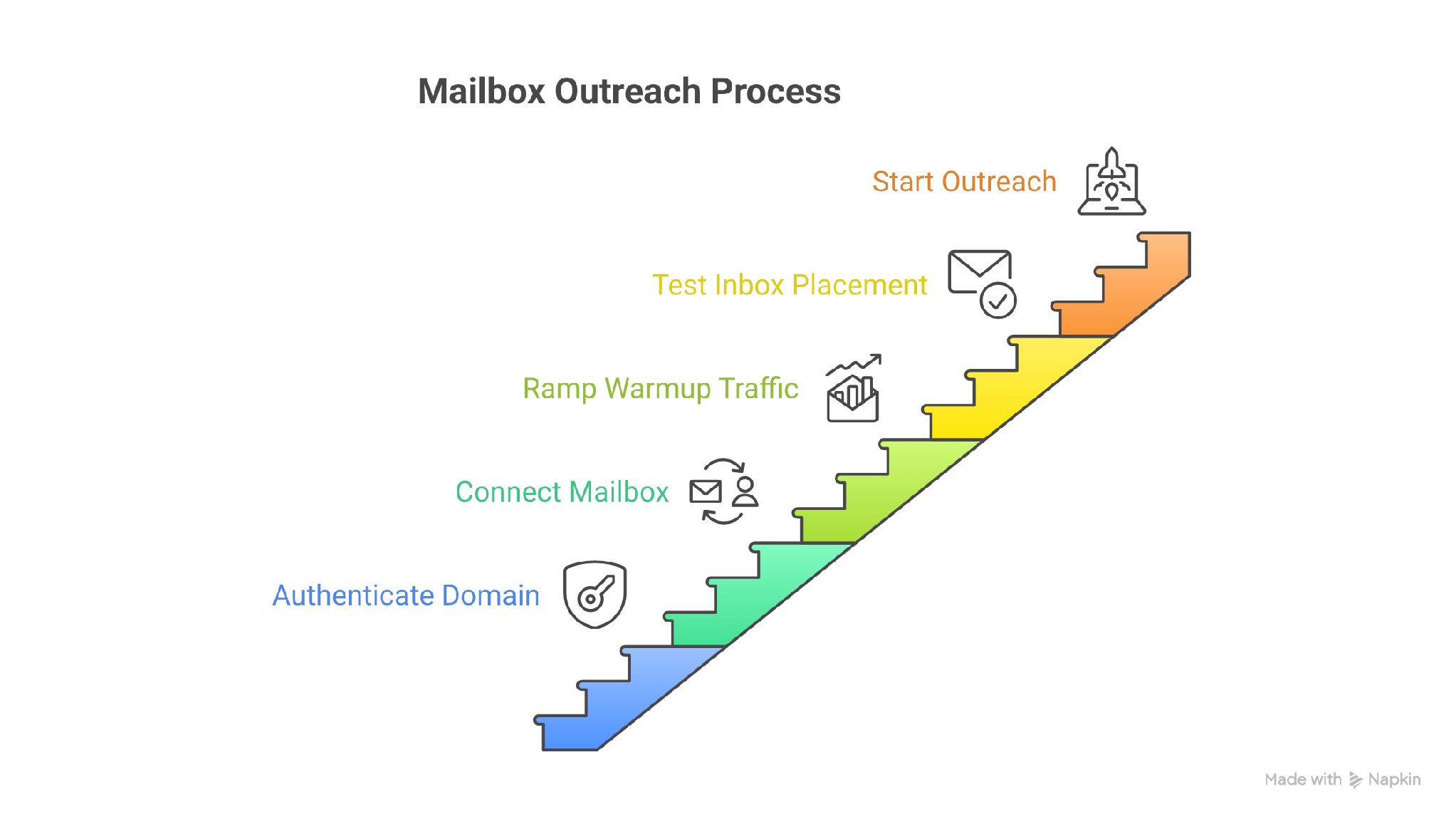
You can do everything right; set up the infrastructure, build a strong lead list, and launch your first campaign, but still end up with zero replies while Gmail defers your messages, and Outlook sends them straight to junk. Before long, your SMTP logs start filling up with errors you did not expect.
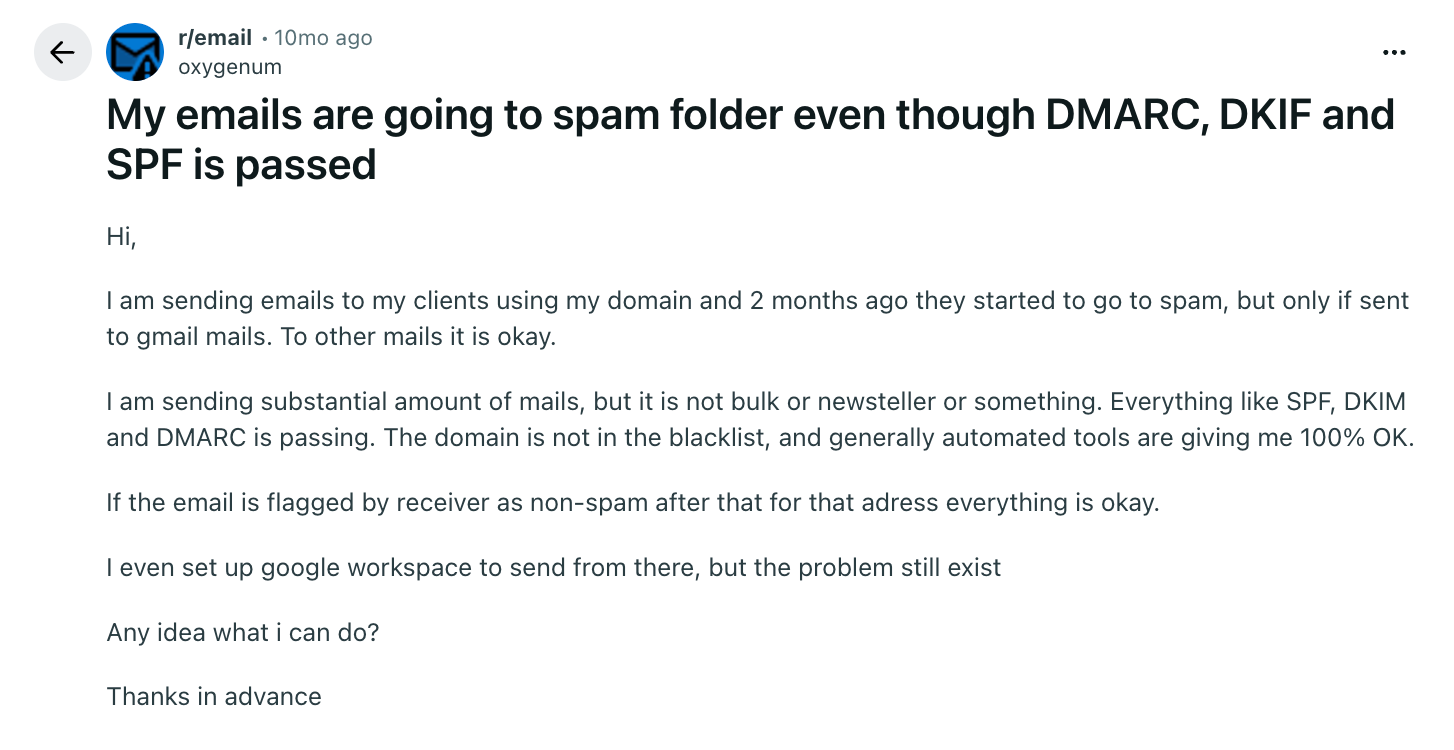
This usually starts before the copy itself. When you buy a new domain and create fresh mailboxes, your sending IP has very little history. If you then go from no activity to full campaign volume overnight, inbox providers like Gmail and Outlook can see that as suspicious and start throttling your mail.
SMTP warmup helps you avoid that. You begin with a low send volume, build reply activity, and increase traffic only when your delivery signals stay healthy. For a new mailbox, I would allow at least 14 days before doing cold outreach. A new dedicated IP may need four to eight weeks. The right pace depends on your target volume and provider mix.
SMTP warmup helps a new or inactive mailbox build a sending history gradually before you begin cold outreach. The goal is not to send more emails just to boost volume, but to increase sending slowly while authentication, inbox placement, SMTP responses, and sender health remain stable.
Once live campaigns begin, keep warmup running at a lower maintenance volume instead of turning it off right away.
A mailbox provider and a warmup provider do different jobs. Your SMTP provider hosts the account and sends mail. The warmup service builds sending history, reply activity, and the checks you want before outreach.
Some SMTP mailbox plans include free warmup. That can save money, but I still look closely at what “free” actually includes. A send-and-reply counter shows that activity happened. It does not tell me where the messages landed or whether DNS and blacklist problems are still there.
A paid warmup provider makes sense when the cost of damaging a sender reputation is higher than the mailbox fee. Warmforge charges by mailbox slot and includes Heat Score™, Health Checks, multilingual warmup, and Inbox Placement Tests. Those features help me decide when to slow down instead of relying only on a day count.
I use free warmup when I am testing one mailbox and can check placement myself. I pay for a separate service when I manage client inboxes, need one policy across SMTP providers, or want an API that cuts out manual setup. The paid option gives me more control. It does not make up for weak authentication or bad lists.
You probably need SMTP warmup when the mailbox or domain is new. I also warm an account after a long period of inactivity, before a planned volume increase, or when it moves to new SMTP infrastructure.
Outbound adds another reason. If a mailbox has no sending history, it should not learn its limits from a live prospect list.
You may not need a dedicated warmup tool if you use the mailbox for normal human correspondence and it already has a steady sending history. You can also skip it if you do not plan to increase volume. In those cases, regular sending and replies already create the pattern that warmup is meant to build.
SMTP warmup is the process of building sending history by gradually increasing email traffic. It affects several reputations at once: the mailbox, the From domain, and the sending IP.
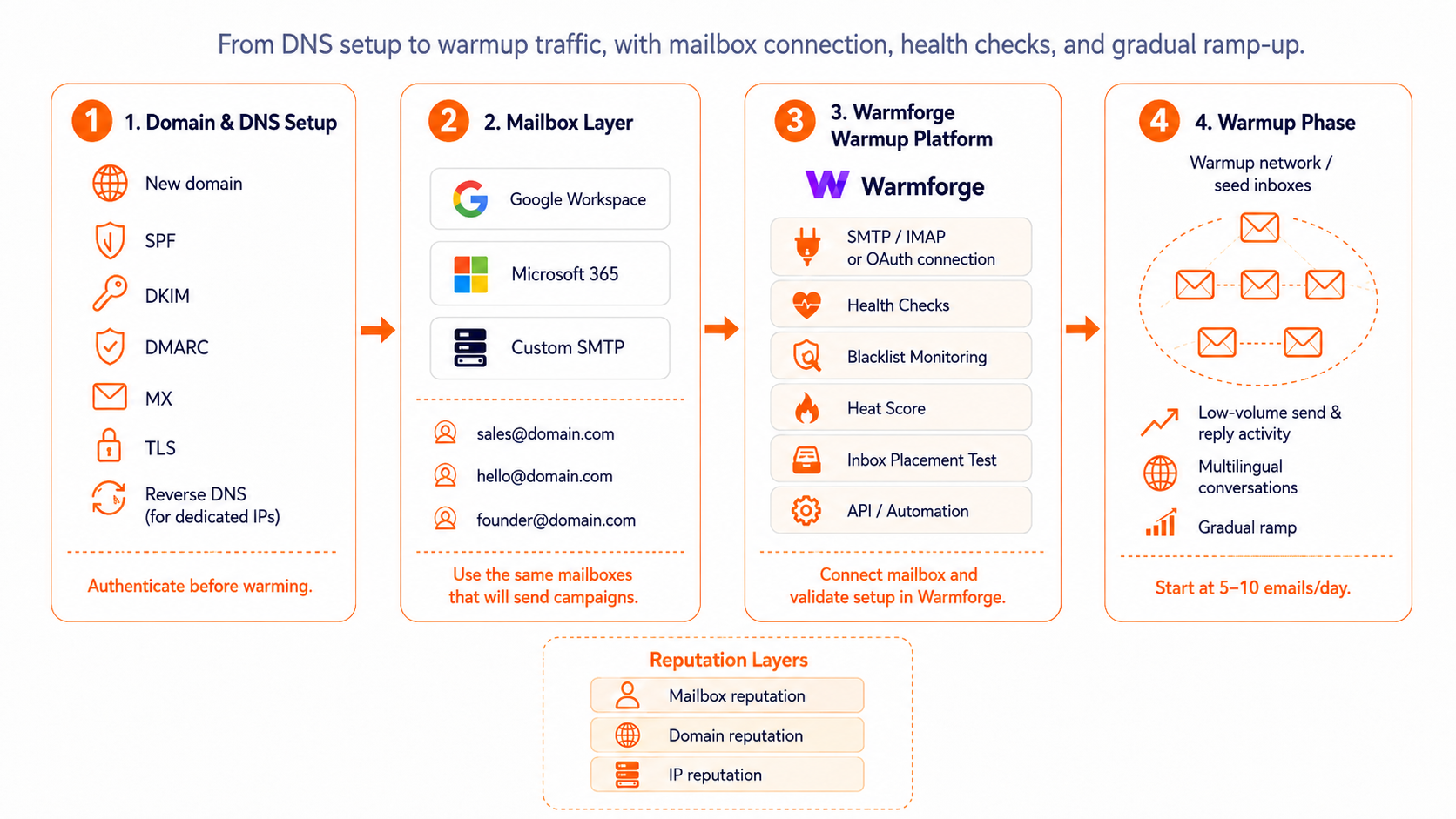
Those reputations do not move together. A domain can carry history, while a dedicated IP starts with none, and a mailbox may sit on an IP pool that other senders also use. When you diagnose a weak result, identify which layer changed.
For a Google Workspace or Microsoft 365 mailbox, you usually focus on mailbox and domain behavior because the provider manages the shared infrastructure. A custom SMTP server adds IP reputation, reverse DNS, and connection behavior to your job.
Warm-up creates a pattern, but it cannot fix a missing authentication record, a list full of dead addresses, or mail that recipients mark as spam.
When you separate these causes before adjusting the sending limit, you avoid spending two weeks warming a mailbox when the placement problem actually comes from a DNS error or an IP that already carries complaints from another sender.
I start with authentication because every later test depends on it, and a warmup dashboard can show replies while the receiving server still distrusts the sender's identity.
Check these records and connections:
Google requires SPF or DKIM for all senders to Gmail, and bulk senders need SPF, DKIM, and DMARC. It also expects TLS, valid DNS, and a spam rate below 0.3%; I use 0.1% as the operating ceiling because waiting until the enforcement line leaves no margin.
If you run a custom server that sends to Gmail and Outlook, verify the message in both providers’ headers, because an SPF pass in one place does not prove that DKIM alignment or reverse DNS will work everywhere.
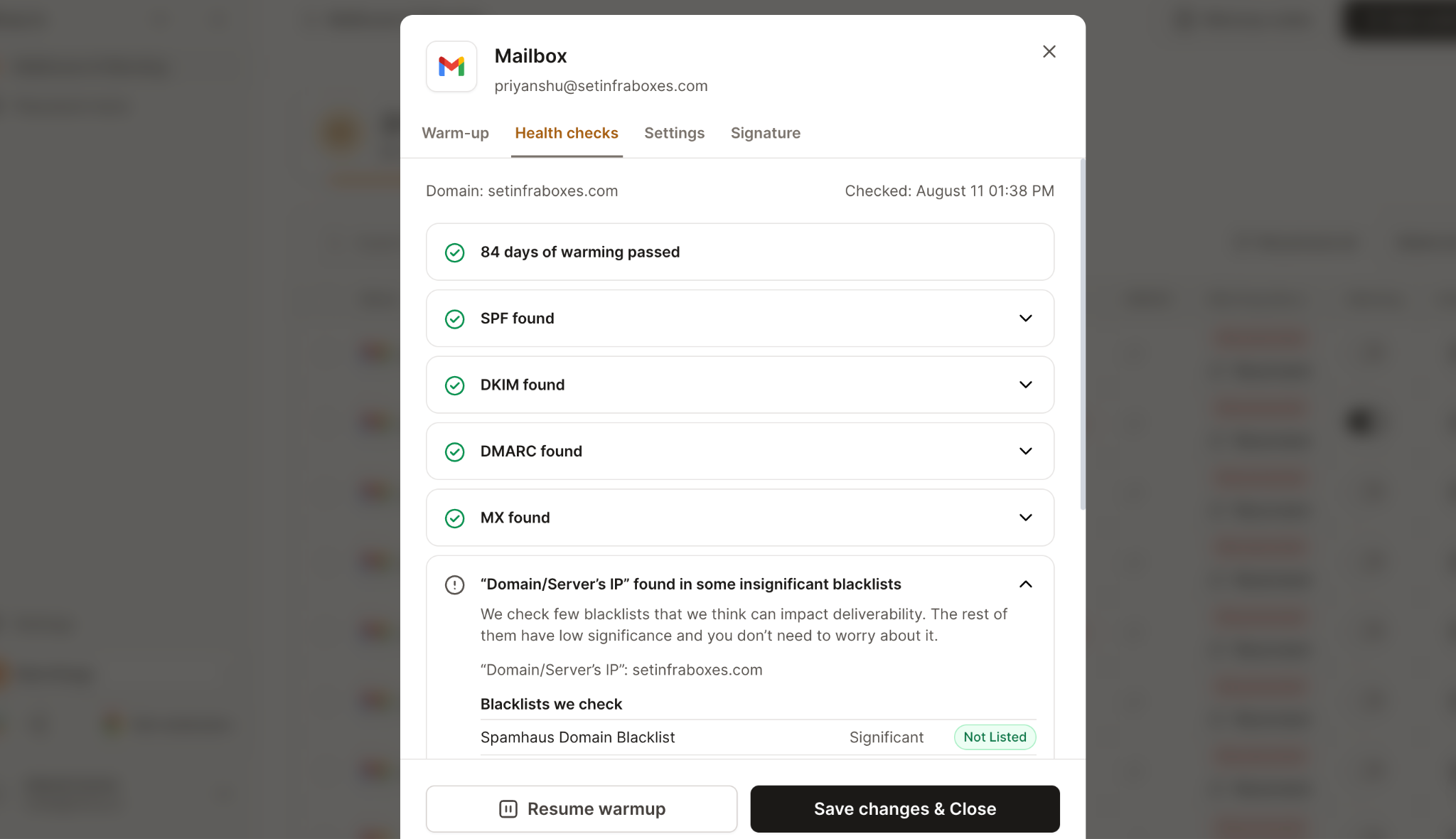
Warmforge Health Checks look at DNS, MX records, and blacklist status for each mailbox. Fix every failed check before you start the ramp, because warmup traffic sent through a broken identity only gives you more failed traffic.
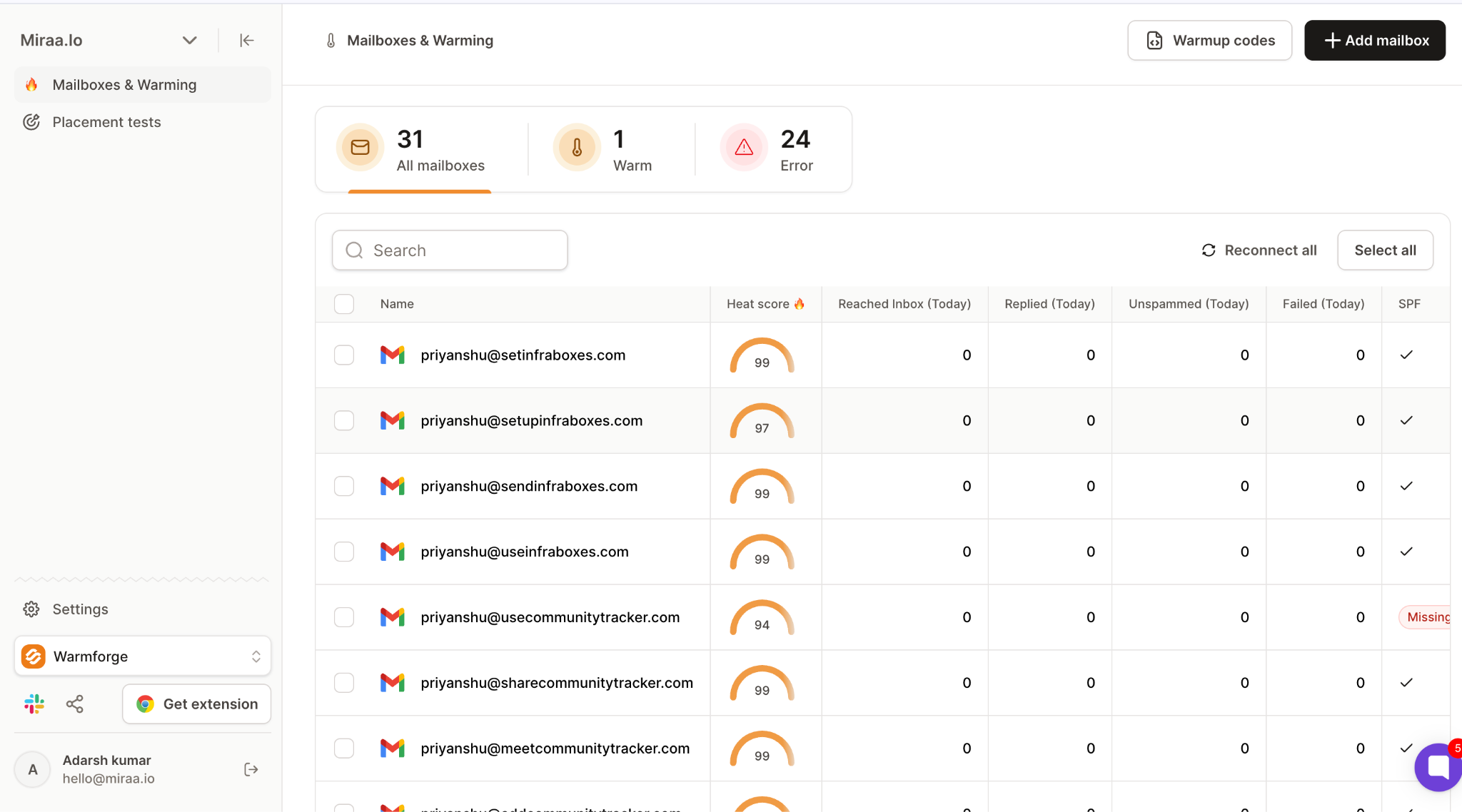
This order also makes troubleshooting cheaper because you can correct one DNS record before warmup begins, instead of paying for mailbox slots and waiting through a ramp only to learn that every message carried an identity mismatch from day one.
A warmed mailbox is what sends the campaign. Reputation stays with that sender and its infrastructure, so a substitute inbox proves nothing about the account you plan to use.
Authenticate the domain before connecting the account. SPF must authorize the sending service. DKIM must sign each message, while DMARC must align the visible From domain with SPF or DKIM.
Use the connection method supported by your email provider. Google Workspace and Microsoft 365 can use OAuth. For other providers, gather the SMTP host and port, plus the IMAP host and port. You will also need the encryption method, username, and password or app password.
Confirm that the account can send and receive mail before moving on. Keep those credentials out of scripts and logs.
Add the mailbox to Warmforge using OAuth or the SMTP and IMAP credentials you already collected. Warmforge handles the warmup layer, while your current SMTP provider continues hosting the mailbox.

For one or two accounts, I can manage the setup in the dashboard. An agency or platform with dozens of SMTP accounts can use the Warmforge API. Generate the API key under Settings, store it in a secret manager, and add each mailbox to the right workspace.
Run Health Checks before switching warmup on. I fix SPF, DKIM, DMARC, MX, or blacklist failures first. Warmup traffic sent through a broken identity only creates more failed traffic.
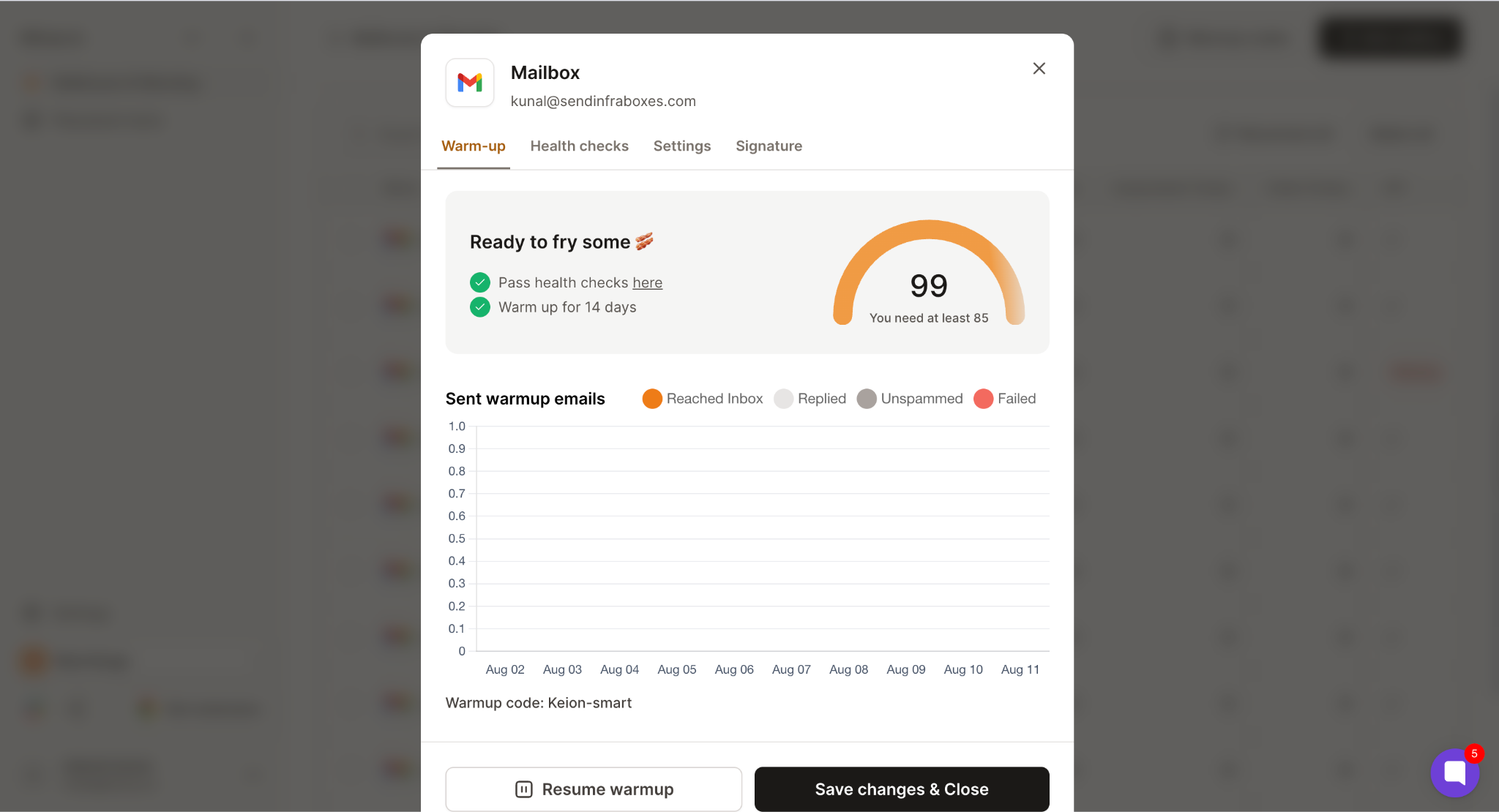
Turn on one-click AI email warmup after the account has passed its checks. Warmforge supports sending and replying across SMTP, Google Workspace, and Microsoft 365 mailboxes. Using multilingual messages helps avoid repeating the same language pattern.
Start with 5 to 10 warmup emails per day for each mailbox. Keep campaign traffic paused during this initial ramp so live sends do not distort the signal.
Only raise volume when Heat Score™, SMTP responses, and placement are all steady. A daily API job can check those signals, pause the ramp if needed, and alert the owner when something fails. A person still makes the launch decision, because the API cannot judge the list or the message behind a decline.
Buy one Warmforge slot for each mailbox you want to warm. Warmforge includes one free slot when you sign up. The standalone annual price is $9 per mailbox slot each month, and each slot includes one placement test per month plus Health Checks.
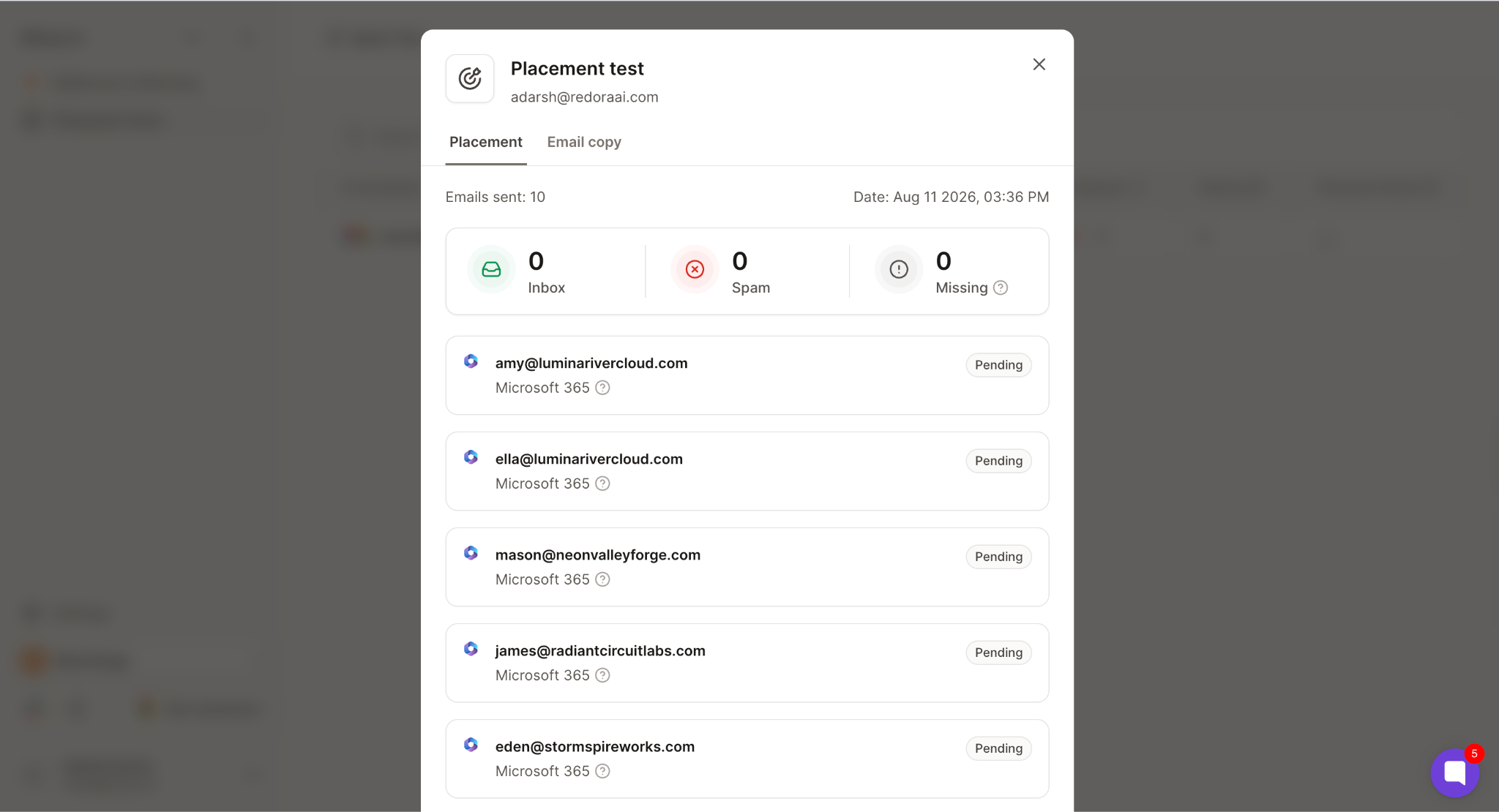
Run an Inbox Placement Test in Warmforge before live sending. Inspect Google and Microsoft results separately because one blended score can hide a provider problem.
If that mailbox enters a Salesforge campaign, add the same sender only after it clears the Warmforge checks. Release a small batch below the volume the mailbox sustained during warmup.
A calendar gives you a starting plan. Mailbox signals decide whether you move to the next step.
These numbers fit a mailbox sending 20 to 30 cold emails per day, but they do not fit a dedicated IP that needs to deliver thousands of messages daily. For that setup, segment opted-in traffic by provider and ramp over four to eight weeks so cold outreach is not the first high-volume traffic on a new IP.
Keep the current volume when Heat Score™ stalls. Reduce it when 4xx SMTP responses increase, because deferrals are a signal to slow down. A 5xx response needs diagnosis, not another send attempt.
Record the date, volume, provider mix, and error code each time you pause the ramp so the next decision is based on a trend, not a dashboard snapshot that may reflect only one hour of traffic.
The same rule applies after downtime. If a mailbox has sat idle for a month, restart below its previous volume and rebuild the pattern.
Do not try to make up for the lost month in a weekend, because mailbox providers compare the new burst with the silence that came before it, and the resulting deferrals can push you back below the volume you could have reached with a slower restart.
A warm-up activity is just an input; inbox placement is the outcome.
That difference matters when a tool reports hundreds of sends and replies, but the mailbox still ends up in spam for the provider where most of your prospects get mail in the week after launch.
I run an Inbox Placement Test before the first campaign. It sends test messages to accounts across providers and shows whether each one lands in the inbox, promotions, or spam. One blended score can hide a provider split, so I check Google and Microsoft separately.
If Gmail accepts the same message that Outlook sends to junk, I keep the mailbox at its current volume and review the provider result before changing the copy, because a blended pass would hide the exact route that needs work.
Heat Score™ gives me a mailbox-level signal over time, and I want the trend to rise and stay steady before launch. A reading above 85 is a useful gate, but it does not override failed authentication or weak placement.
Use this launch decision:
Once the mailbox clears the Warmforge launch gate, connect that same sender to Salesforge or any of your outreach sender tools and send a small live batch below the volume it reached during warmup. Salesforge becomes the live sending signal, while Warmforge continues to measure mailbox health and placement.
That handoff matters because changing the sender, domain, or volume would break the link between the mailbox Warmforge cleared and the campaign behavior you want to judge after launch.
If complaints or deferrals rise, pause Salesforge first and keep the Warmforge volume at the last level that passed. Use verified addresses and plain text, with few links, and write to the part of the list most likely to recognize the problem you solve. Watch replies and complaints before you add volume.
If that batch gets no replies and two recipients complain, stop even if the warmup dashboard still looks healthy, because live recipient behavior now gives you a better signal than the exchanges that prepared the mailbox for launch.
Stopping the warm-up on launch day introduces a new pattern shift. Your mailbox loses the reply activity it built during the ramp just as cold recipients start ignoring or rejecting messages.
Keep Warmforge running at a lower maintenance volume, then check your score, placement, bounces, and SMTP responses each week so a drop does not slip by unnoticed. If one signal changes, adjust one variable at a time. Pause the campaign before changing the copy and list source, while also changing tracking or volume.
This feedback loop needs an owner. For a small team, that might be you. At an agency, assign each workspace to the person who can pause sending. A dashboard without stop authority is only a report.
Give that owner one rule they can enforce without a meeting: if placement drops for one provider or repeated SMTP errors appear, pause live sends until the failing layer passes its check again at the prior volume.
A fixed schedule cannot see your mailbox, so pause the ramp when placements drop or deferrals rise instead of turning a warning into a reputation problem by sending more traffic.
Changing the From domain, DKIM domain, mailbox, or IP can affect the reputation mix. Warm up the setup that will send the campaign.
A warmup cannot turn a bad address into a deliverable one. Check addresses before you launch and remove hard bounces right away. Complaint rates matter more than activity inside a warmup pool.
Privacy features and image caching can distort opens. I care more about placement, replies, complaints, bounces, authentication, and SMTP responses.
A new domain starts with a clean slate. A damaged domain, on the other hand, has a past that can work against it. Before deciding whether it is worth another month of recovery, check blacklists, reduce volume, and test placement.
Warmup will not save mail that people do not want. If your targeting is poor and people keep complaining, your reputation will still drop after a clean launch.
It also will not fix a blocklist caused by a compromised account. Change credentials, stop unauthorized sends, and finish the removal process before you warm up again.
Warmforge may not be the right fit if you only send personal mail to people who already know you. In that case, normal conversation already creates the same behavior that a warmup tool is meant to simulate. It is also not a good fix for a bulk program that does not have consent, unsubscribe handling, or suppression controls. Fix the sending program first.
Enter your email to get a custom plan & stack recommendation for your business
Please check your mailbox in 5 minutes

SMTP warmup works best when you treat it as controlled traffic plus measurement. Authenticate first. Start with 5 to 10 emails a day for one mailbox, then increase only when the signals stay healthy. Test placement before you move into cold outreach.
Warmforge brings the exchanges, Heat Score™, Health Checks, and Inbox Placement Tests into one workflow. Start with one mailbox this week: connect it, clear any health warnings, run the 14-day ramp, and keep warmup active after launch.