
Personalized Outbound Strategy
Get The Right Outbound Strategy In Minutes
Enter your email to get a custom plan & stack recommendation for your business
It's being carefully crafted by AI
Please check your mailbox in 5 minutes

Your email provider says you can send hundreds, even thousands, of emails per day. So why do some cold email campaigns run into trouble after sending just 50?
That's because your email sending limit and the number of emails you can safely send are two very different things.
You could be well within Gmail or Outlook's daily limit and still have emails land in spam. Push too far, and you might find your mailbox temporarily blocked from sending altogether.
So, how do you know when you're sending too many emails?
I'll walk you through the email sending limits for different providers. You'll also learn how these limits affect your campaigns and how many emails you can safely send each day without hurting deliverability.
Your sending limit depends on the email provider and account you use. Gmail and Google Workspace set limits on outgoing messages. Microsoft 365 mainly counts how many recipients you email. Yahoo doesn't publish an exact number.
Here is how the limits compare:
Google Workspace may let an account send up to 2,000 emails per day. That doesn't mean you should send 2,000 cold emails from the same mailbox.
For cold outreach, you generally need to send far fewer emails per mailbox. I'll cover how to choose that daily number later in this guide.
Sending limits affect how quickly you can contact your list and how many emails each mailbox can handle. If you push past a limit, what happens next depends on the provider and the type of limit you reached.
Once you reach a daily sending limit, your provider may stop accepting more outgoing emails from that mailbox for a period of time.
Rate limits can work differently. Instead of blocking all outgoing mail, a provider may slow down or delay messages that exceed its allowed sending rate. Either way, the rest of your campaign may not go out when you expected.
Let’s suppose you have 2,000 prospects but only enough mailbox capacity to contact 400 of them per day. Your initial outreach alone will take five days.
And that is before you account for follow-ups. Your campaign size therefore needs to match the number of mailboxes you have and how much you plan to send from each one.
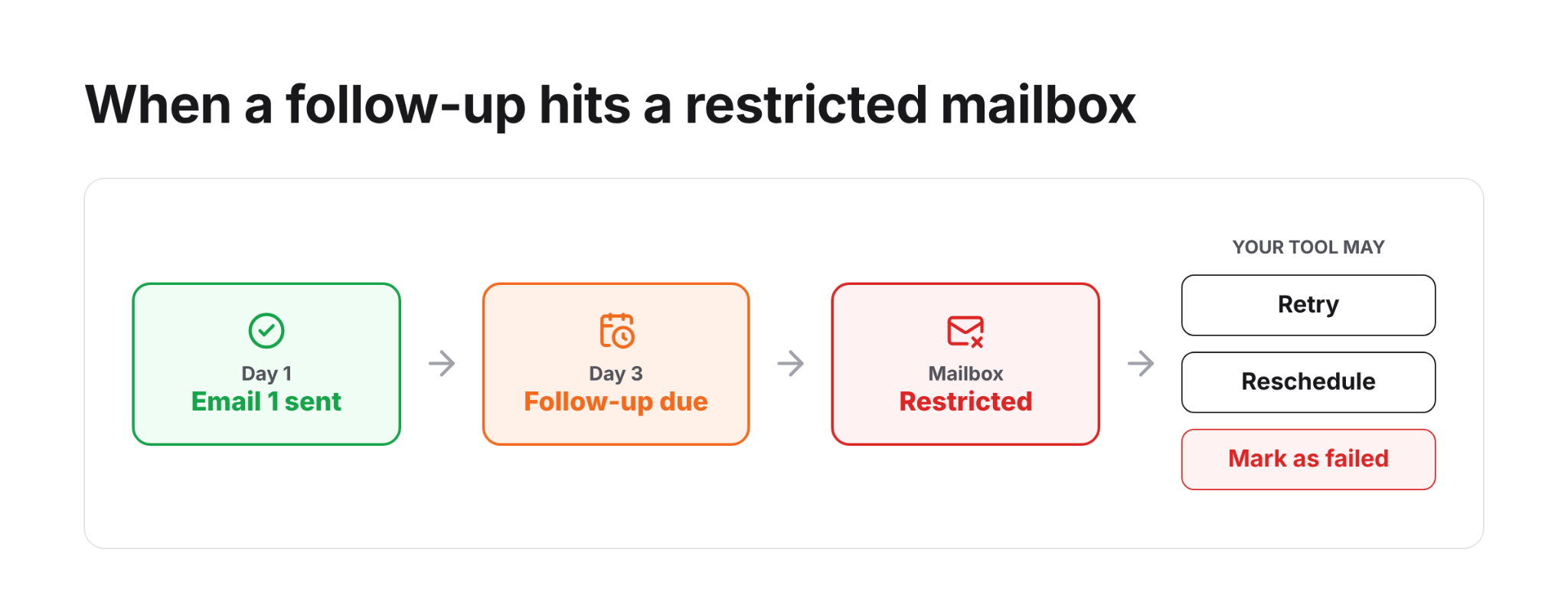
Your first emails are not the only messages using your available sending capacity. Follow-ups also need to be sent from your mailboxes. If a mailbox reaches a provider limit or gets temporarily restricted, those follow-ups may not be sent at their planned time.
What happens next depends on your sending tool. It may retry the email, reschedule it, or mark it as failed.
A provider may technically allow hundreds or thousands of emails per day. Jumping from very little activity to a large volume is still a bad idea.
Google specifically advises senders to increase sending volume slowly and avoid sudden spikes. Large changes in volume can lead to rate limiting or reputation problems.
So, your provider's maximum limit should not become your daily cold email target.
If one of your campaign mailboxes can no longer send, you have less sending capacity until that mailbox can send again.
For example, if 10 mailboxes are each scheduled to send 30 campaign emails per day, you have capacity for 300 emails. If two mailboxes become unavailable, that day's planned capacity drops to 240 unless those emails are moved elsewhere.
This is why sending limits affect more than the number of emails you can send. They can change how long your campaign takes and when your prospects receive each email.
What happens after you hit a sending limit depends on your email provider. Here is what you can expect:
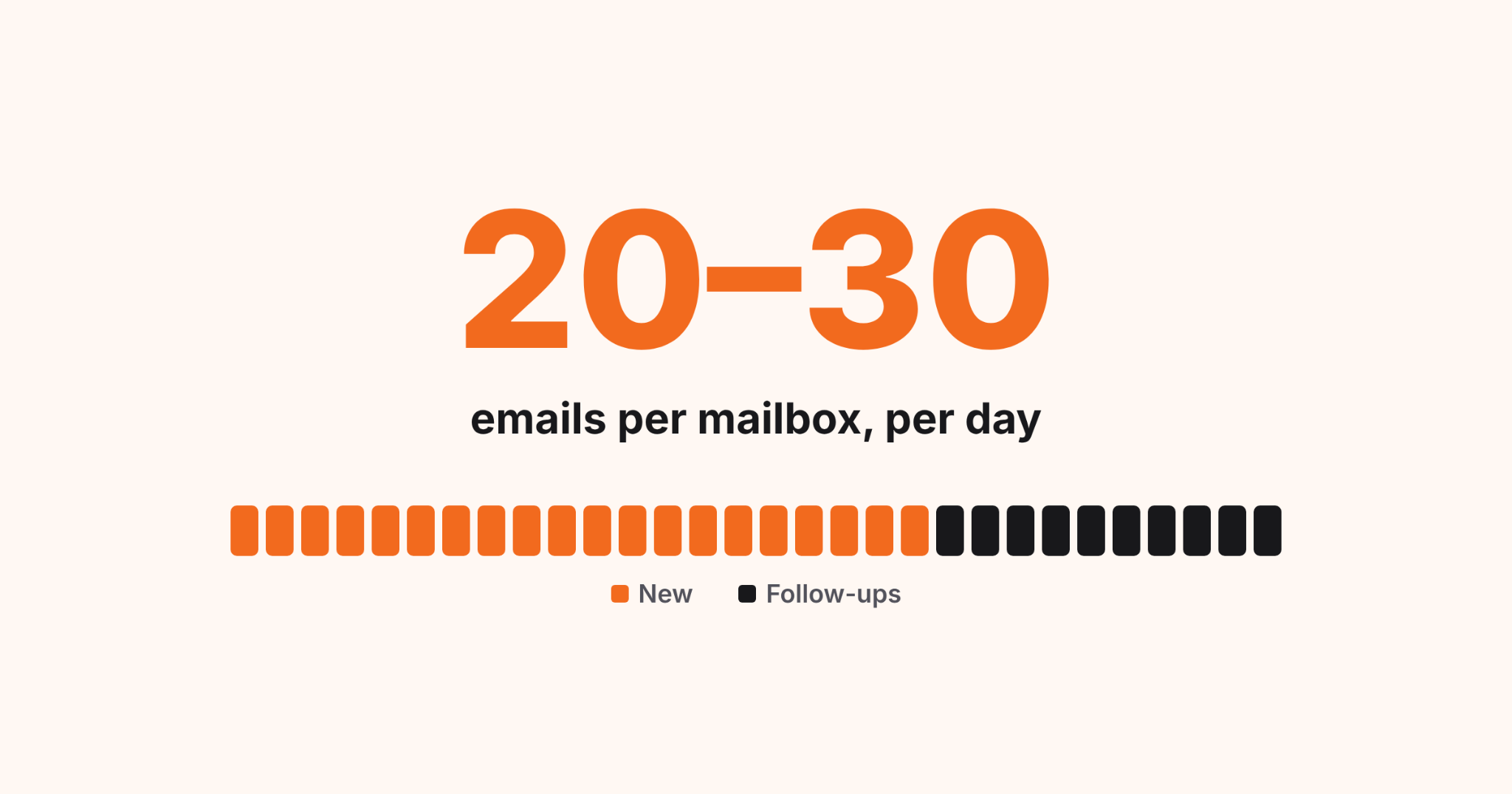
A good rule for cold outreach is to keep each mailbox at around 20-30 campaign emails per day. That number is not an official Gmail or Microsoft limit. It is a conservative range commonly used for cold email campaigns.
And 20-30 means total campaign emails from that mailbox, not 20-30 new prospects. For example, if you want to stay at 30 emails per day:
As your sequence continues, follow-ups will take up more of those 30 daily sends. So you may be able to contact fewer new prospects each day.
If you need to send 300 cold emails per day, don't try to send all 300 from one mailbox. At 30 emails per mailbox, you would need roughly 10 sending mailboxes to handle that volume.
There is no single daily number that guarantees good deliverability. Start lower with a new mailbox and increase gradually rather than jumping straight to your planned volume.
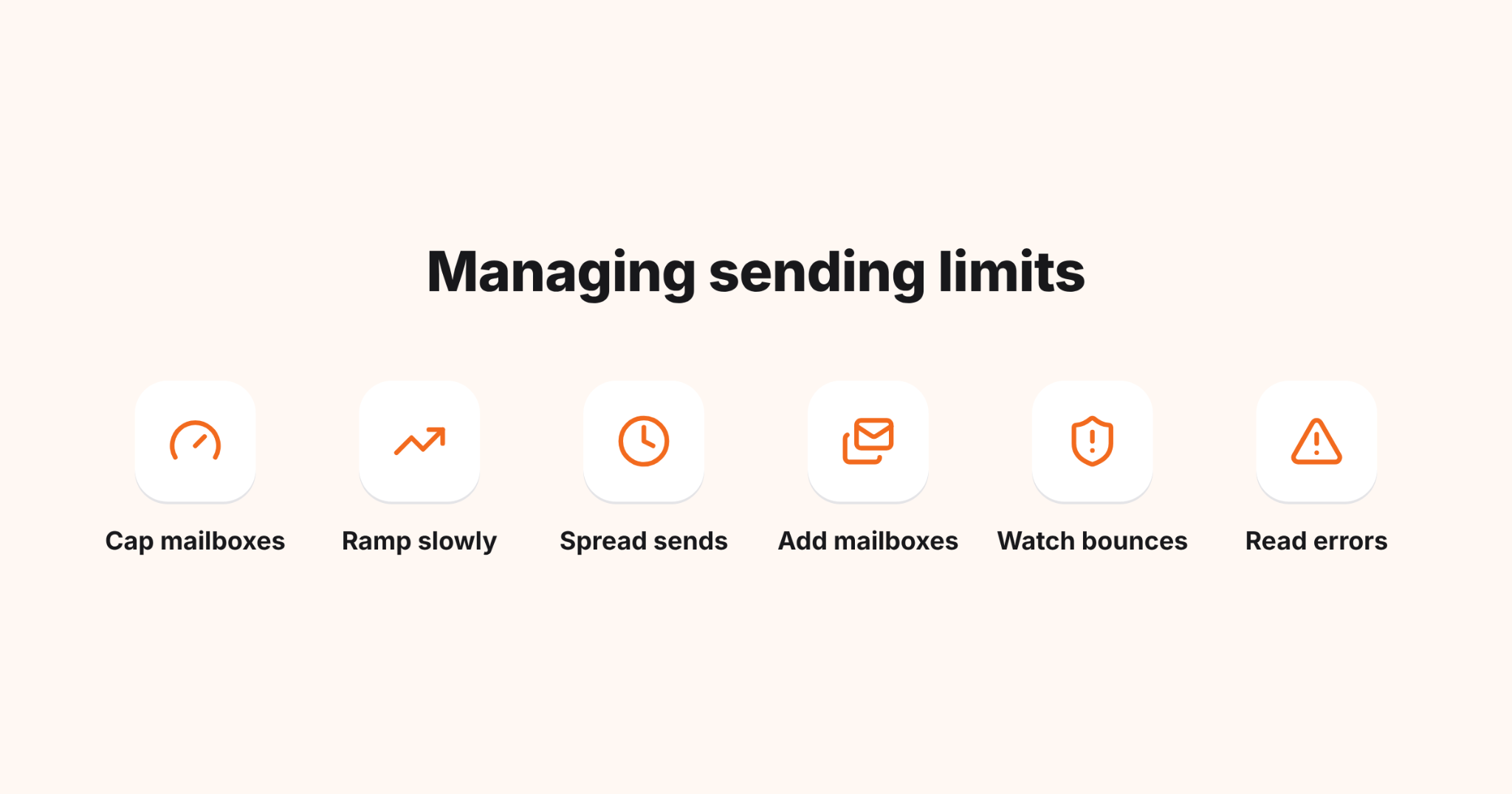
You don't have to use the full sending limit your email provider gives you. For cold outreach, it makes more sense to decide how much each mailbox will send and plan your campaign around that number.
Here are a few things to keep in mind:
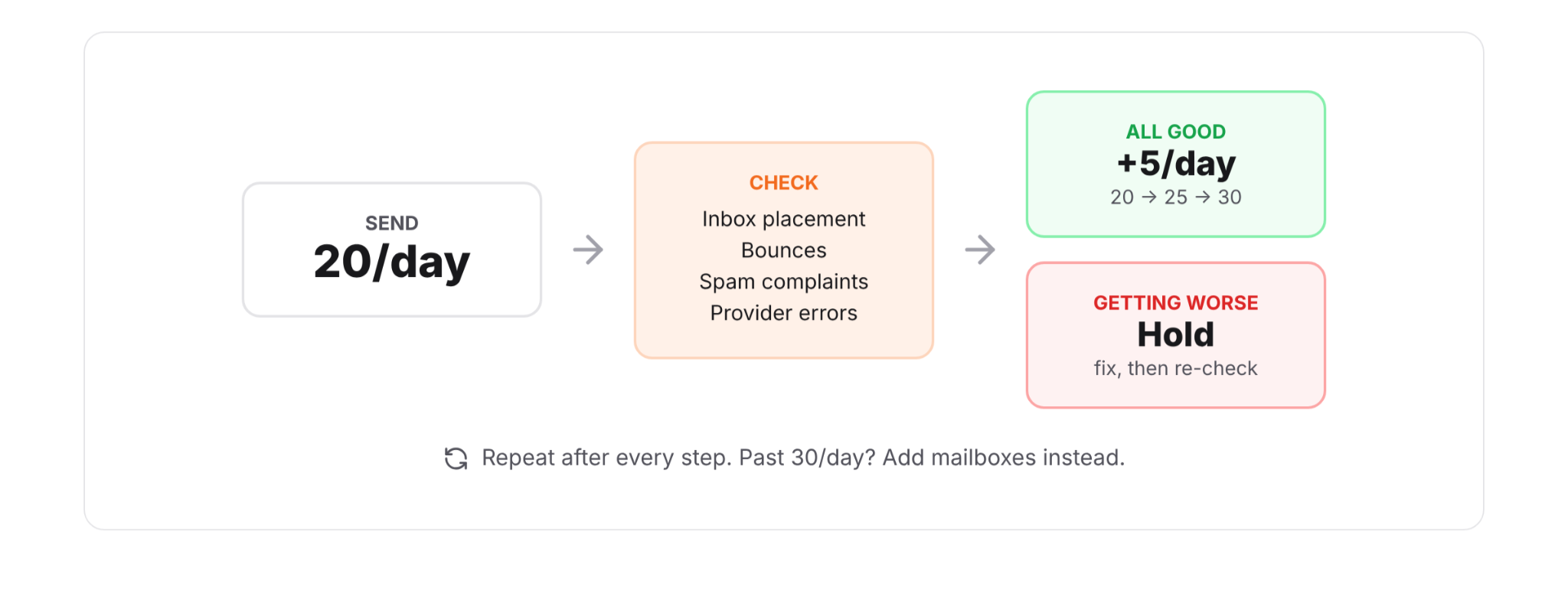
If your current volume is working well, you can increase it step by step instead of making a big jump. For example, if one mailbox is sending 20 campaign emails per day, you might move to 25 and monitor delivery before increasing it again.
The same idea applies when you are scaling a larger setup. If 10 mailboxes are sending 30 emails each, that gives you 300 sends per day. To reach 450 sends per day, you could add five more mailboxes at the same rate instead of pushing the original 10 much higher.
As you increase volume, keep an eye on inbox placement, bounces, spam complaints, and provider errors. If those start getting worse after an increase, hold the volume there and fix the issue before moving higher.
If you're sending from several mailboxes, checking each one's DNS records, blacklist status, and inbox placement separately gets difficult pretty quickly.
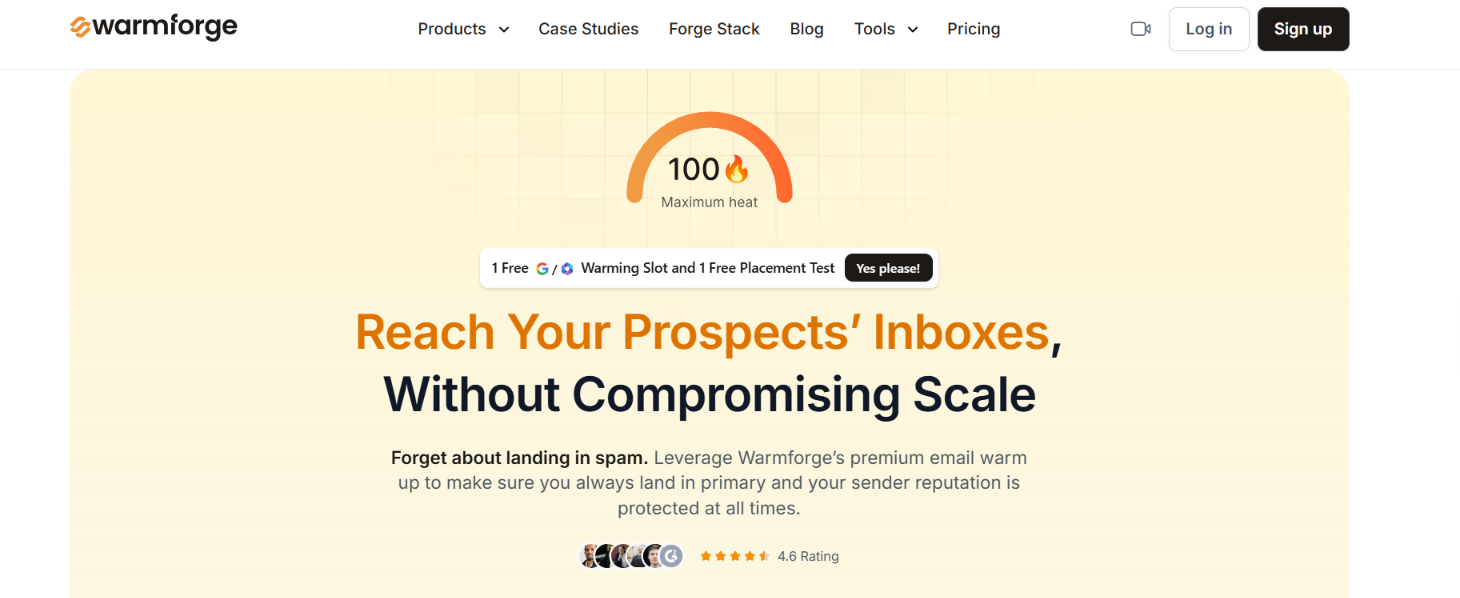
Warmforge brings those checks into one place. It is an email warm-up and deliverability platform for Google Workspace and Microsoft 365 mailboxes.
Its Health Checks monitor SPF, DKIM, DMARC, MX records, and blacklist status for your connected mailboxes. If one of these checks finds a problem, you can see which mailbox needs attention.
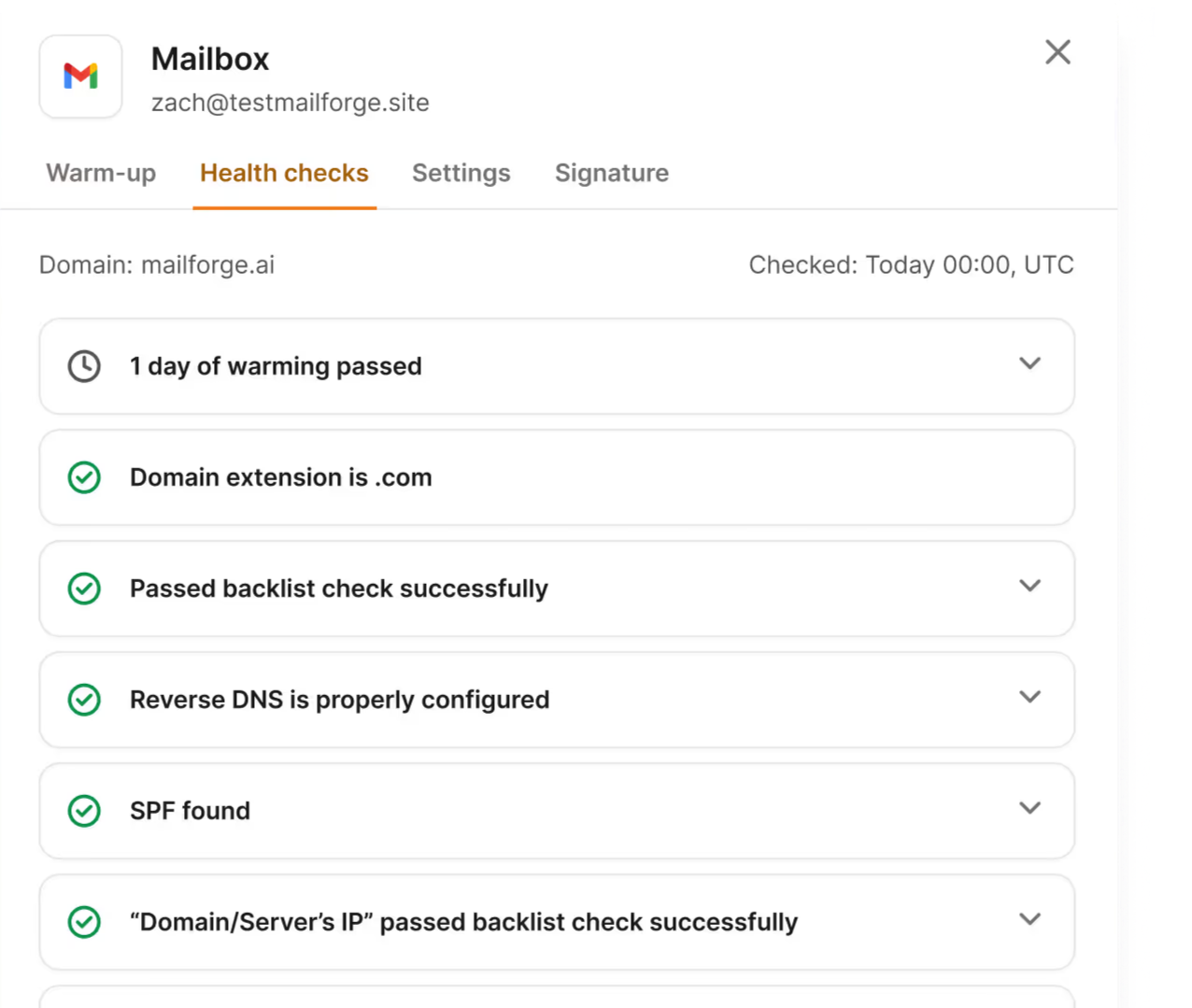
Each mailbox also gets a Heat Score based on its DNS setup, blacklist status, warm-up progress, and recent warm-up activity. Warmforge recommends a score of 85 or higher before you start sending campaigns.
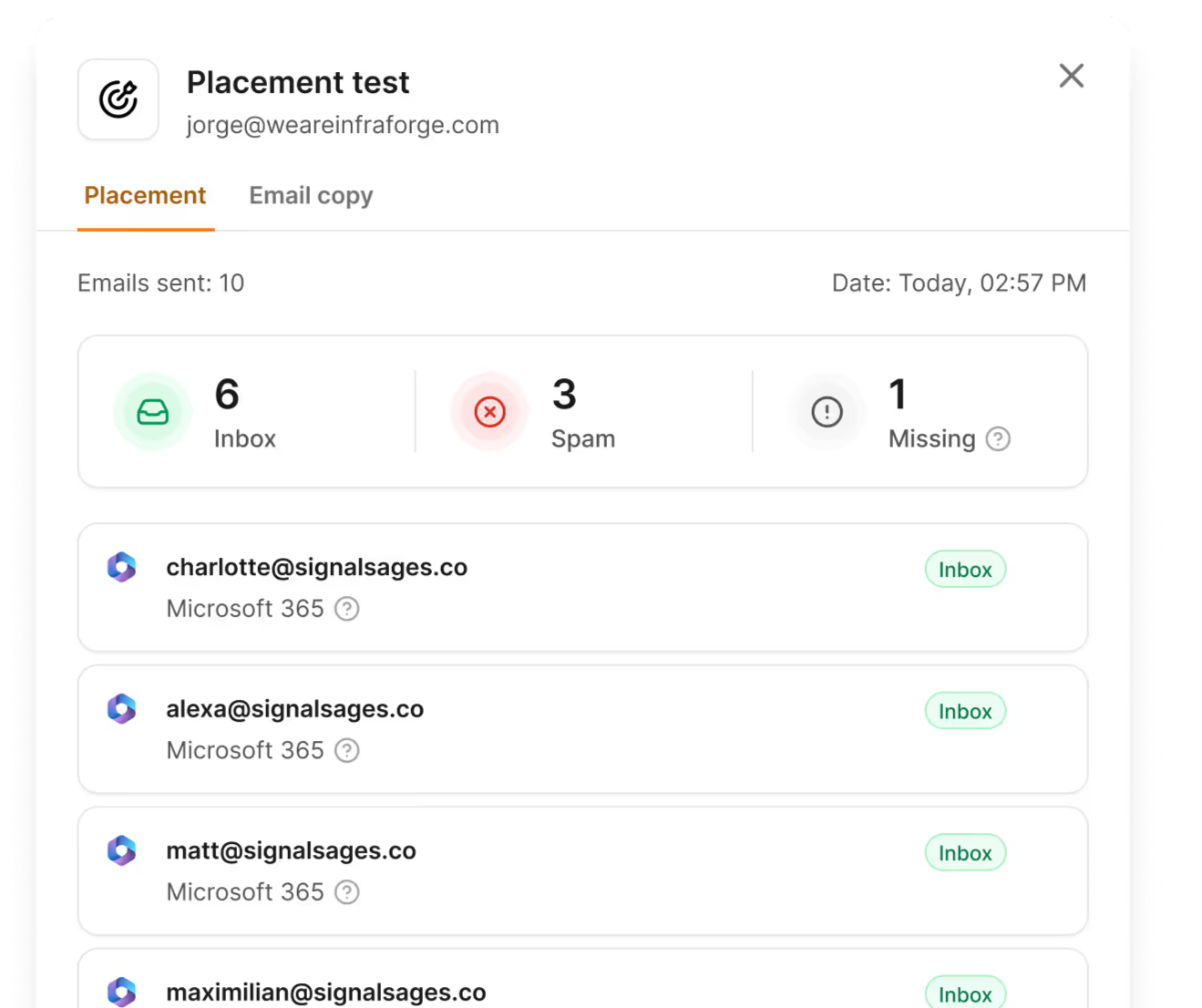
You can then run a Placement Test to see where your emails are actually landing. The results show how many test emails:
This gives you something concrete to check as your sending volume changes. If inbox placement drops, you can investigate the mailbox instead of assuming that staying under its daily sending limit means everything is fine.
Warmforge also includes email warm-up and recommends keeping it running after you start your campaigns.
Enter your email to get a custom plan & stack recommendation for your business
Please check your mailbox in 5 minutes
Your email provider’s limit tells you how much you can send. It does not tell you how much you should send for cold outreach.
A better number is one your mailboxes can handle without seeing problems with delivery or inbox placement. Start below the provider limit and raise your volume in small steps. If you need to send much more, add more mailboxes instead of putting all the extra volume through the same accounts.
As you increase your sends, [Warmforge] can help you see how your mailboxes are holding up. Its health checks and placement tests can flag problems before you continue increasing volume.
So, use provider limits as boundaries and Warmforge to check what is actually happening to your emails.