
If you send email to Outlook, Hotmail, or Live inboxes, Microsoft's bulk sender guidelines already apply to you.
Since May 2025, Microsoft rejects emails that fail authentication with a permanent 550 5.7.15 error. The email is refused. It does not retry. It does not land in spam. It vanishes.
That was the change most senders adjusted to. But 2026 introduced six more changes that quietly reshaped what Microsoft expects.
A new SNDS portal replaced the old one in June. The IETF published DMARCbis, replacing an eleven-year-old email authentication standard. Microsoft's complaint feed format changed. Spam trap counts were removed from reports.
In this guide, I walk through every current Microsoft bulk sender requirement, every 2026 update, why each matters, and how they affect your day-to-day sending. I wrote this for teams new to email deliverability, so I define every term before I use it.
Microsoft's bulk sender guidelines apply to any domain sending 5,000+ emails per day to Outlook, Hotmail, Live, or MSN addresses. Once your domain crosses that threshold, the classification is permanent and does not reset.
If your emails fail any of the 5 rules below, Microsoft rejects them at the SMTP level. The bounce code is 550 5.7.15 Access denied, and rejection is permanent. The message never reaches the recipient's inbox, spam folder, or anywhere else.
This is stricter than Gmail, which typically defers non-compliant mail or filters it to spam. Microsoft rejects it outright. Rejected mail cannot be retried.
The rules apply to Microsoft's consumer mailboxes. Microsoft 365 business tenants use overlapping filtering systems. Following these rules still helps you land in enterprise inboxes.
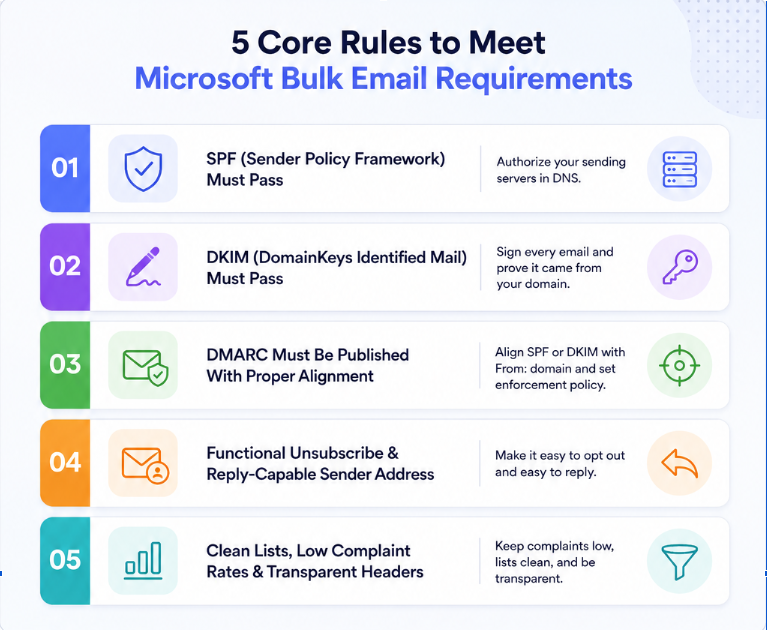
What It Is: SPF is a public list of the servers and IP addresses authorized to send email using your domain. The list lives inside your domain's DNS records. When Microsoft receives your email, it checks whether the sending server appears on that list.
Why It Matters: Without a valid SPF record, Microsoft cannot confirm that your email came from a legitimate source. The most common failure is exceeding the 10 DNS lookup limit. This causes SPF to fail silently with a PermError. Even one broken include: chain triggers a permanent rejection.
What It Is: DKIM is a cryptographic signature attached to every email you send. The signature proves the message was not modified in transit and that your domain authorized it. Microsoft verifies the signature using a public key you publish in your DNS.
Why It Matters: DKIM is how mailbox providers isolate reputation across different sending platforms. If you use multiple ESPs, each one needs its own DKIM selector under your domain. Weak keys below 2048-bit or missing selectors are common failure points that trigger DMARC failures downstream.
What It Is: DMARC is the enforcement layer that ties SPF and DKIM together. It tells receiving inboxes what to do when authentication fails: monitor only (p=none), send to spam (p=quarantine), or reject outright (p=reject). It also generates aggregate reports on who is sending email using your domain.
Why It Matters: Microsoft requires DMARC alignment, meaning the domain used by SPF or DKIM must match the visible From: address. Without alignment, DMARC fails even if SPF and DKIM technically pass. Start at p=none, watch reports for 90 days, then tighten to p=quarantine and eventually p=reject.
For a deeper walkthrough of authentication setup, my SPF, DKIM, DMARC guide for cold outreach covers each protocol in more detail.
What It Is: Every bulk email must include a working unsubscribe mechanism. Your From: or Reply-To: address must be capable of accepting replies. Microsoft does not yet require RFC 8058 one-click unsubscribe like Gmail does. But any unsubscribe link you include must work reliably and honor opt-outs promptly.
Why It Matters: Broken unsubscribe links and unmonitored no-reply addresses are treated as low-quality sender signals. If a recipient cannot opt out easily, complaint rates climb. Complaint rates are one of the strongest inputs to Microsoft's reputation systems.
What It Is: Microsoft expects three ongoing hygiene practices from every bulk sender. Bounce rate under 2%. Complaint rate under 0.3%, with 0.1% as the safer target. Subject lines that accurately describe the email, not deceptive re: prefixes or borrowed thread structures.
Why It Matters: Even with authentication passing, poor hygiene collapses reputation over time. Microsoft applies particularly harsh penalties to phishing reports, which cascade faster than junk reports across its infrastructure. Above 0.3% complaint rate, Microsoft can throttle or block your domain regardless of authentication.
These are not new rules Microsoft added. They are changes to standards, tooling, and monitoring that affect how you meet the 5 rules above.
Most guides stop at the 2025 baseline. That leaves out 6 updates rolled out in 2026 that directly affect how you configure and monitor compliance.
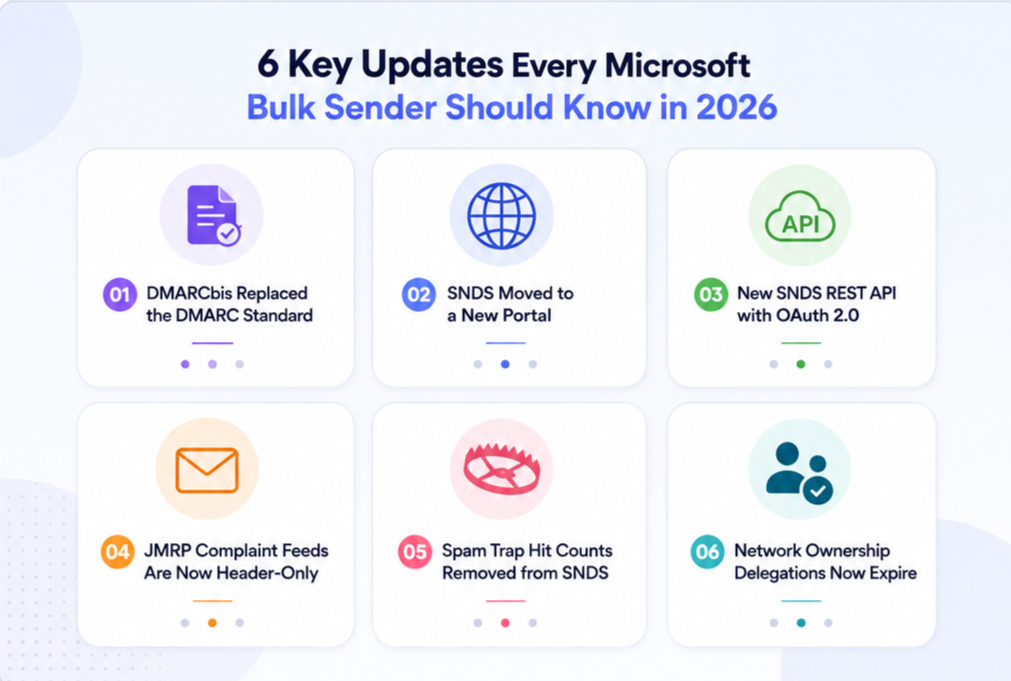
What it is: DMARCbis is the informal name for the updated DMARC specification. In May 2026, the Internet Engineering Task Force (IETF) published three new documents that replace the original DMARC standard from 2015. Those documents are RFC 9989, RFC 9990, and RFC 9991.
Why this matters: For eleven years, DMARC was published as an "Informational" document. That meant vendors could implement it slightly differently, and edge cases were resolved inconsistently across mailbox providers. In May 2026, DMARC became a formal "Proposed Standard." Every mailbox provider now aligns behind one specification.
How it affects you: Existing DMARC records that start with v=DMARC1 continue to work. You do not need to republish anything immediately. But three practical changes matter:
If you use a DMARC monitoring tool, verify it understands the new tags before tightening any policy.
What SNDS is: Smart Network Data Services is Microsoft's free tool that shows you how Outlook.com views the IP addresses you send from. It reports IP status color (green, yellow, red), complaint rates from Outlook users, and traffic volume. For any team sending to Microsoft inboxes at scale, SNDS is the closest thing to a reputation dashboard.
Why this matters: After nearly twenty years at the same URL, SNDS moved. The old address (sendersupport.olc.protection.outlook.com/snds/) now redirects to the new portal at substrate.office.com/ip-domain-management-snds/SNDS. Automated access URLs that begin with the old path deprecate on June 22, 2026.
How it affects you: If your team pulls SNDS data using a saved URL, a script, a monitoring integration, or a bookmark, that pipeline breaks on June 22. Update every reference to the old URL. Also refresh your network ownership records inside SNDS, because delegations now expire and must be revalidated periodically.
What it is: Alongside the portal migration, Microsoft added a REST API for pulling SNDS data programmatically. It uses OAuth 2.0 for authentication, which is the modern standard used by Google, Slack, and most enterprise tools.
Why this matters: Historically, teams pulling SNDS data used fragile CSV download links. Those links expired every 30 days, broke without warning, and required manual re-authentication. A proper OAuth-based API is a real upgrade.
How it affects you: Two things to know. First, Microsoft has not yet published official documentation for the API, so most integrations are being built from community reverse-engineering. Second, the OAuth flow currently issues an 8-hour access token with no refresh token. Any scheduled data pull stops every 8 hours until someone re-authenticates. Plan for that operational quirk.
What JMRP is: The Junk Mail Reporting Program is Microsoft's feedback loop. When an Outlook.com user marks your email as junk, Microsoft sends a notification to your team. This is how deliverability teams identify complaining recipients and suppress them from future sends.
Why this matters: Historically, JMRP reports included the full email body of the complained-about message. In 2026, Microsoft moved to header-only ARF format. Complaint reports now include only the email headers, not the message content.
How it affects you: If your suppression workflow relied on parsing the message body to identify recipients or campaigns, that workflow no longer works. You need to map complaints using the headers Microsoft still sends, including X-Original-To, Feedback-ID, and message IDs. This aligns Microsoft's complaint format with Gmail's and Yahoo's, so if you already support those, the changes are minor.
What spam trap counts are: A spam trap is an email address created by mailbox providers specifically to catch senders with poor list hygiene. Any sender that hits a trap is signaling that they scraped, bought, or reused an old list. SNDS previously showed how many traps your IPs hit each day.
Why this matters: From July 22, 2026, Microsoft removed exact trap hit counts from SNDS Data Reports. Microsoft stated this change was made to protect the integrity and effectiveness of their anti-abuse systems. In practical terms: they do not want senders reverse-engineering which addresses are traps.
How it affects you: You lose one direct signal of list quality on Outlook. Complaint rate and IP status color are still visible. But you need to compensate with better verification before sending. If your bounce rate or complaint rate climbs, assume trap hits are part of the problem.
What this is: SNDS access is tied to network ownership. If you own or manage IPs, you claim them inside SNDS. Historically, that claim was permanent. In 2026, Microsoft added expiration to those delegations.
Why this matters: Any team that manages IP ranges for clients, partners, or old infrastructure needs to revalidate access before delegations lapse. If an ownership record expires, you lose visibility into reputation for those IPs until you renew.
How it affects you: Agencies managing multi-client outbound at scale need to add a recurring check. If you handle deliverability for 20 clients, you need to know which ownership records expire when.
Most senders read Microsoft's rules and assume the 5,000-per-day threshold means smaller senders are safe. That assumption is wrong. Here is how the rules apply in practice.
The 5,000-per-day threshold is measured per sending domain, in a rolling window Microsoft evaluates continuously. If your total volume to Microsoft consumer addresses crosses 5,000 in any single day, you are a bulk sender.
Once your domain crosses that line, the classification stays. Microsoft does not reset it if you drop back below 5,000 the next day. You are permanently on the bulk sender list until you stop sending altogether.
The volume calculation includes every email your domain sends to Microsoft consumer inboxes, even if you send through multiple ESPs. Microsoft aggregates based on the From: domain, not the sending server. So if you use one platform for transactional email and another for outbound, both count toward the same domain-level total.
Even if you send fewer than 5,000 emails a day, Microsoft's filtering systems apply the same standards to your traffic. Authentication requirements, complaint rate expectations, and list hygiene expectations do not turn on at 5,000. They apply universally.
Cold email operators often ignore this. A team running 40 mailboxes at 30 emails each sends 1,200 emails a day, well under the threshold. But if any one mailbox produces spam complaints or high bounces, Microsoft flags that domain and pattern-matches across the entire sending profile.
Below 5,000, requirements are described as recommended. Above 5,000, they are enforced. The practical difference is smaller than it looks.
The bulk sender guidelines apply specifically to Microsoft's consumer domains. Microsoft 365 tenants (corporate email hosted by Microsoft under a company's own domain) use overlapping filtering technologies but are governed by different admin policies.
For cold email, this distinction matters less than it appears. Microsoft's Exchange Online Protection and SmartScreen filtering share signal data with the consumer side. If your domain gets flagged by Outlook.com users, that reputation follows you into business inboxes too.
The practical takeaway: build for consumer compliance and you cover both.
Compliance is not a one-time setup. It is a monitoring operation. Here is how to check where you stand right now.
Send a test message from your production sending setup to an Outlook.com mailbox you control. Open the delivered message and view the raw source or "message headers" in the client.
Look for the Authentication-Results header near the top. You want three lines that read spf=pass, dkim=pass, and dmarc=pass. If any of them show fail, softfail, or none, that is your first diagnostic.
My step-by-step guide to verifying SPF, DKIM, and DMARC records walks through exactly what to check and where.
Inside Warmforge, the Deliverability Center runs authentication checks daily across every connected mailbox. It flags SPF, DKIM, and DMARC issues before Microsoft's filters see them. That means the audit happens continuously, not after a campaign fails.
Log in at substrate.office.com/ip-domain-management-snds/SNDS using a Microsoft account. Request access to the IPs you send from. Microsoft approves access based on network ownership records.
Once inside, the two views that matter most are the IP Data Report and the IP Status color. Green means Microsoft sees your IP as clean. Yellow means moderate reputation. Red means blocked or filtered. Complaint rate and traffic volume appear alongside.
For teams unfamiliar with SNDS, this is the same data Microsoft uses internally to decide whether to accept your mail. Reading it consistently is how mature deliverability teams operate.
DMARC generates two kinds of reports. Aggregate reports (RUA) summarize every authentication attempt against your domain, from every receiver, in daily XML files. Failure reports (RUF) send per-message data for specific failures. Aggregate reports are what most teams monitor.
RUA reports are useful but come in raw XML that is hard to read. A DMARC monitoring tool like dmarcian, EasyDMARC, or PowerDMARC parses them into dashboards.
Warmforge complements DMARC reporting with real-time inbox placement testing. It tracks whether my emails land in Outlook's Primary, Promotions, or Junk placement across Gmail and Microsoft accounts. When authentication passes but placement drops, the Heat Score flags the gap before reply rates react.
If you already know which check is failing, jump to the section that matches. If you do not know, run the test above first. Then come back here.
The most common SPF failure comes from exceeding the "10 DNS lookup limit." Every time your SPF record uses an include: mechanism to reference another domain's SPF (like include:_spf.google.com or include:sendgrid.net), that counts as one lookup. Chain enough of them, and you hit the limit.
When you exceed 10 lookups, SPF fails permanently with a PermError. Even legitimate mail from your own servers stops passing. The fix is SPF "flattening," which replaces include: chains with the actual IP addresses those chains resolve to.
Also check that your record ends in -all (hard fail) or ~all (soft fail). Microsoft treats both as valid, but -all signals stronger sender intent and slightly improves reputation.
For a broader triage checklist, my 7 ways to fix email deliverability issues fast breakdown covers the most common causes.
DKIM failures usually come from one of three issues. The DKIM key is missing from DNS, the key is too short (Microsoft prefers 2048-bit), or the signing selector does not match what your sending platform uses.
If you use multiple sending platforms, each one needs its own DKIM selector under your domain. That is how mailbox providers isolate your reputation across business units.
Once configured, verify your key resolves by using a DKIM lookup tool. Send a test message and confirm dkim=pass in the Authentication-Results header.
DMARC combines SPF and DKIM into an enforcement policy. But it also enforces "alignment," which means the domain used by SPF or DKIM must match the domain in your visible From: address.
The most common DMARC failure is alignment. Your SPF or DKIM might pass, but if the underlying domain does not align with the From: domain your reader sees, DMARC fails. The fix is usually a DNS change to bring the sending platform under your primary domain.
Start with p=none (monitor only). Watch aggregate reports for 90 days. Move to p=quarantine once you confirm all legitimate sending sources pass. Move to p=reject after another 90 days at quarantine. In DMARCbis, use the t=y tag during the test phase to signal to receivers that your policy is provisional.
If aggregate reports show alignment or forwarding failures, my step-by-step guide to fixing DMARC failures walks through the most common patterns.
The full bounce reads: 550; 5.7.15 Access denied, sending domain [SenderDomain] does not meet the required authentication level.
That single error covers three underlying failures: SPF fail, DKIM fail, or DMARC fail. Microsoft does not always specify which. To narrow it down, send a test to a delivered inbox, view Authentication-Results, and identify which of the three failed. Then apply the corresponding fix above.
Cold email is technically not marketing bulk mail. But Microsoft's filters do not draw that line. The same rules apply. Here is what mature cold email teams do differently to stay compliant while still hitting outbound targets.
Never send cold outreach from your primary business domain. If reputation collapses, you cannot afford to lose your team's inbound email flow along with it.
Register a lookalike or secondary domain (for example, getbrandname.com or brandname-mail.com). Point it at your sending infrastructure. Warm it up separately. Treat it as expendable.
A brand-new mailbox has zero sending history. On day one, mailbox providers assume anything sent from it is suspicious. Warm-up fixes this by exchanging low-volume, human-like messages between verified inboxes over several weeks.
Two to four weeks of warm-up is the minimum before starting cold outreach. Longer if your target audience skews toward Outlook and Hotmail, which apply the tightest reputation gates. Warmforge runs the recommended 14-day warmup automatically across every connected mailbox, using a pool of aged Google and Microsoft accounts so the traffic actually looks legitimate to Outlook's filters.
My breakdown of the best Outlook warm-up tools compares options if you want to see how Warmforge stacks up against alternatives.
A single mailbox sending 500 cold emails a day triggers spam filters. The same 500 emails split across 20 mailboxes at 25 each looks like natural human sending.
Sender rotation distributes volume automatically. Most modern outbound platforms handle this at the sequence level, assigning each prospect to a rotating sender pool. Volume per mailbox stays low. Reputation stays intact.
Authentication passing does not guarantee inbox placement. Emails can pass every check and still land in Promotions or Junk. Placement is the metric that actually maps to reply rates.
Warmforge runs inbox placement tests across Gmail and Outlook and shows exactly where my emails land: Primary, Promotions, or Junk. Every account gets one free placement test each month. When placement drops, I catch it before it costs me meetings. Compare that to teams who find out through declining reply rates weeks later.
The Heat Score sits alongside placement data as a single reputation number per mailbox. Target: 85+. If the score drops, something is degrading before Microsoft's filters react.
Above 2% bounce rate, Microsoft treats you as a low-quality sender. Verification before send prevents most of that. Run every list through an email verification tool before uploading it to your sending platform. Invalid addresses should never leave your queue.
Warmforge is a dedicated email warmup and deliverability monitoring platform built for cold email teams sending to Google and Microsoft inboxes. It is not bundled inside a sending tool as a side feature. Every capability below is included in the plan, not sold as an add-on.
Microsoft's bulk sender guidelines used to be a one-time authentication setup. In 2026, they are an ongoing compliance operation. The 2025 baseline still applies. The six 2026 updates layered on top expanded what senders need to monitor, adapt to, and maintain over time.
Teams that fixed authentication once in 2025 and moved on are already behind. Teams that treat deliverability as infrastructure, not a project, are the ones landing in Outlook inboxes consistently. The tools I covered above, from SNDS to DMARC monitoring to warmup and placement testing, exist to make that discipline sustainable rather than manual.
Microsoft classifies you as a bulk sender if your domain sends 5,000 or more emails per day to Outlook.com, Hotmail.com, Live.com, or MSN.com addresses. Once your domain crosses that threshold, the classification is permanent.
Yes. Microsoft does not distinguish between marketing bulk mail and cold outbound. If you send at any volume to Outlook, the same filtering rules apply. Above 5,000 per day they are formally enforced. Below that, the same reputation systems still evaluate your sending pattern.
550 5.7.15 is Microsoft's permanent rejection code for bulk mail that fails SPF, DKIM, or DMARC authentication. The email is refused at the SMTP level, meaning it never reaches the recipient's inbox, spam folder, or anywhere else. Fix by identifying which of the three checks failed and correcting the underlying record.
Microsoft migrated Smart Network Data Services to a new portal at substrate.office.com/ip-domain-management-snds/SNDS on June 8, 2026. The old URL redirects. Automated access URLs beginning with the old path deprecate on June 22, 2026. Update bookmarks, scripts, and monitoring integrations to the new portal.
DMARCbis is the informal name for the updated DMARC specification the IETF published in May 2026. It consists of three documents: RFC 9989 (core protocol), RFC 9990 (aggregate reporting), and RFC 9991 (failure reporting). Together they replace RFC 7489 from 2015 and move DMARC from an Informational document to a formal Proposed Standard. Existing v=DMARC1 records continue to work.
Not yet. Microsoft requires a "functional" unsubscribe mechanism. Gmail and Yahoo require RFC 8058 one-click unsubscribe headers specifically. Microsoft has signaled that stricter unsubscribe requirements are likely coming. If you already comply with Gmail's rule, you are ahead of Microsoft's future update.
Similar authentication requirements across all three. Key differences: Microsoft applies rules to consumer domains only (not Microsoft 365 business tenants), does not yet require RFC 8058 one-click unsubscribe, uses SNDS for reputation reporting instead of Google Postmaster Tools, and rejects non-compliant mail permanently rather than deferring or filtering to spam.
Yes. Warmforge runs automated warmup across Google and Microsoft mailboxes, monitors Heat Score in real time, runs inbox placement tests across Outlook, and checks SPF, DKIM, and DMARC daily. Every new account gets 1 free warming slot and 1 free placement test on signup, so you can test compliance on your production sending domain before committing to a paid plan.